
TO DOWNLOAD/INSTALL AND UPLOAD YOUR WEBSITE USING CROSS FTP IN MICROSOFT WINDOWS
Helpful Hint!
Before you start you will need to have your hostname, FTP username and FTP password which can be found in your online control panel or welcome documentation.A Downloading Cross FTP
In order to upload your website to the internet you will need to download an FTP Client.
Download Cross FTP from here
Run the File
Internet Explorer / Microsoft Edge

Mozilla Firefox
(I) Save File
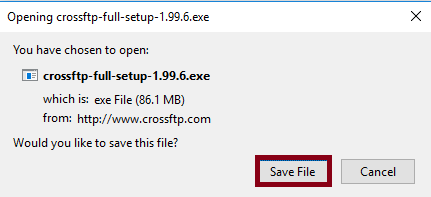
(II) Select Download
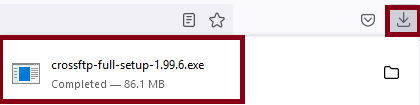
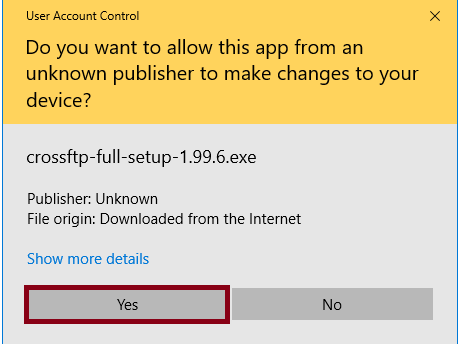
(III) Run
Google Chrome
(I) Open
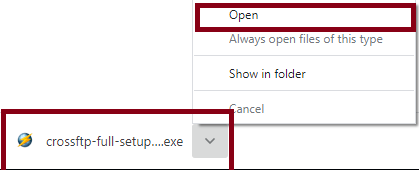
(II) Run
B Installing Cross FTP
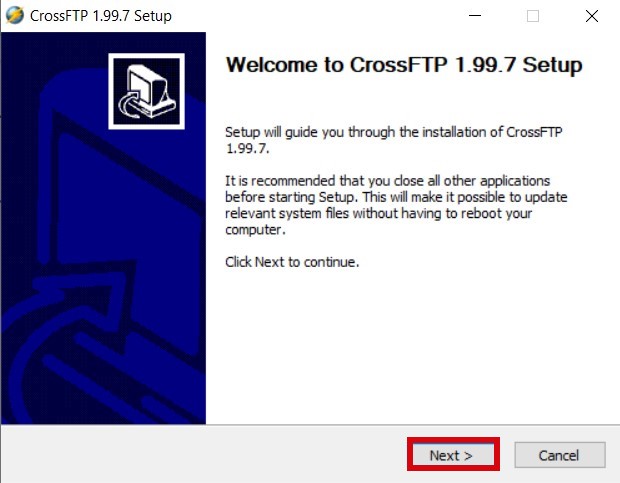
Read the Product info screen and click Next
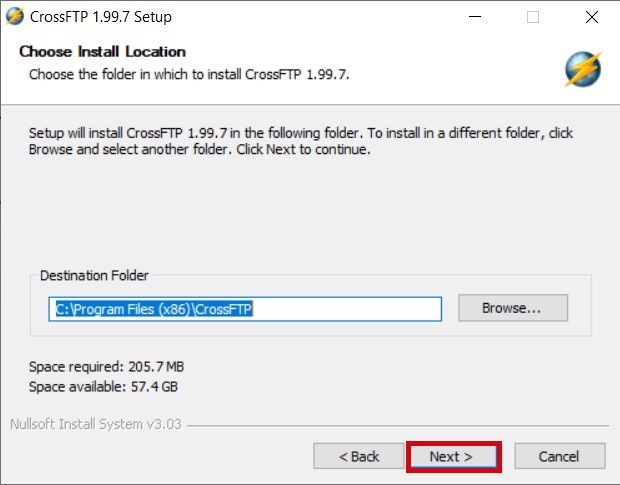
Do not amend the destination folder and click Next
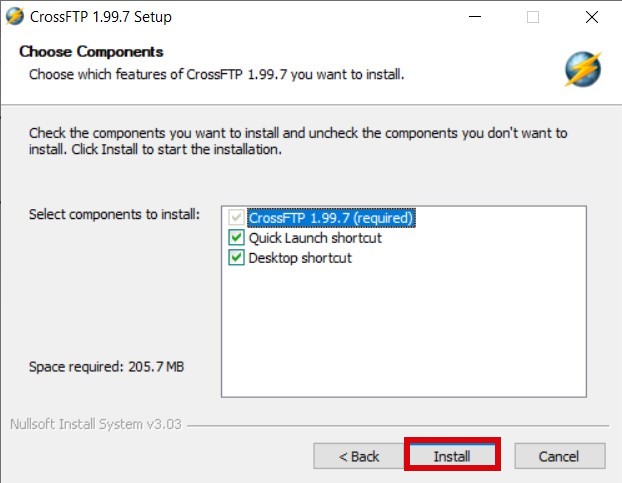
Click Install
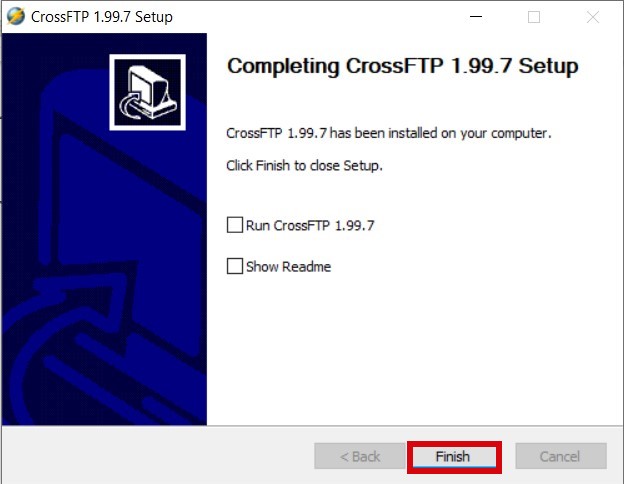
Click Finish
C Connecting to your website via FTP using Cross FTP
You now need your username, password and hostname for this section
Launch Cross FTP from your start menu
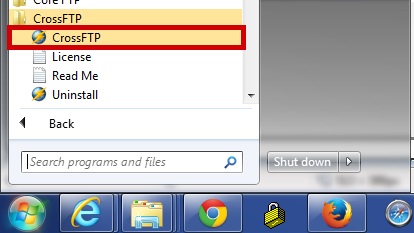
As this is a Trial Version, each time you launch Smart FTP you will be presented with the Activation prompt until you purchase a licence, Click next.

Click Connect>>Connect
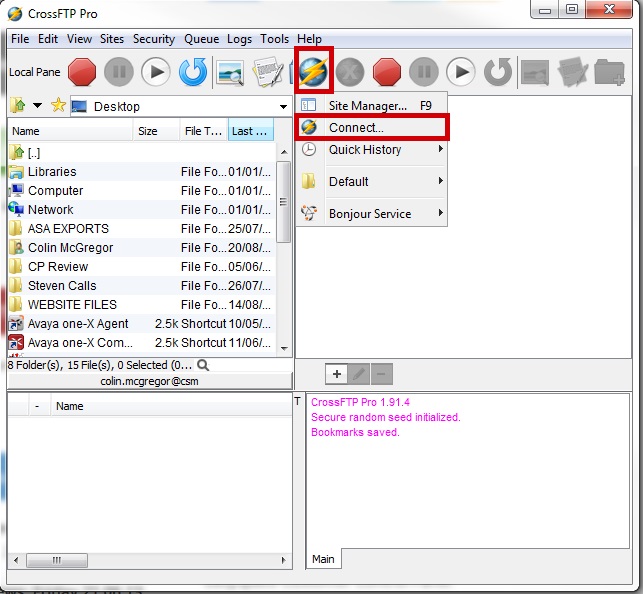
Enter your Hostname, username and password in the relevant boxes and click Connect
| Host : | ftp.yoursupportservices.co.uk |
| Username : | ftp-username |
| Password: | • • • • • • • • • |

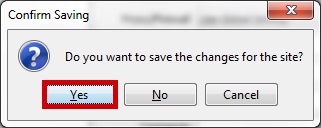
Save the changes by clicking Yes
D Uploading your Website
You will need to know where your website files are located for this section
Under Local Browser Navigate to the location on your computer where your website Files are stored (ensure the home page of your site is named index)
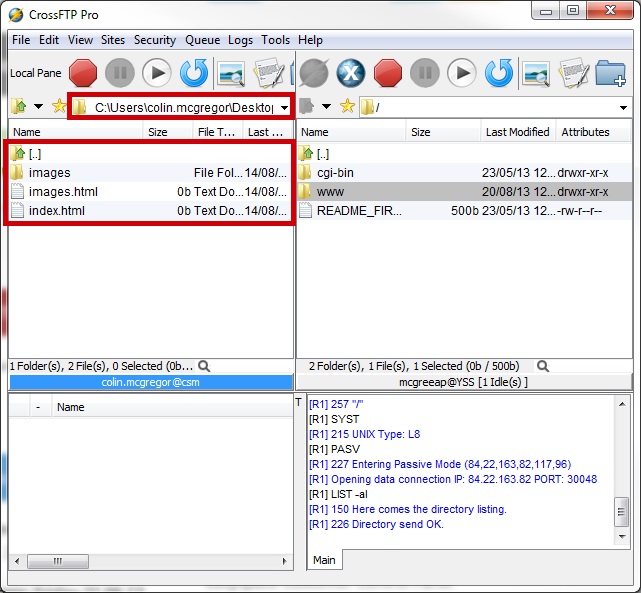
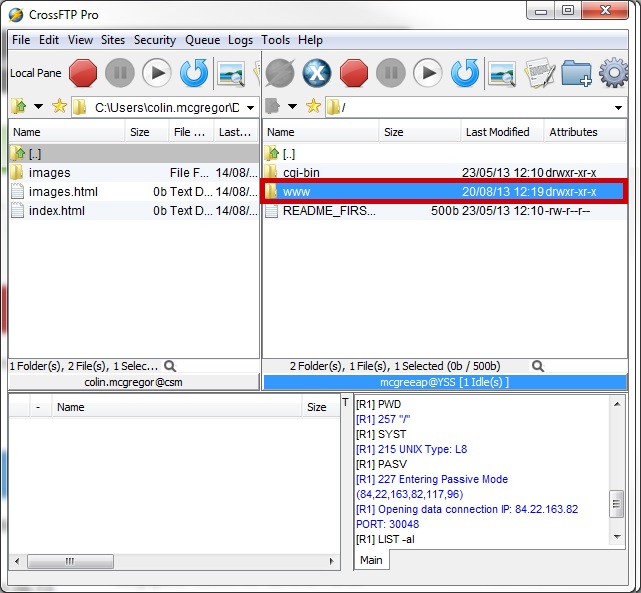
Under Remote Site,navigate to the WWW folder (this is always the folder your website files are located in unless stated differently in your welcome documentation) We suggest customers Read the file README_FIRST.txt in the Root of your webspace
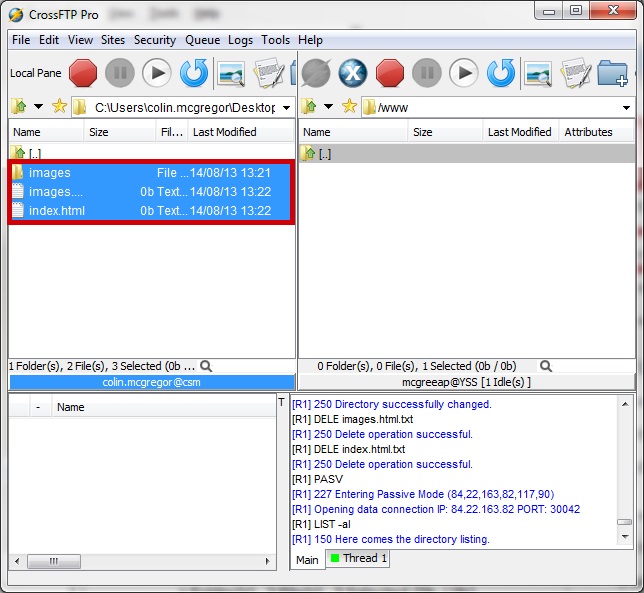
Under Local Browser, Highlight your site files (left mouse click and drag over the top of them), you will know they are highlighted when they turn blue
Click Preform an Action >> Transfer/copy

Browse to your website on the internet to confirm it is displaying correctly on the internet