
TO DOWNLOAD/INSTALL AND UPLOAD YOUR WEBSITE USING CYBER DUCK IN MICROSOFT WINDOWS
Helpful Hint!
Before you start you will need to have your hostname, FTP username and FTP password which can be found in your online control panel or welcome documentation.A Downloading Cyber Duck
In order to upload your website to the internet you will need to download an FTP Client.
Download Cyber Duck from here
Run the File
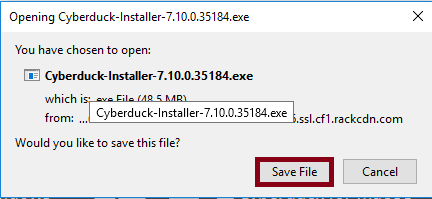
Internet Explorer / Microsoft Edge

Mozilla Firefox
(I) Save File
(II) Select Download
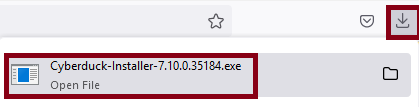
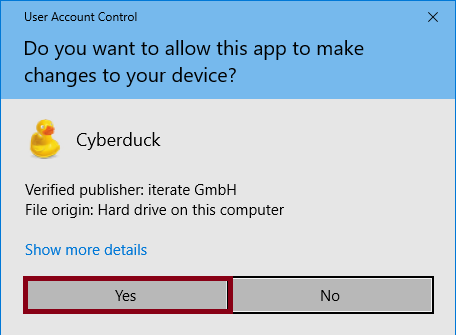
(III) Run
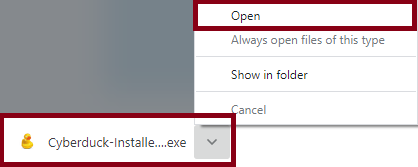
Google Chrome
(I) Open
(II) Run
B Installing Cyber Duck
You now need to install Cyberduck on your PC
Click on Install

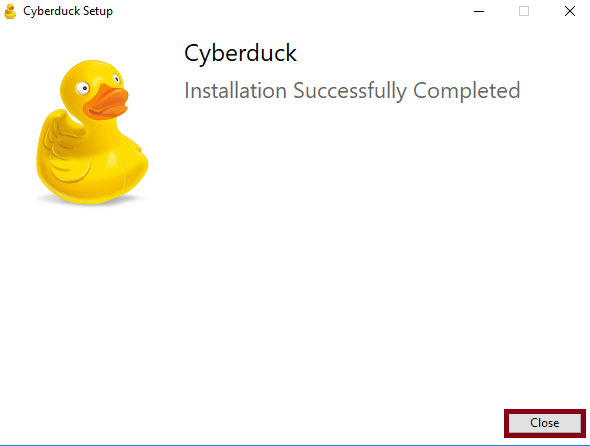
Click close
C Connecting to your website via FTP using Cyber Duck
You now need your username, password and hostname for this section
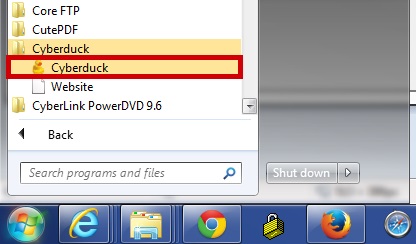
Launch Cyber Duck from your start menu
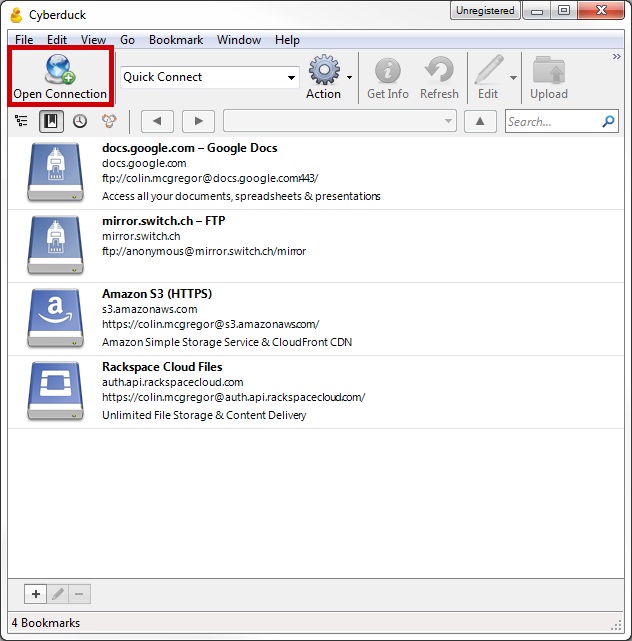
Click Open Connection
Enter your Hostname, Username and Password in the relevant boxes and click Connect
| Host : | ftp.yoursupportservices.co.uk |
| Username : | ftp-username |
| Password: | • • • • • • • • • |

D Uploading your Website
You will need to know where your website files are located for this section
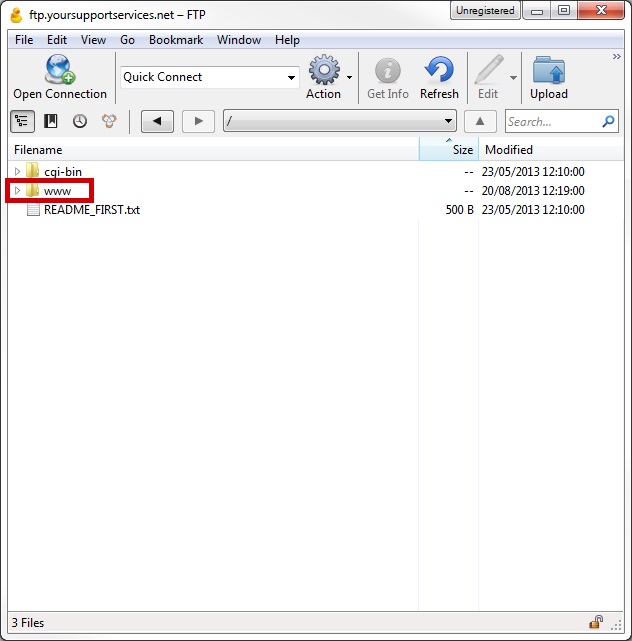
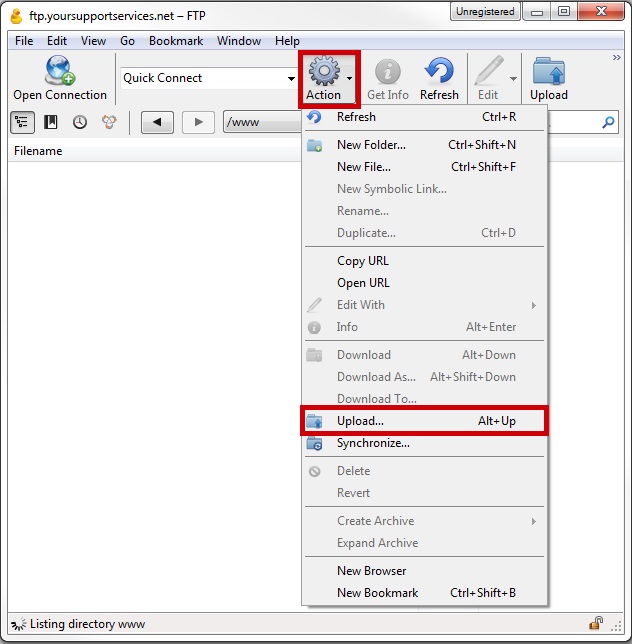
Open the WWW folder in the webspace
Select Actions >> Upload
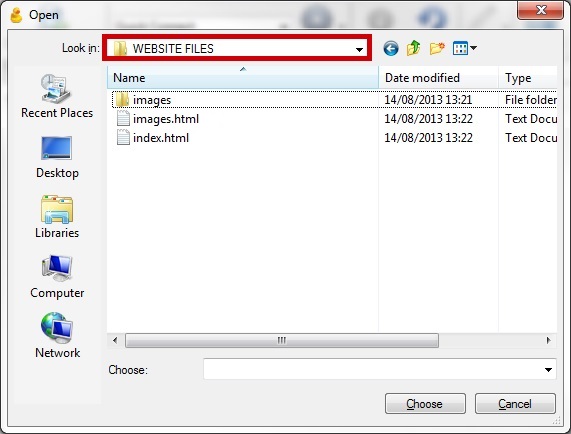
Browse to the folder on your computer where the website files are located
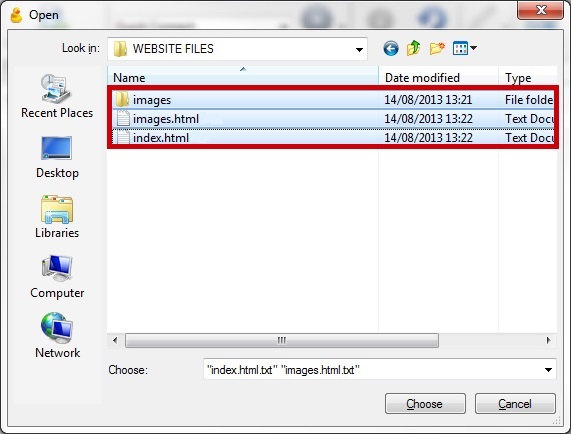
Highlight your site files (left mouse click and drag over the top of them), you will know they are highlighted when they turn blue
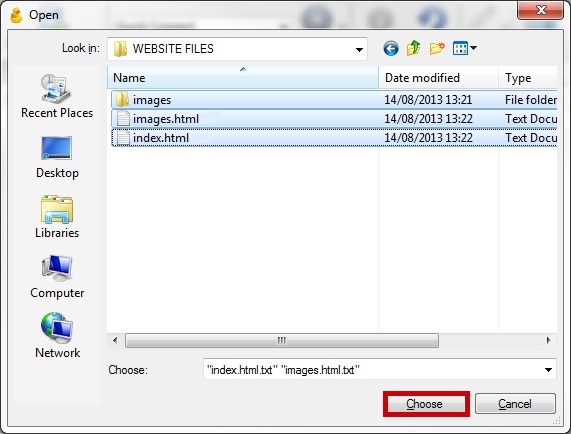
Click the Choose Button
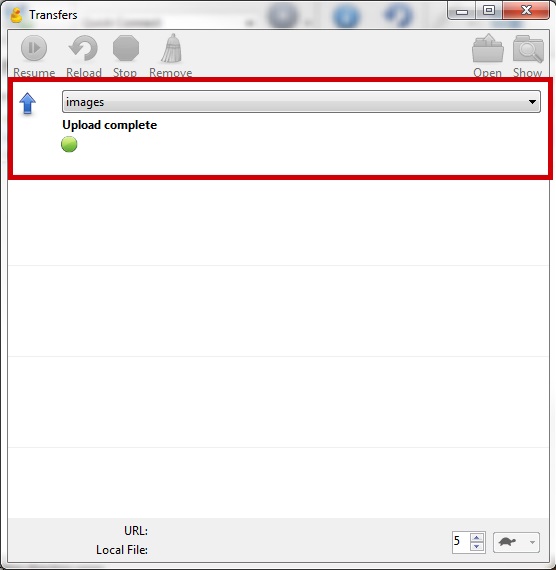
The Transfers window will advise the status of the upload
Browse to your website on the internet to confirm it is displaying correctly on the internet