
TO SET UP EMAIL ON IPHONE iOS 26 (IMAP)
1
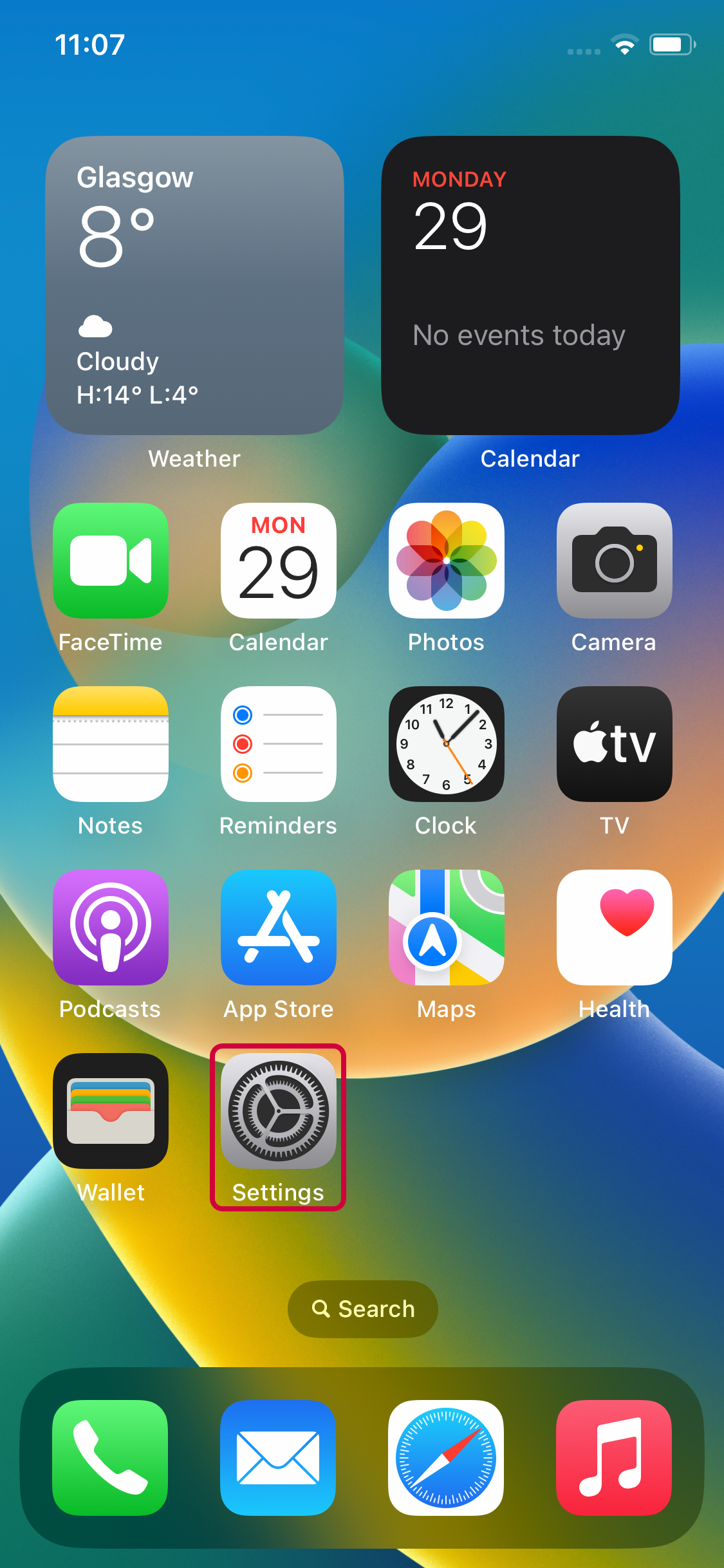
Select the Settings button from the iPhone’s main screen
2
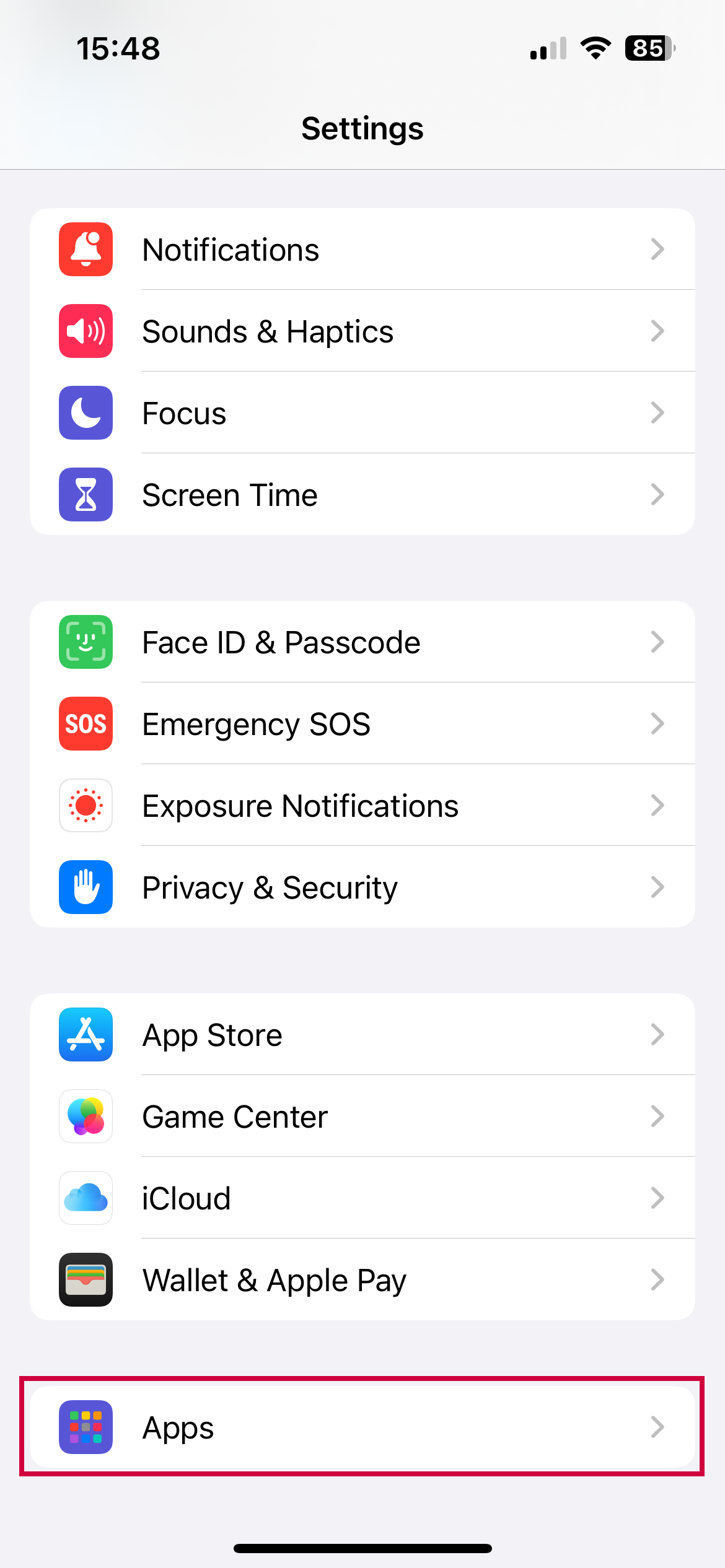
Scroll down and click "Apps" then scroll down and click "Mail"
3
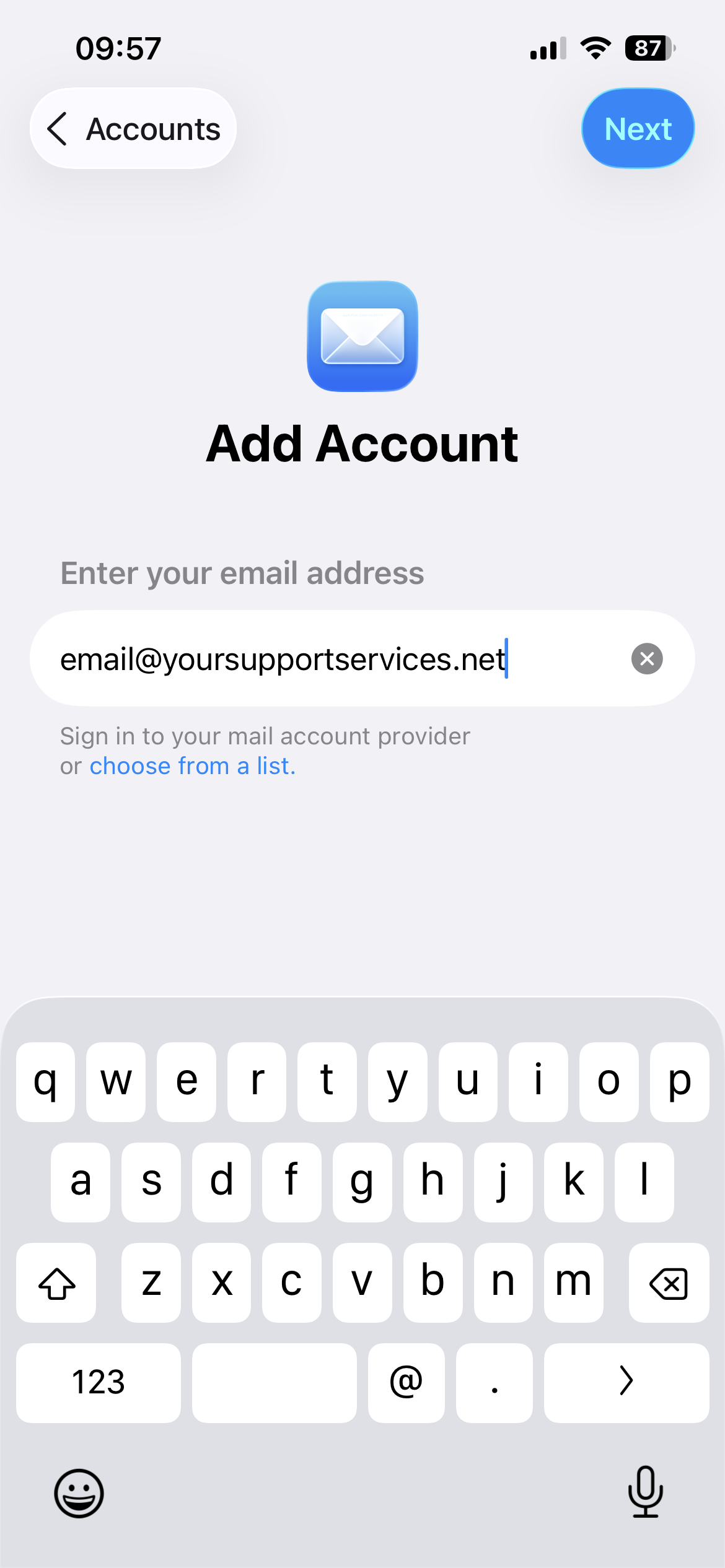
Click "Mail Accounts" then on the next screen click "Add Account"
your.name@domain.com
4
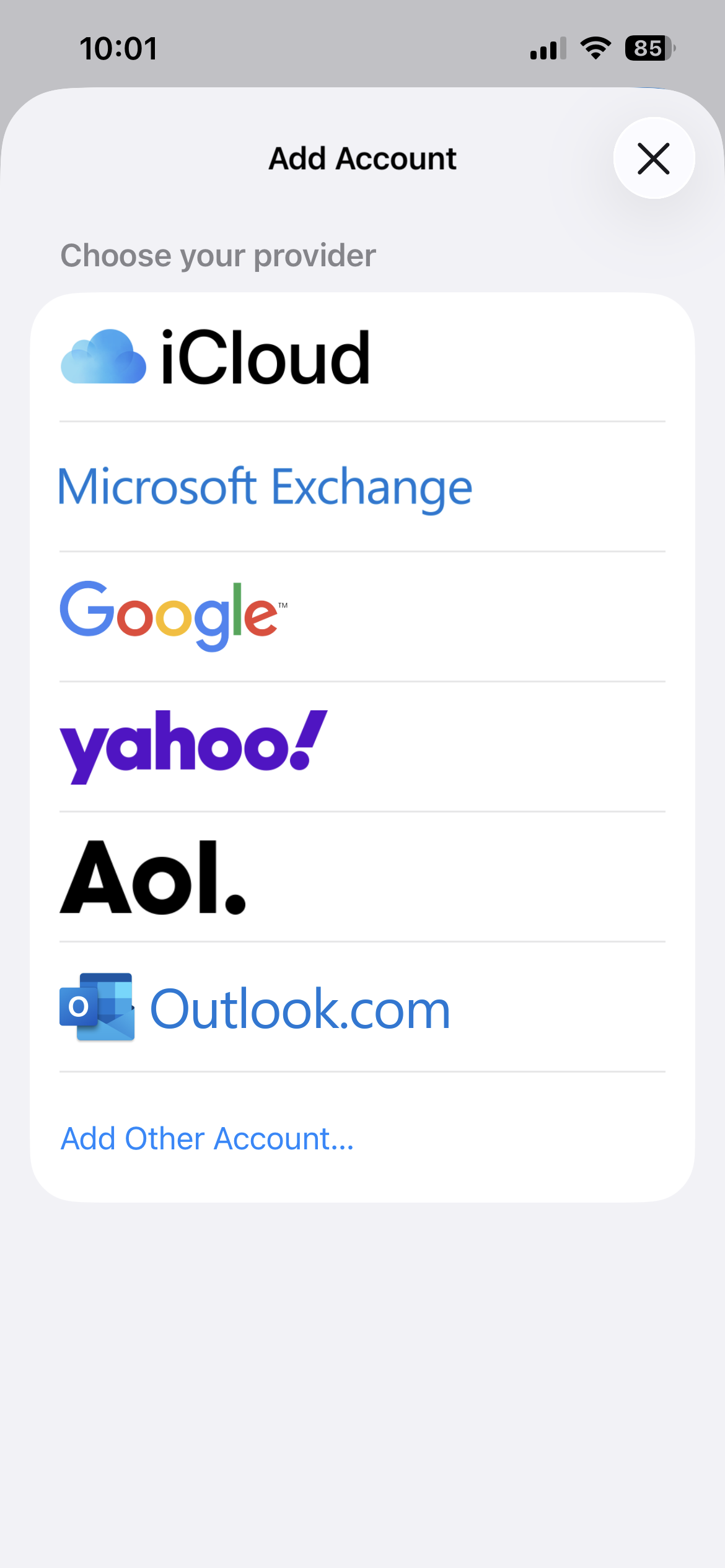
Select Add Other Account
5
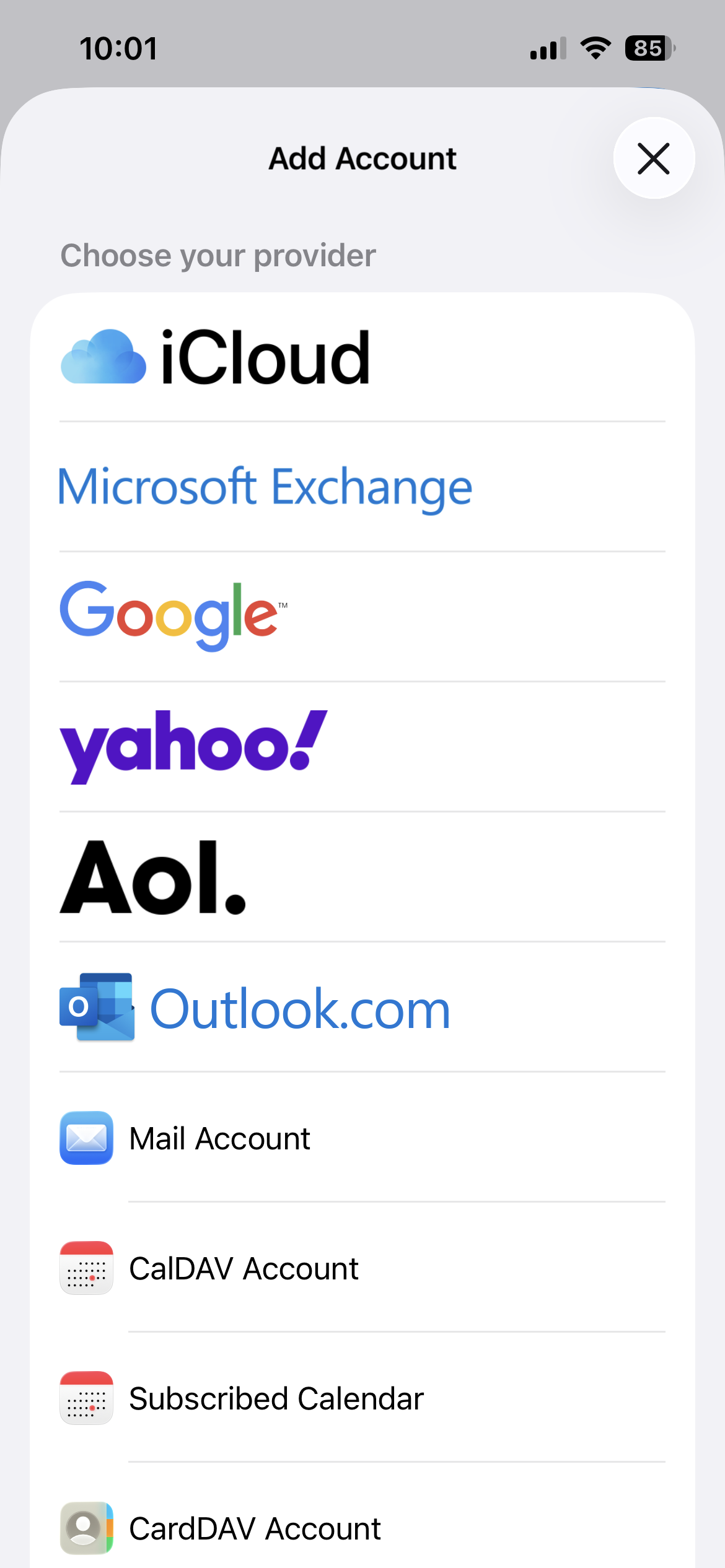
Select Mail Account
6
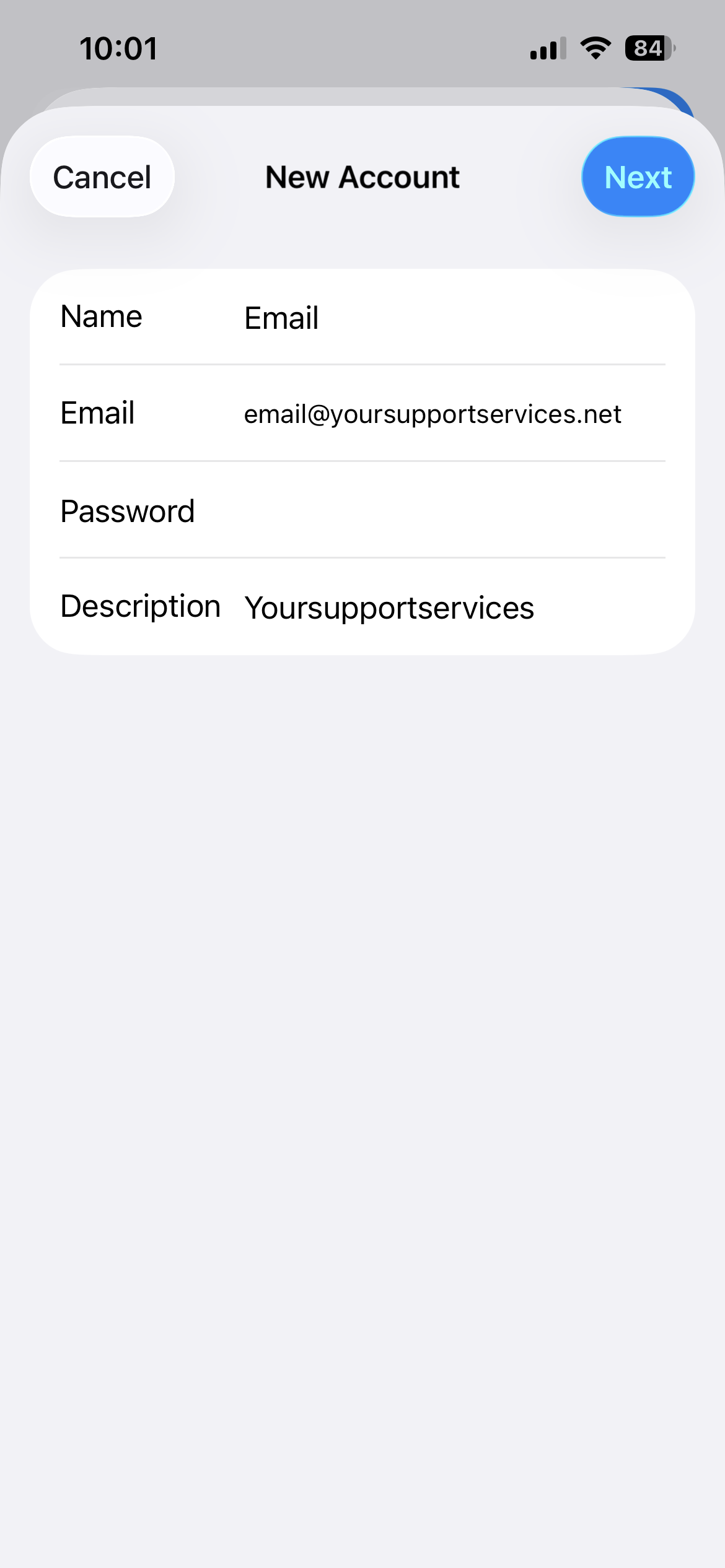
On the New Account screen enter the requested information and click Next
| Your Name : | Your Name |
| E-Mail Address : | your.name@domain.com |
| Password: | This is the password you associated with your mailbox in the control panel |
| Description : | A description you can use to identify the account |
your.name@domain.com
7
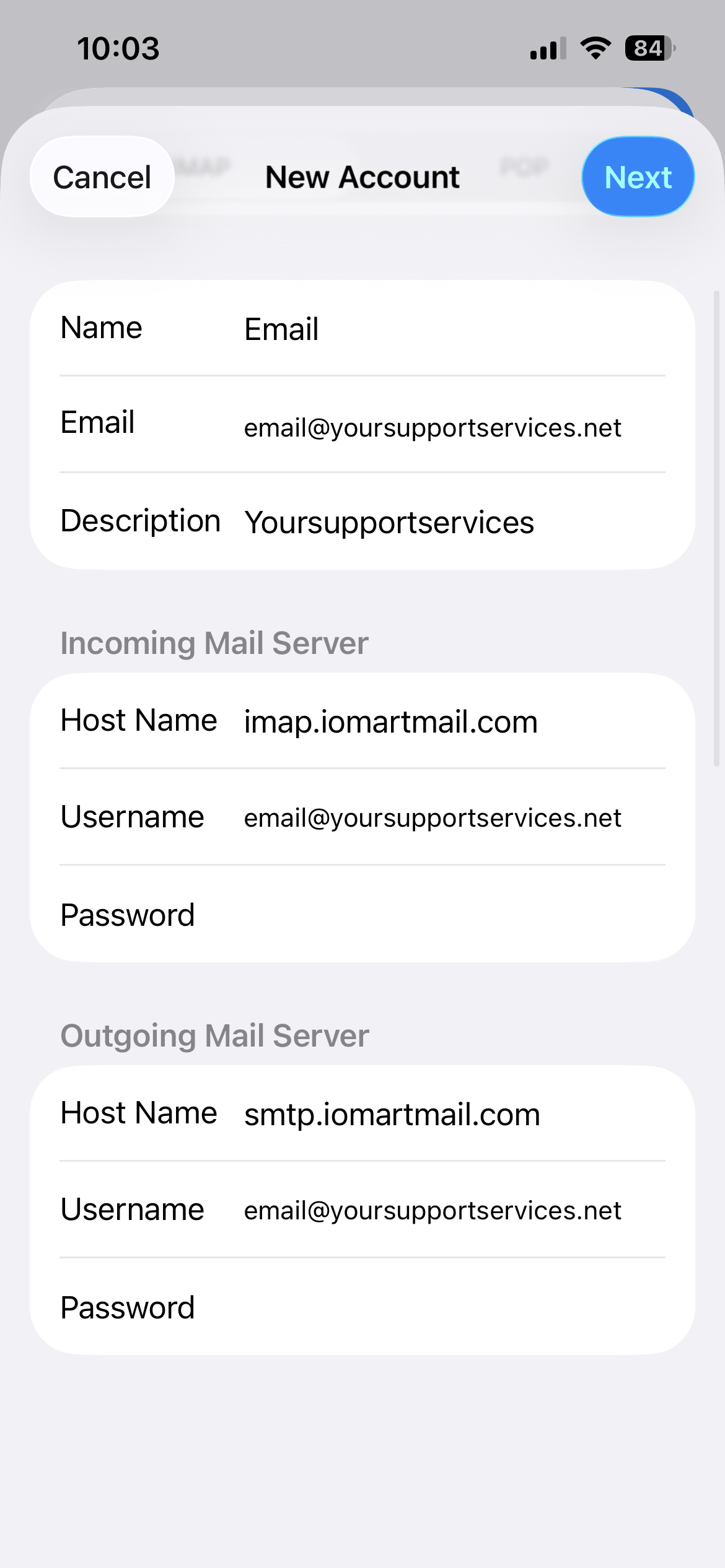
On the next screen select the IMAP account type and enter the requested information (the name, address and description fields should already be completed) and click Next
Incoming Mail Server |
|
|---|---|
| Hostname : | imap.iomartmail.com |
| Username: | Your email address or the username configured in your CP. |
| Password: | This is the password you associated with your mailbox in the control panel |
Outgoing Mail Server - Will show as optional but does need to be entered |
|
|---|---|
| Hostname : | smtp.iomartmail.com |
| Username: | Your email address or the username configured in your CP. |
| Password: | This is the password you associated with your mailbox in the control panel |
your.name@domain.com
imap.iomartmail.com
your.name@domain.com
smtp.iomartmail.com
your.name@domain.com
8
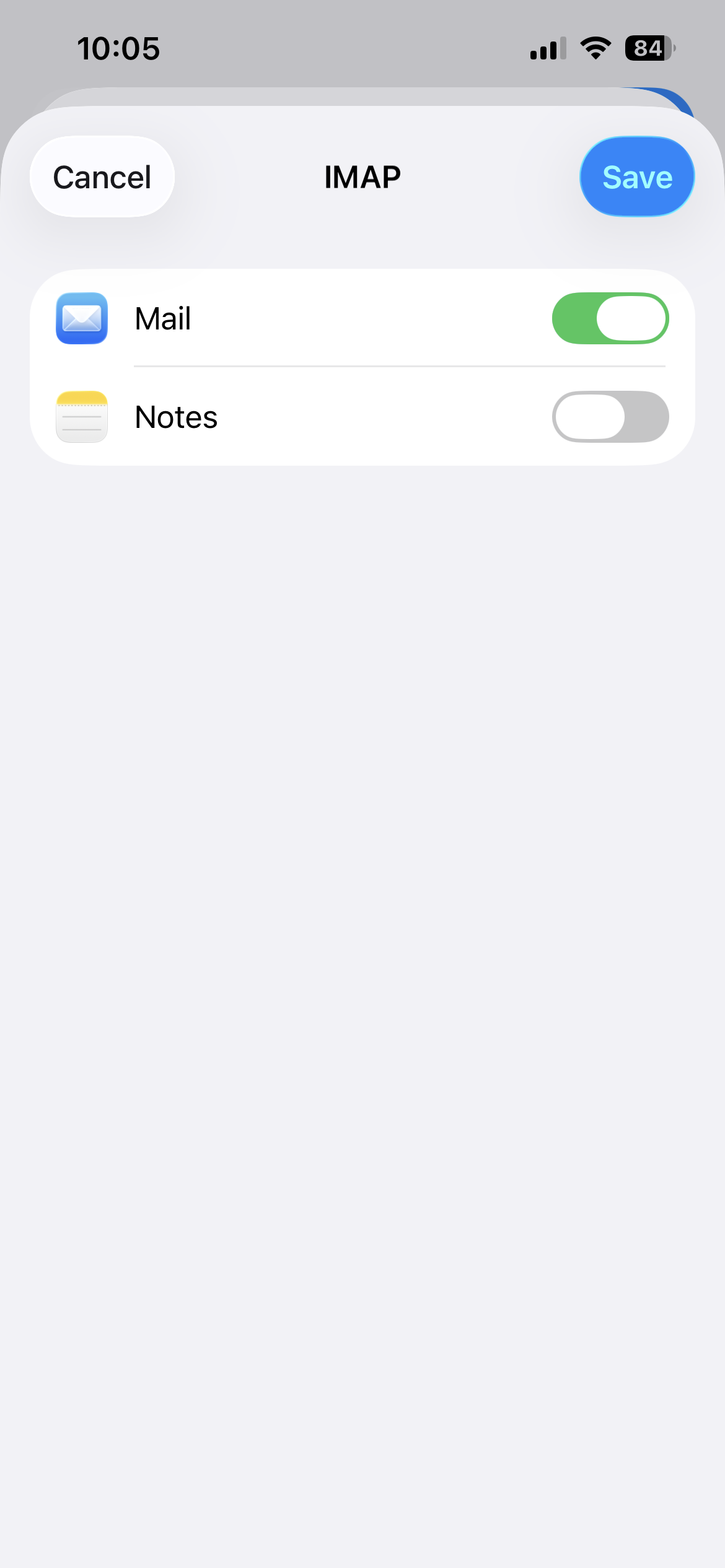
Click Save. The new mail account will show in your Mail app.