
The following steps show you how to set up your IMAP email account on the free Outlook (New) included with most versions of Windows 11 and updated from Windows Live Mail. If you have Outlook (Classic), please click here.
Select Add Account”

Select IMAP from the list of email providers. You may have to scroll down the list to the bottom.

Enter your email setup information and password for the incoming mail server. This information is found on your Easyspace control panel under email management for the address you are setting up. Select Continue.

Enter your email setup information and password for the outgoing mail server. This information is found on your Easyspace control panel under email management for the address you are setting up. Select Continue.

On the next page select Continue.

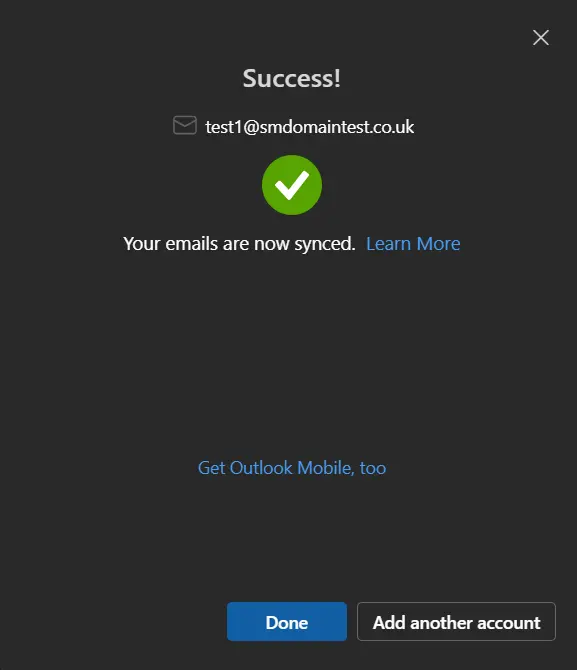
Your email address has now successfully set up.
Please Note: If it does not look to have added first time, please try restarting outlook new and using the same settings and it should allow you to add.