INFO STORE
Q Add a Folder
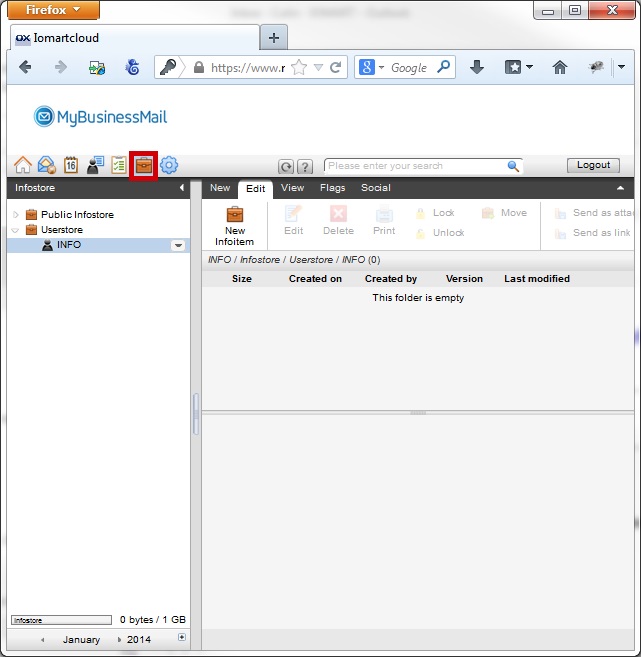
Click the "Info Store" icon
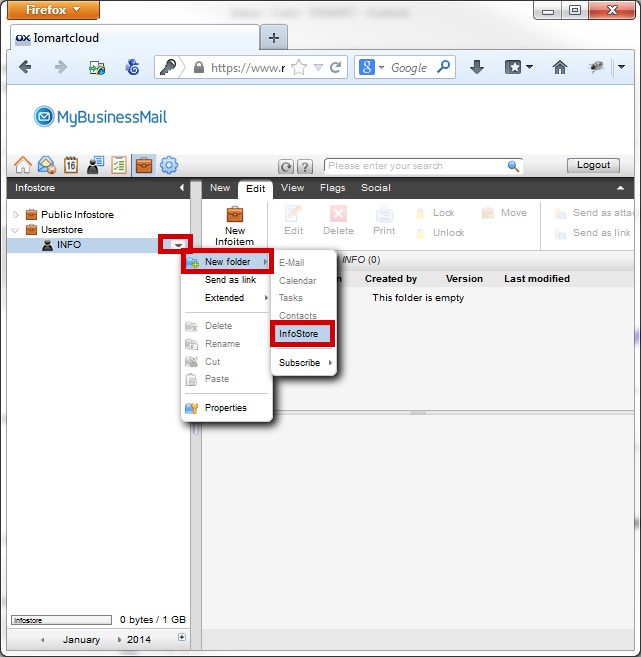
Under your mailbox, select "Newfolder" >> "InfoStore"
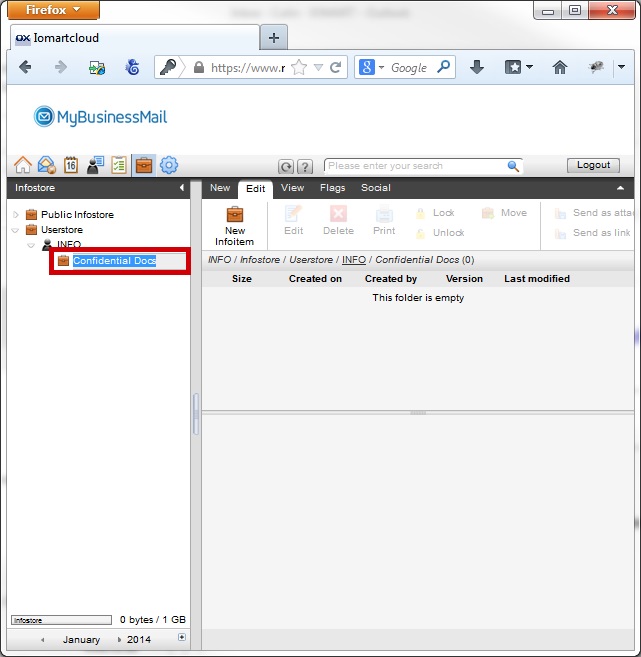
Give your folder a name and press the "Enter" key on your keyboard
Q Add a File
Click the "Info Store" icon
Click "New Info Item"

Enter a Title for your new "Info Item"
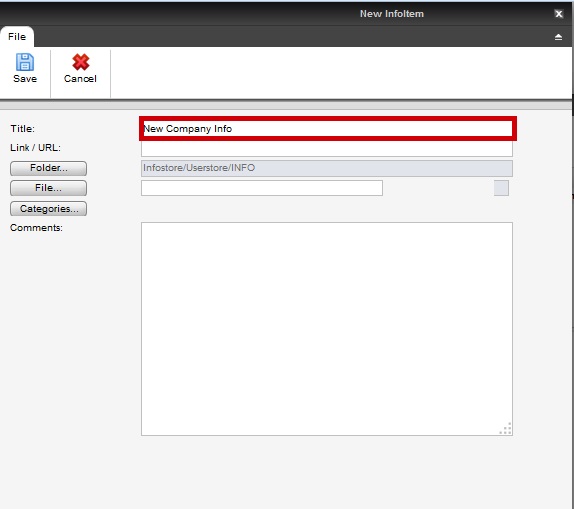
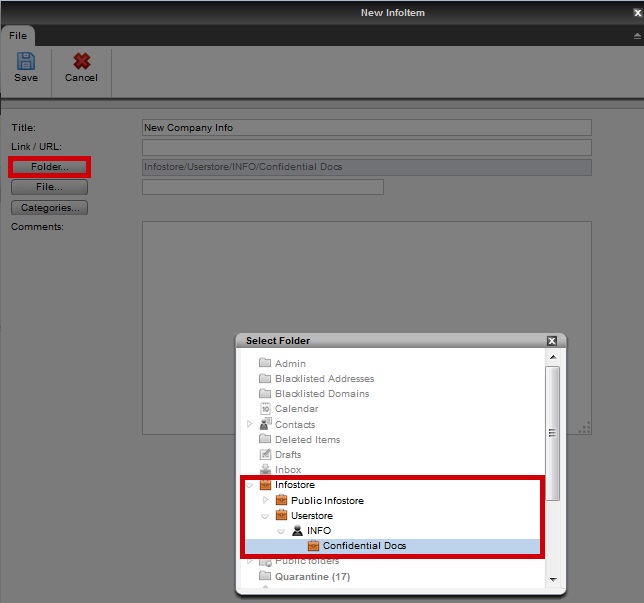
Click "Folder" and navigate to the folder you want your file to appear in
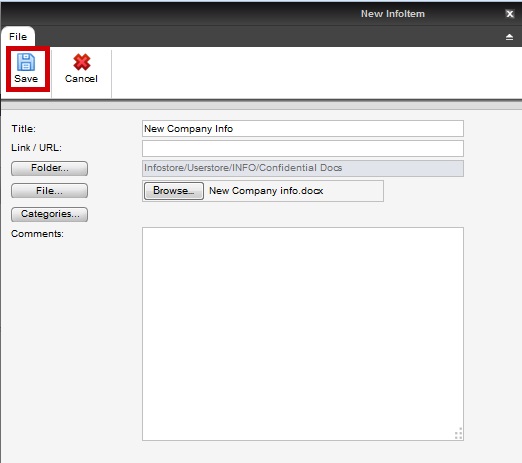
Click "File" then "Browse"

Navigate to the file on your computer and click "Open"

Click "Save"
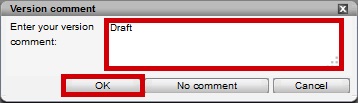
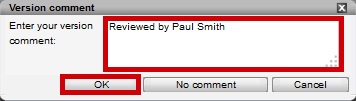
Add a comment relating to the version and click "OK"
Navigate to the folder you selected in (4) and locate your file, this file will be accessable on any instance of webmail you login to
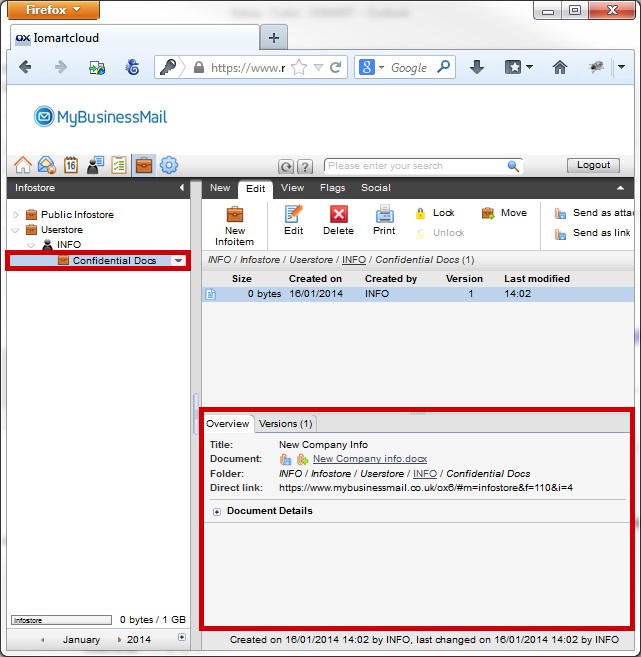
Q Edit a Folder
Click the "Info Store" icon
Select the folder you wish to edit and click "Properties"
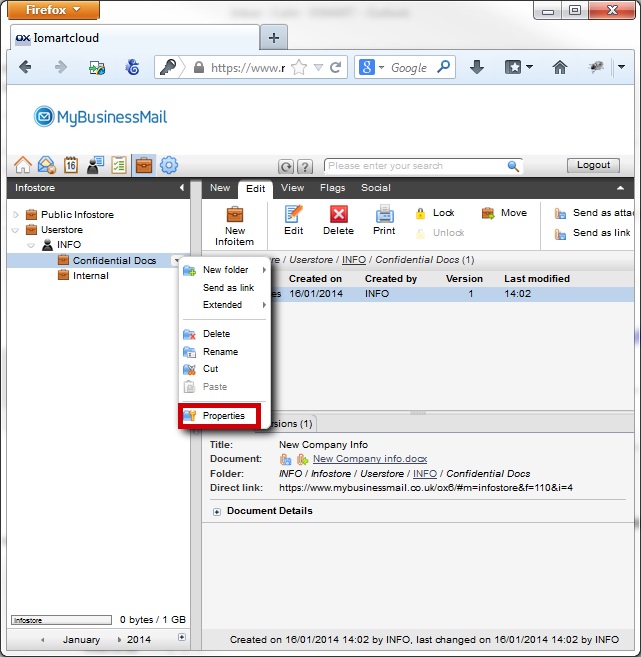
Rename the folder by amending "Folder Name" and clicking "Save"
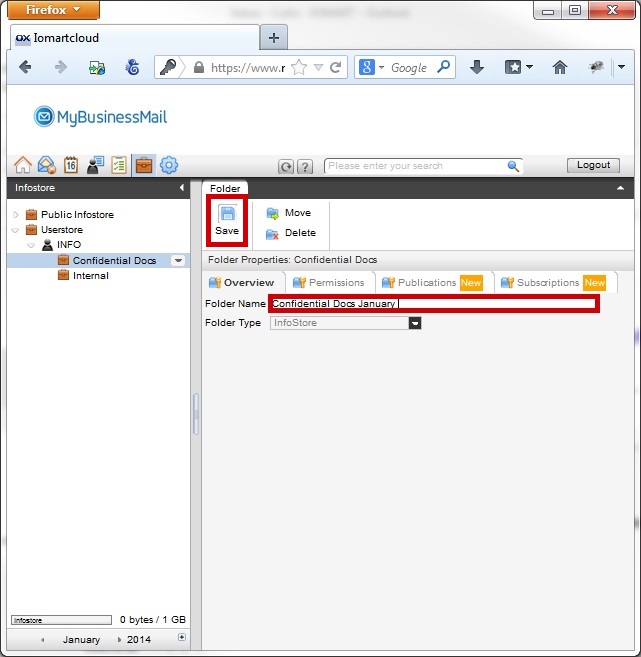
Q Edit a File
Click the "Info Store" icon
Select the folder where the file is located, highlight it and click "Edit"
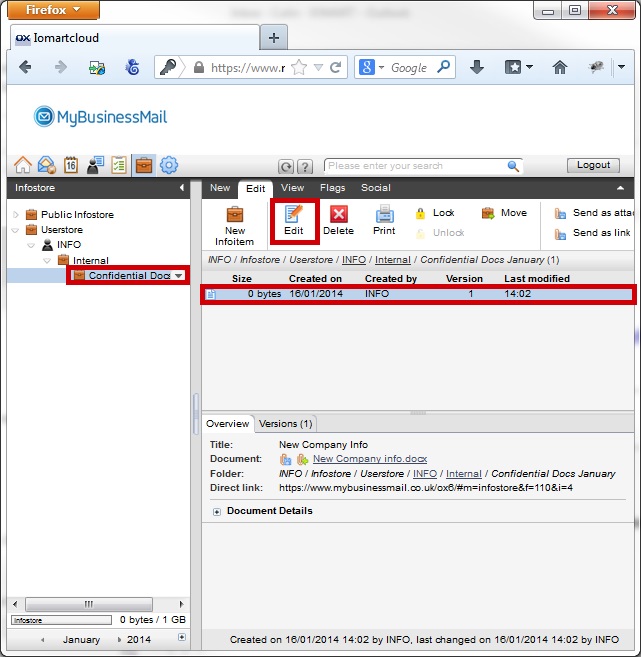
Make any relevant Changes and click Save

Add a version comment and Click "OK"
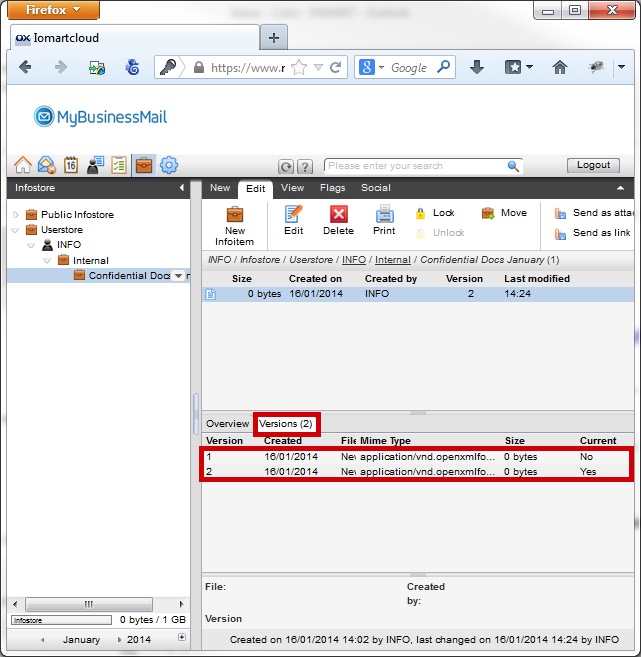
Select the "Versions Tab" and your document history is displayed
Q Move a Folder
Click the "Info Store" icon
Select the folder you wish to move and click "Properties"
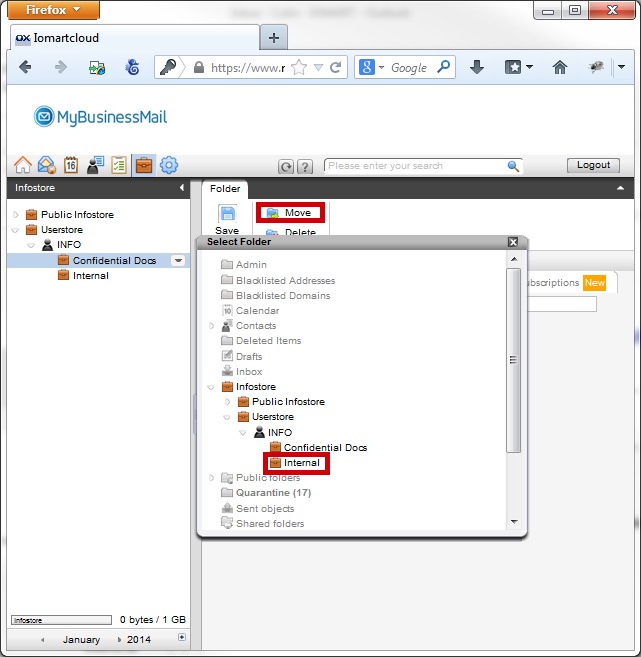
Move the folder to another location by clicking "Move and selcting the new desitnation
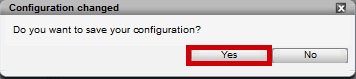
Confirm any changes by clicking "Yes" to the configuration alert
Q Move a File
Click the "Info Store" icon
Select the folder where you want to move the file to
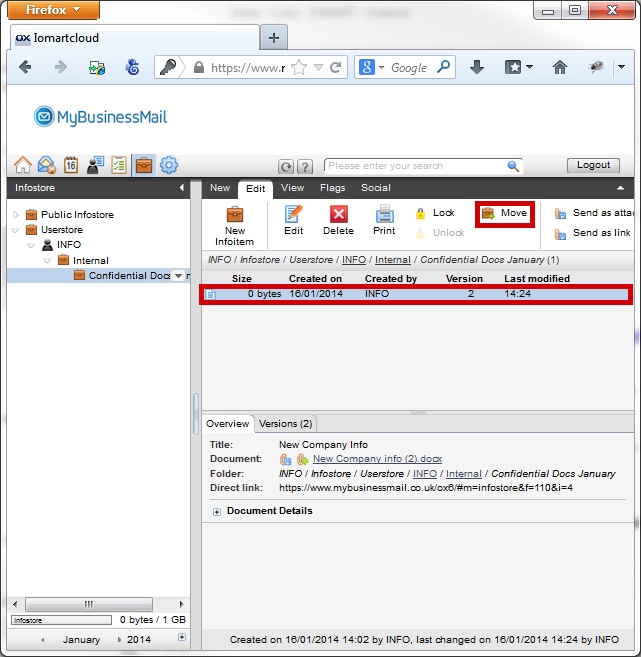
Select the folder where the file is located, select the item and click "Move"
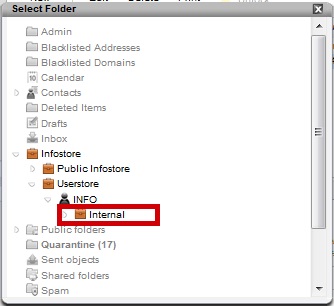
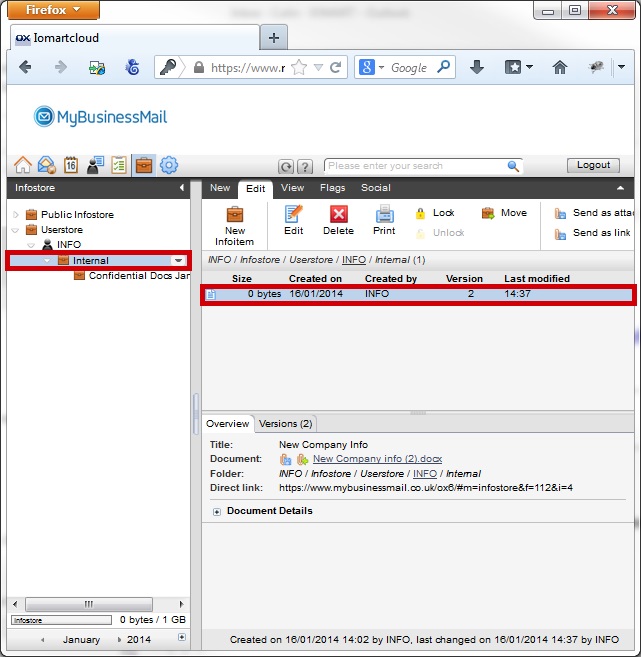
Navigate to your new folder and confirm the file you moved is there
Q Share a Folder
Click the "Info Store" icon
Select the folder you want to share and click "Properties"
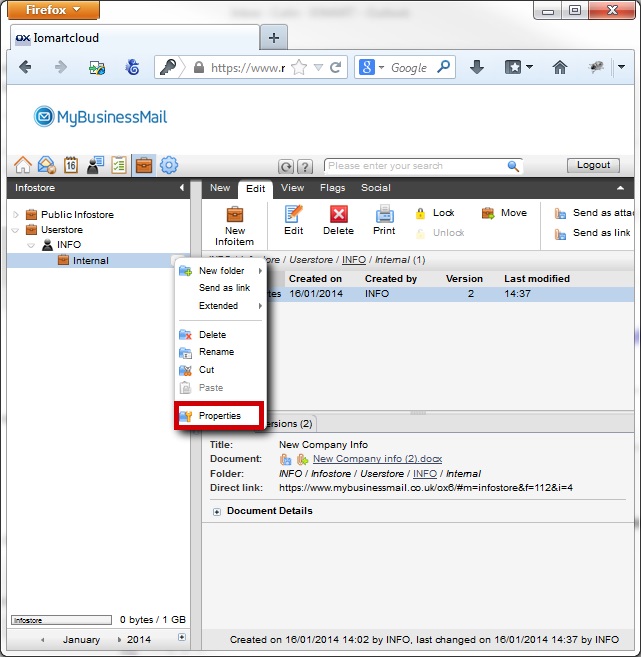
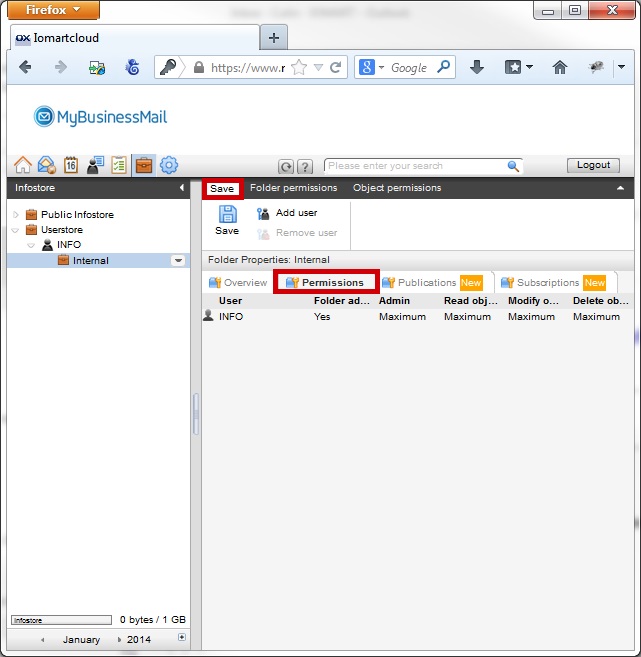
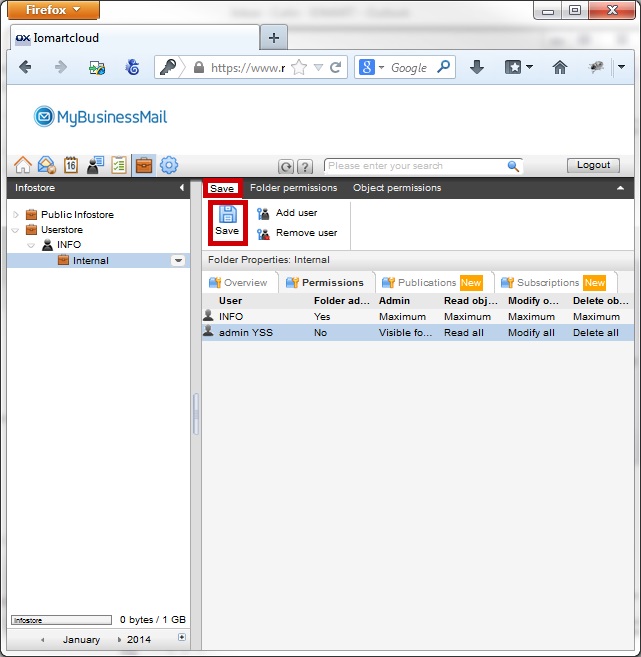
Click the "Permissions" tab and then "Save"
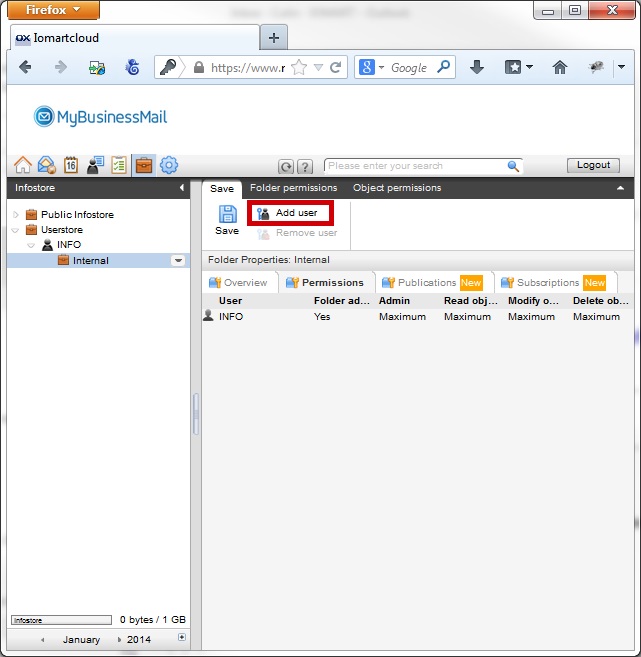
Click "Add User"
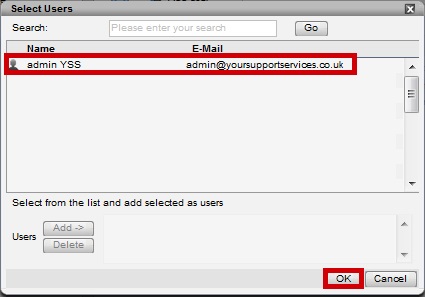
Select which user you wish to share the folder with and click "OK"
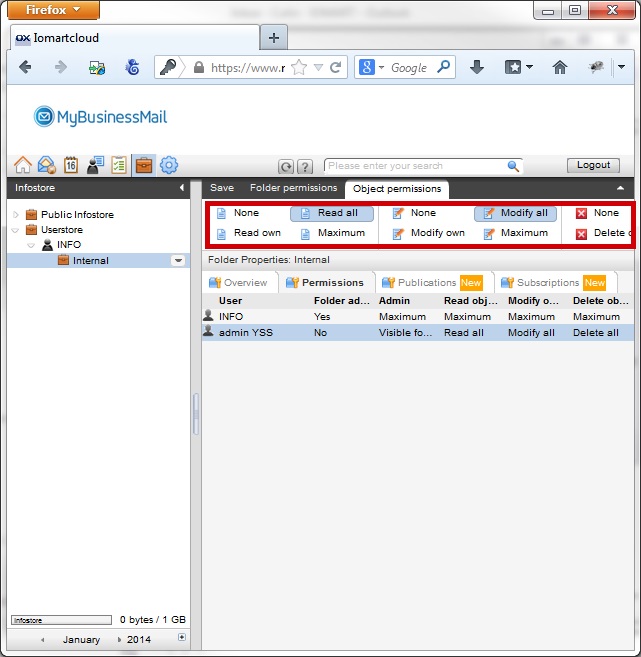
Set the relevant permissions for that user
Select the Save tab and click "Save"
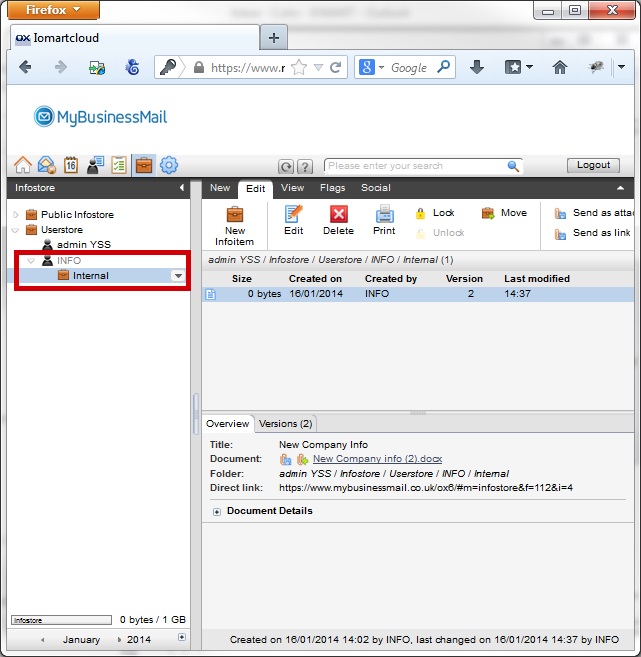
When the user you shared the folder with logs into webmail, they will be able to see the contents of your the folder you shared
Q Send a File
Click the "Info Store" icon
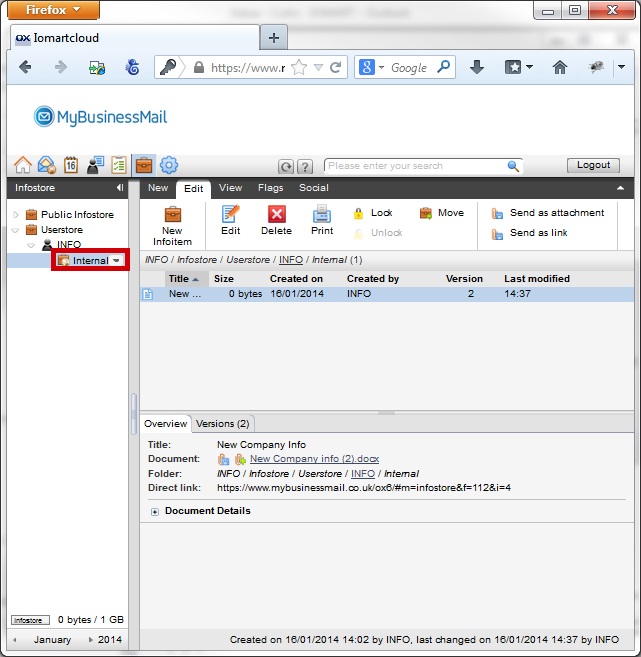
Navigate to the folder coning the file you want to send
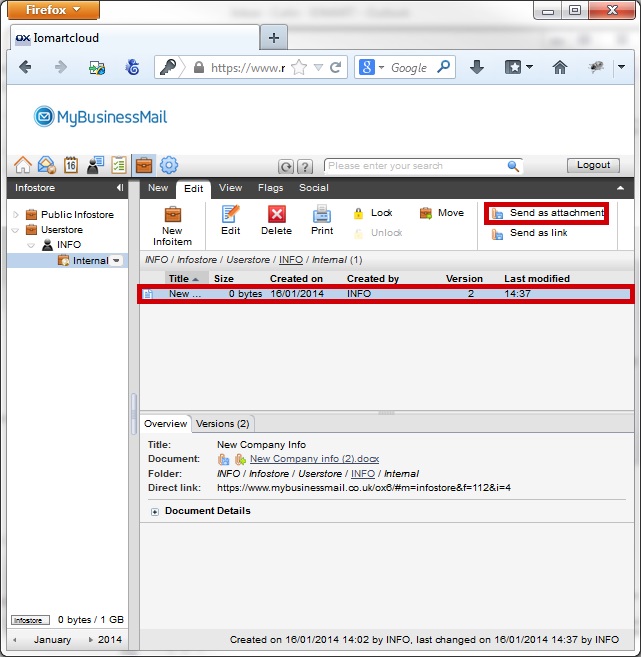
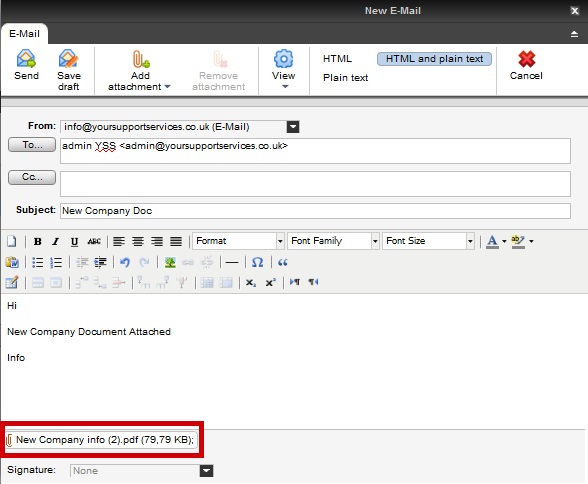
Highlight the file you wish to send and click "Send as Attachment"
Compose the email and send to your recipient
Q Delete a Folder
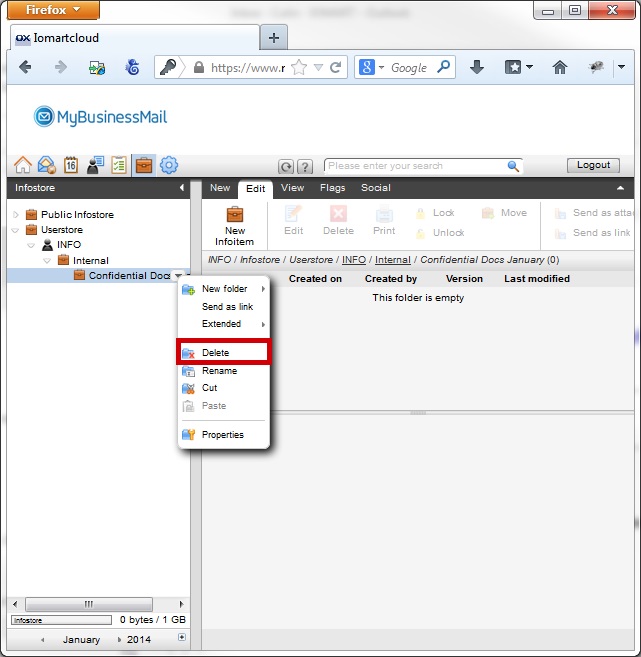
Click the "Info Store" icon
Select the folder you wish to Delete and click "Delete"
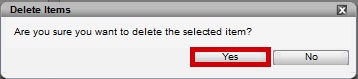
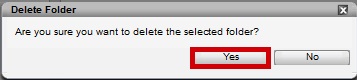
Confirm you wish to remove the folder by clicking "Yes"
Q Delete A File
Click the "Info Store" icon
Navigate to the Folder where the file you wish to delete is located
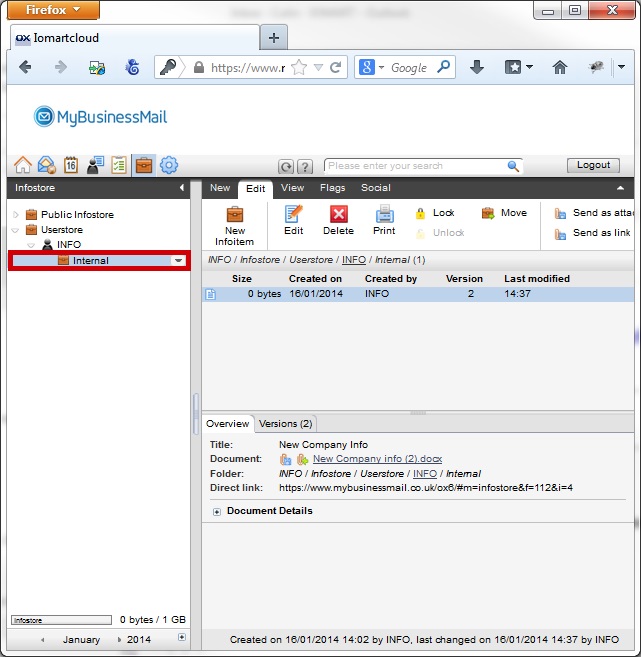
Select the file you wish to Delete and click "Delete"
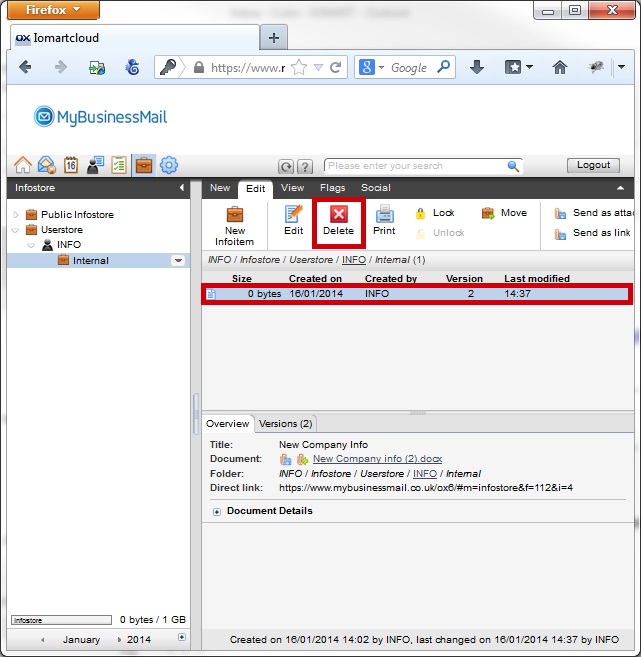
Confirm you wish to remove the folder by clicking "Yes"