OUTLOOK CONNECTOR
Q Download the Outlook Connector
1
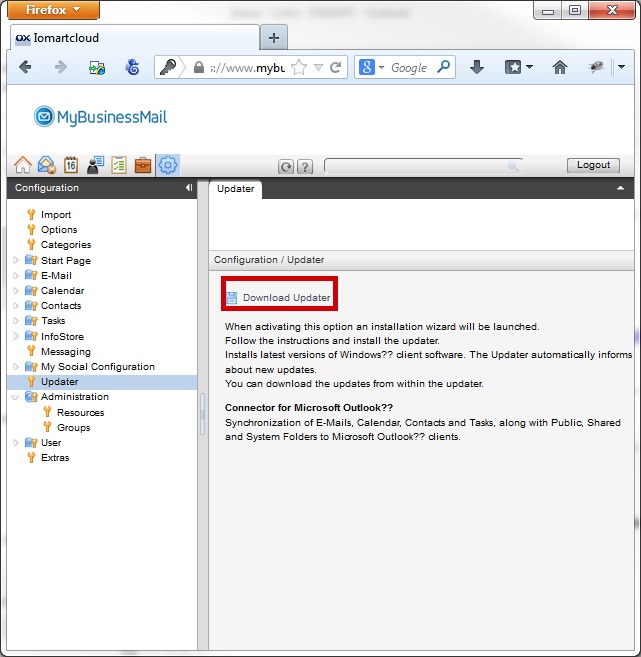
Select the "Configuration" icon and select "Updater"

2
Click "Download Updater"
3
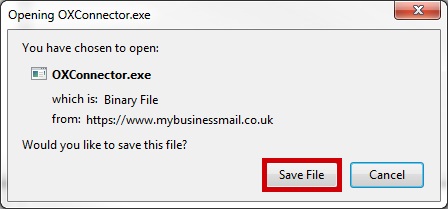
Confirm you wish to save the file by clicking "Save File"
Q Install the Outlook Connector
1
Double click the file to run it when the download has completed

2
Confirm you wish to install the "Outlook Connector" click "Run"

3
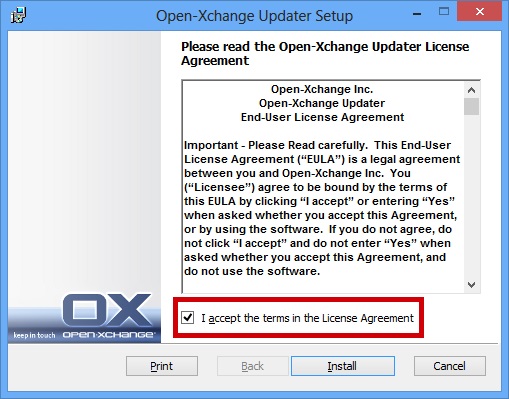
Accept the Licence Agreement and click "Install"
4
Click "Finish"

Q Connect to the Outlook Connector
1
Enter your email address and password, click the "Remember my Password" box and click OK

2
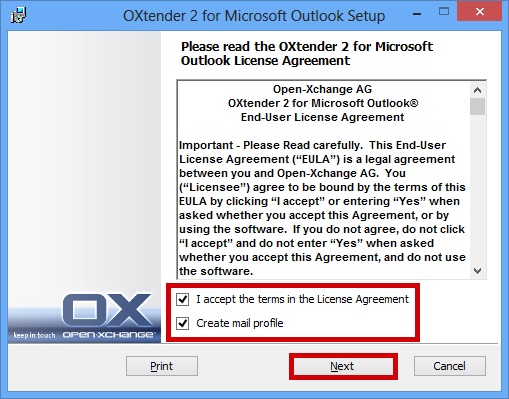
Accept the Licence Agreement, and create mail profile and click "Next"
3
Click "Install"

4
Click "Finish"

Q Launch the Outlook Connector
1
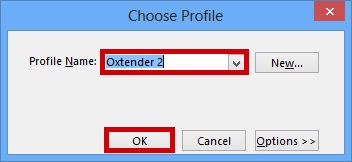
Load Outlook and select "Oxtender 2" Profile Name and click "OK"
2
Your Email, Foilders and settings should syncronise form Webmail

Q Using the Outlook Connector Add Ins
1
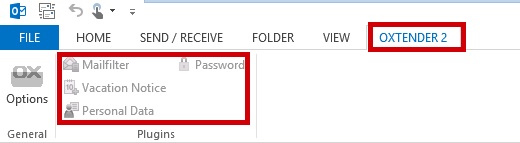
Select the "Oxtender 2" tab then select what you want to update