
MAILFILTER (BUSINESS MAIL)
Q View Quarantine
Select the "Email" Icon and click on your "Quarantine"
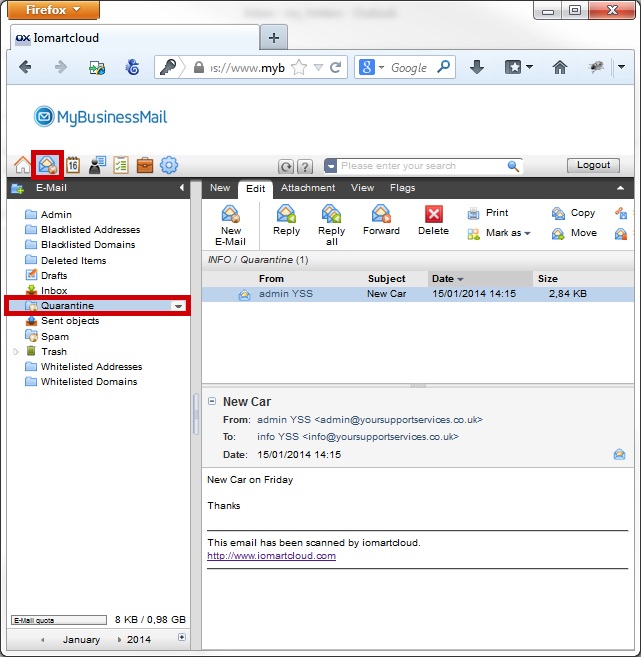
All mail that has been Quarantined will be in the email page and the content can be read in the reading pane
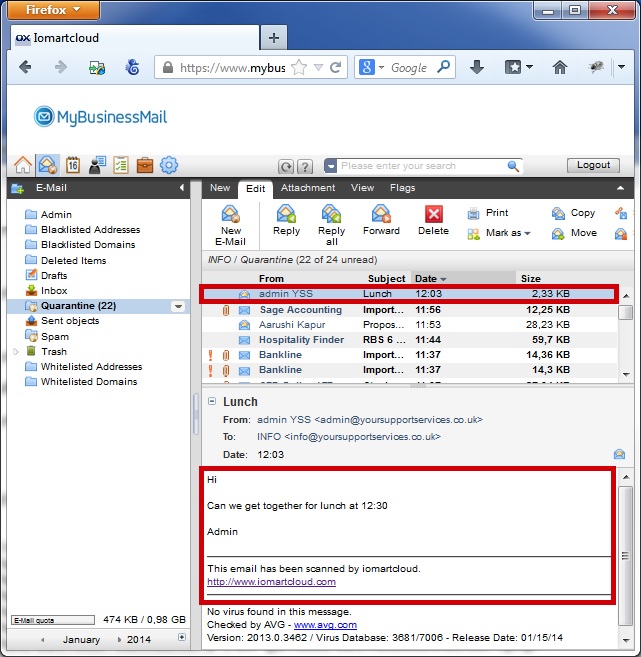
Q White list a single email address from quarantine
Select the "Email" Icon and click on your "Quarantine"
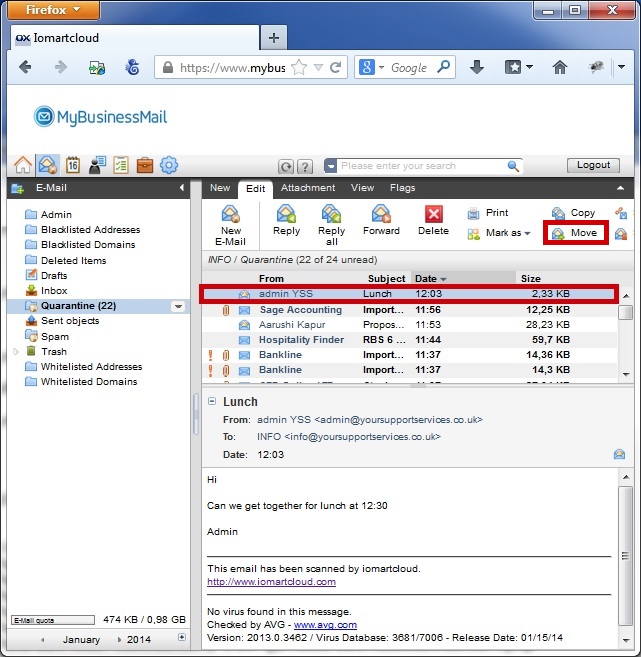
Select the email from the address you wish to "White list" and select "Move"
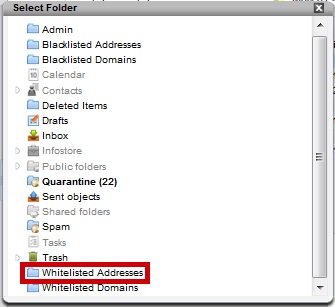
Select "Whitelisted Addresses"
Select the "Whitelisted Addresses" folder and you will see the selected email
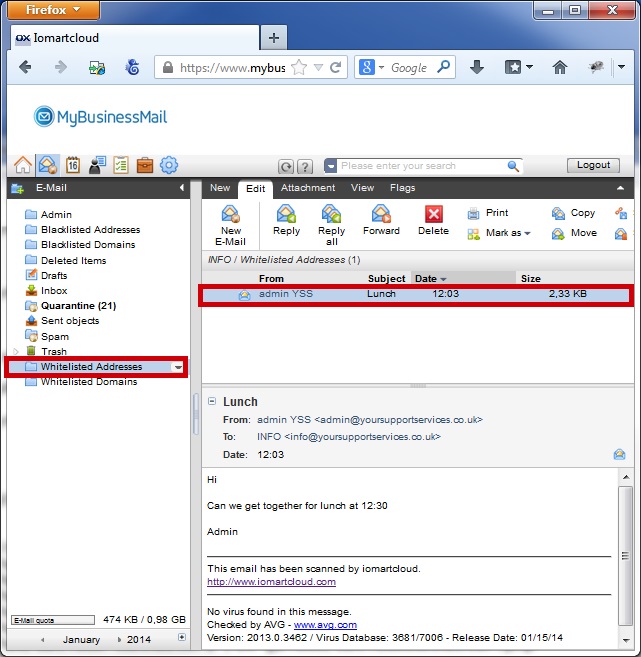
After 60s Business Mail will whitelist the address and the email you "whitelisted" will display in your inbox
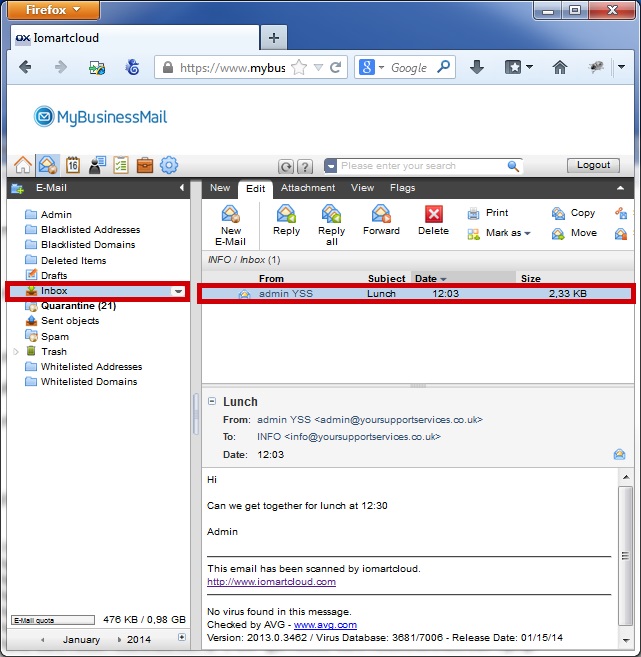
Email from this address will now deliver straight to your inbox
Q Whitelist a domain from quarantine
Select the "Email" Icon and click on your "Quarantine"
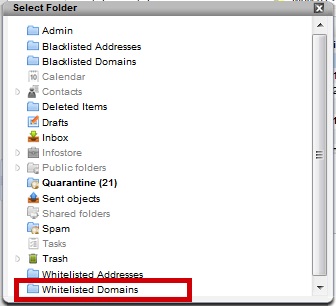
Select the email from the domain you wish to "White list" and select "Move"
Select "Whitelisted Domains"
Select the "Whitelisted Domains" folder and you will see the selected email
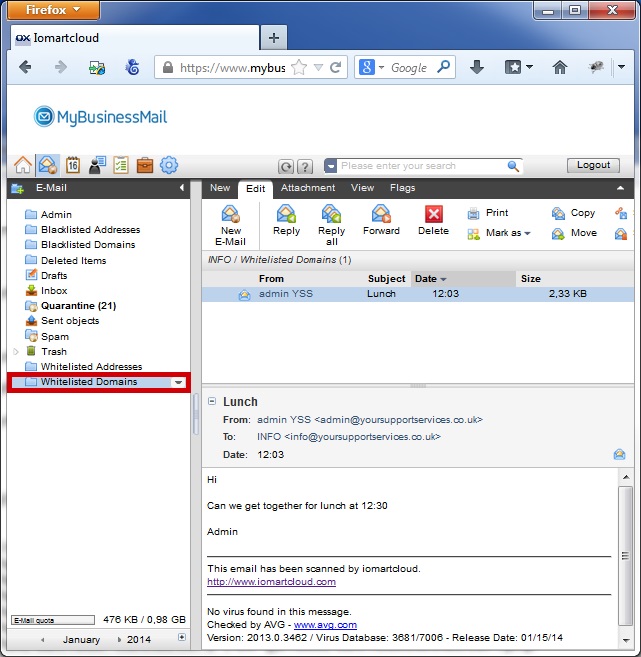
After 60s Business Mail will whitelist the domain and the email you "whitelisted" will display in your inbox
Email from this domain will now deliver straight to your inbox
Q Whitelist an email address you have not received email from before
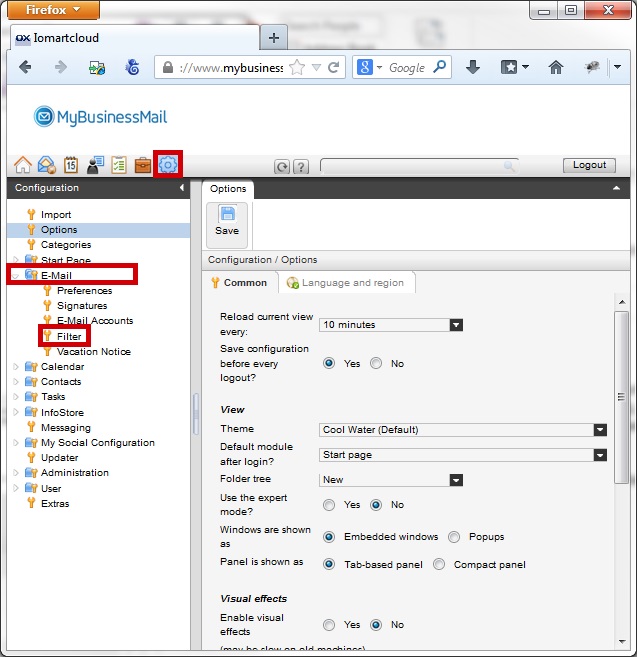
Select the "Configuration" Icon, Select the email Folder and "Filter"
Click "New"
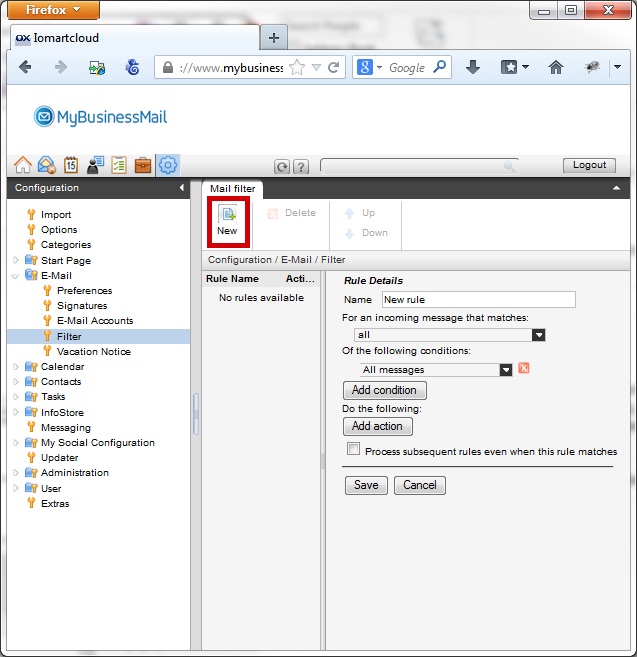
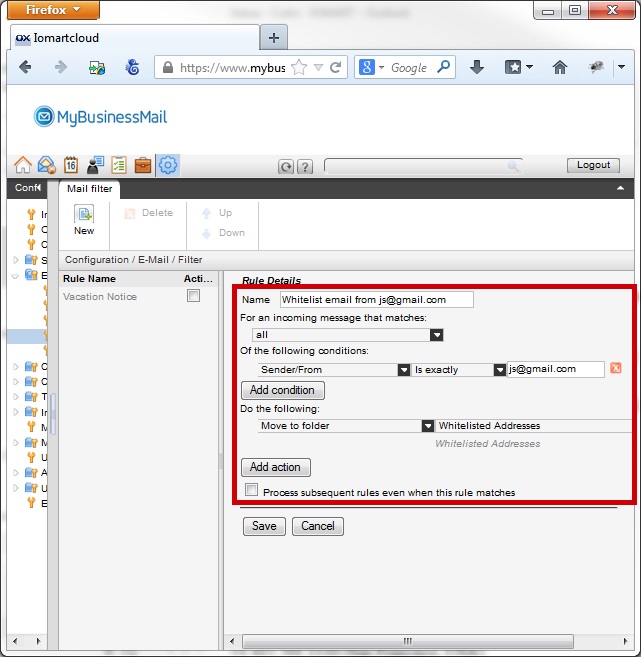
Complete the form
| Name : | Something you will recognise the rule by |
| For an income messages that matches : | all |
| Of the following conditions : | Sender From | Is exactly | enter email address to be whitelisted |
| Do the following : | Click "Add Action" |
| Do the following : | Move to Folder | Whitelisted Addresses |
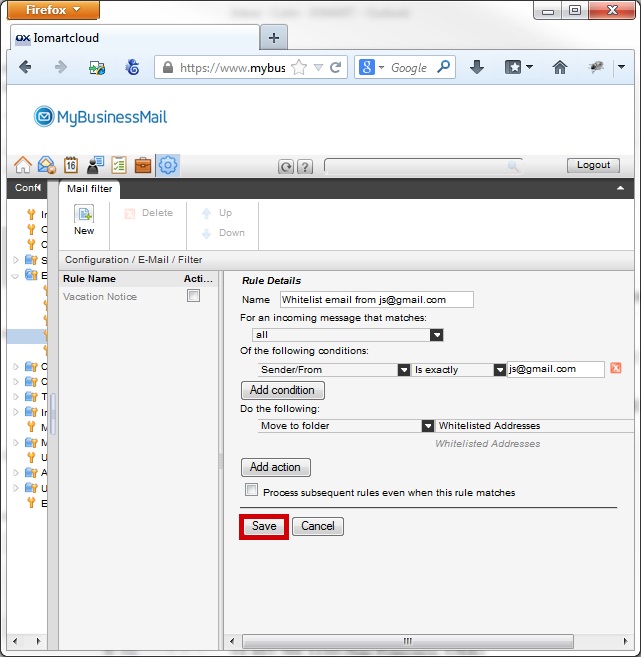
Click "Save"
If the rule is possible you will a confirmation alert will be displayed
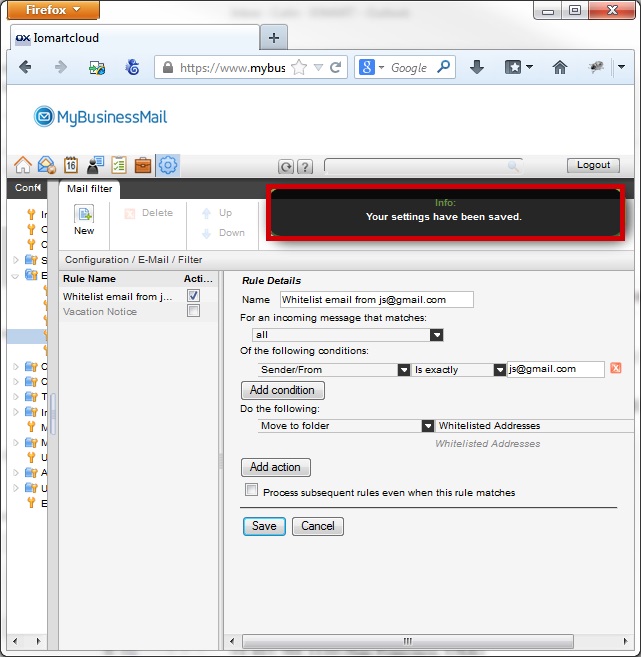
Email from your specified email address will now deliver straight to your inbox
Q Delete an email address from your whitelist
Select the "Email" Icon and click on your "Whitelisted Domains" or "Whitelisted Addresses"
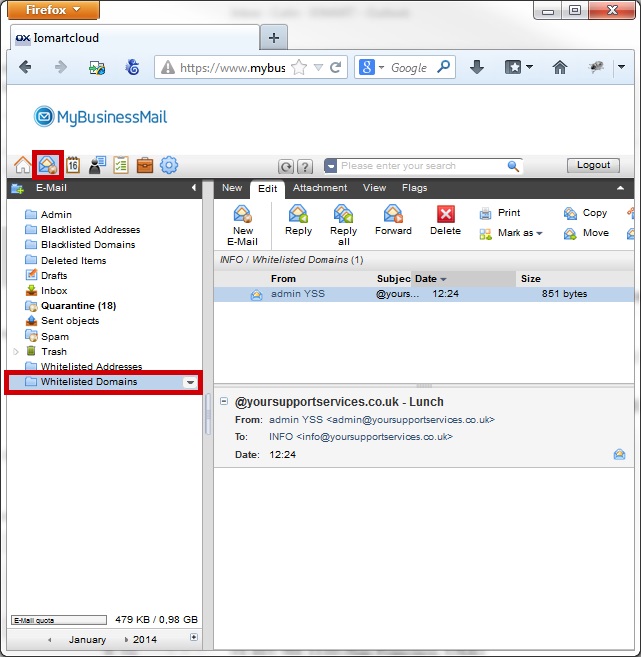
Select the email you wish to remove from your whitelist and click "Delete"
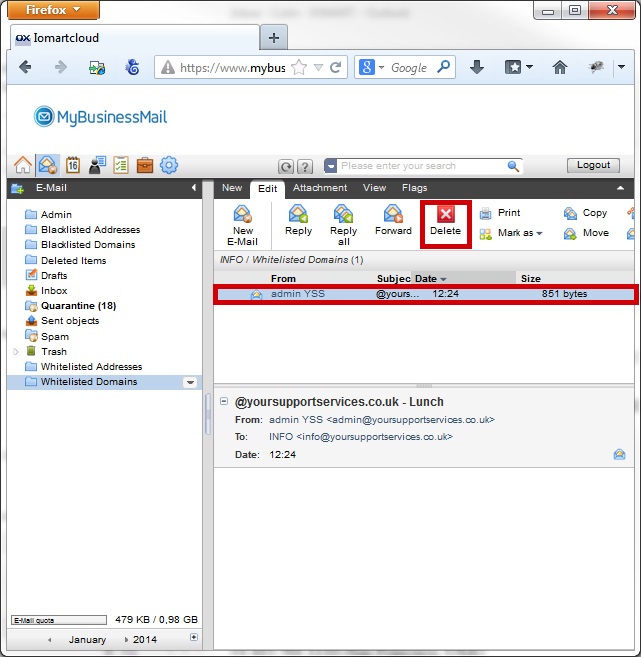
Email from this address will now be subject to quarantine
Q Black list a single email address from quarantine
Select the "Email" Icon and click on your "Quarantine"
Select the email from the address you wish to "black list" and select "Move"
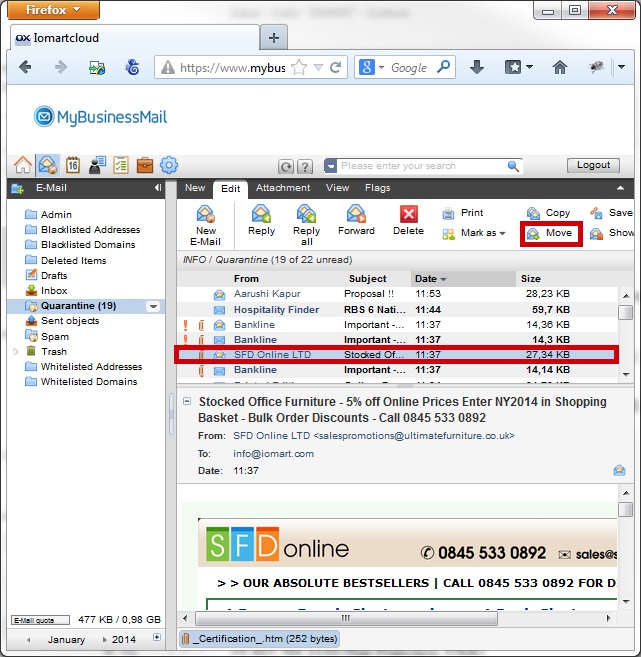
Select "Blacklisted Addresses"
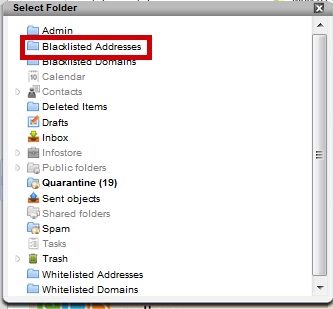
Select the "Blacklisted Addresses" folder and you will see the selected email
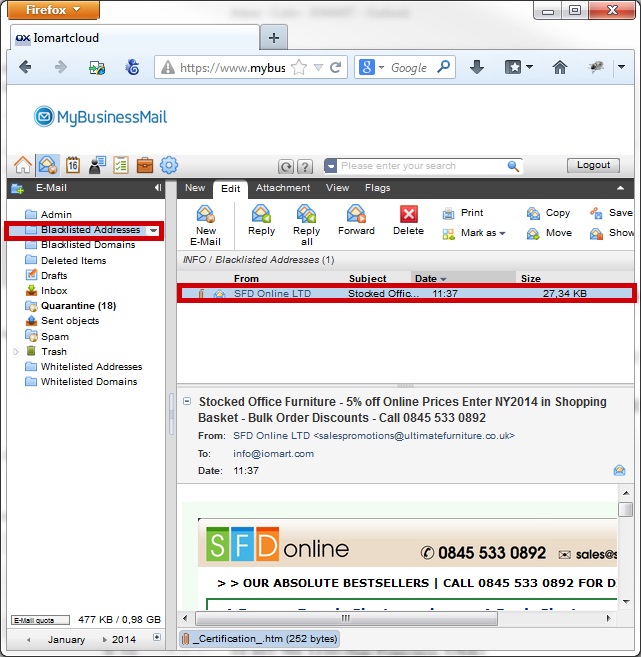
Email from this address will now deliver straight to your blacklist and go into your quarantine
Q Blacklist a domain from quarantine
Select the "Email" Icon and click on your "Quarantine"
Select the email from the domain you wish to "Blacklist list" and select "Move"
Select "Blacklisted Domains"
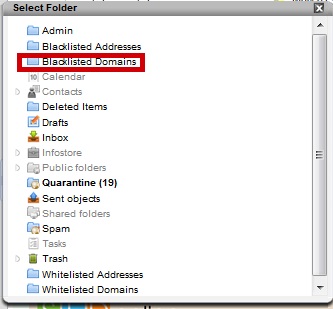
Select the "Blacklisted Domains" folder and you will see the selected email
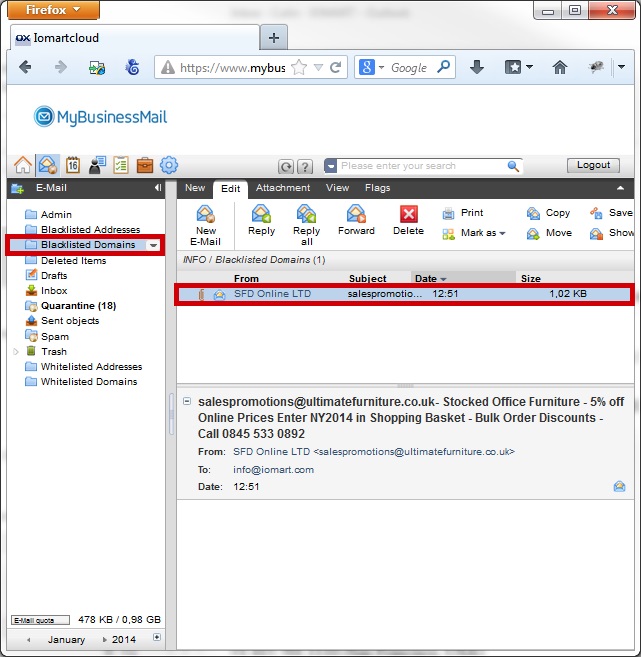
Email from this domain will now be blacklisted and deliver into your quarantine
Q Blacklist an email address you have not received email from before
Select the "Configuration" Icon, Select the email Folder and "Filter"
Click "New"
Complete the form
| Name : | Something you will recognise the rule by |
| For an income messages that matches : | all |
| Of the following conditions : | Sender From | Is exactly | enter email address to be blacklisted |
| Do the following : | Click "Add Action" |
| Do the following : | Move to Folder | Blacklisted Addresses |
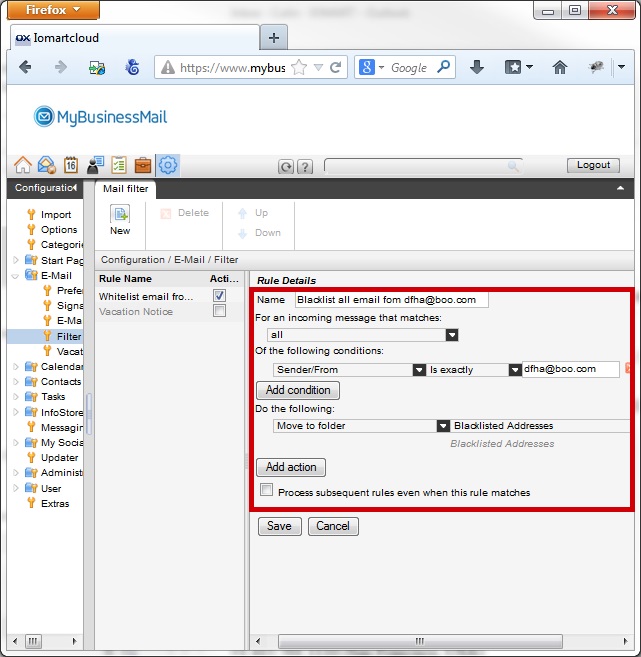
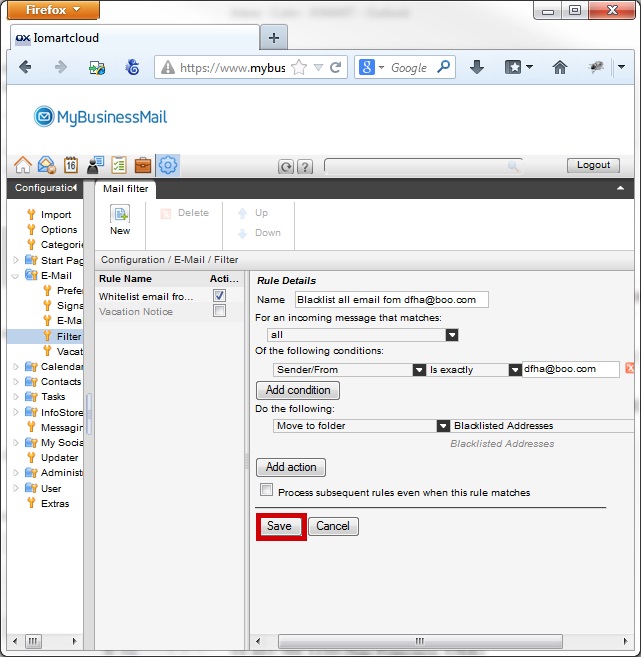
Click "Save"
If the rule is possible a confirmation alert will be displayed
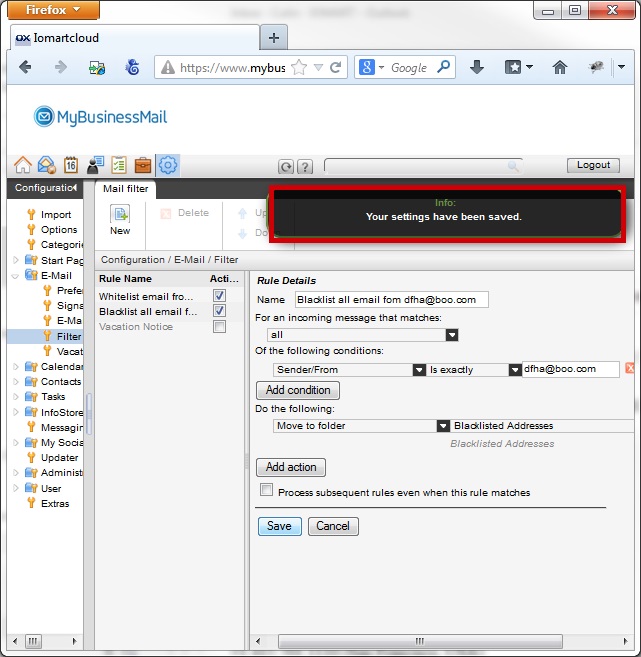
Email from this address will now deliver straight to your blacklist and go into your quarantine
Q Blacklist an email based on content (words and phrases)
Select the "Configuration" Icon, Select the email Folder and "Filter"
Click "New"
Complete the form
| Name : | Something you will recognise the rule by |
| For an income messages that matches : | all |
| Of the following conditions : | Content | Contains | selected blocked word or phrase |
| Do the following : | Click "Add Action" |
| Do the following : | Move to Folder | Blacklisted Addresses |
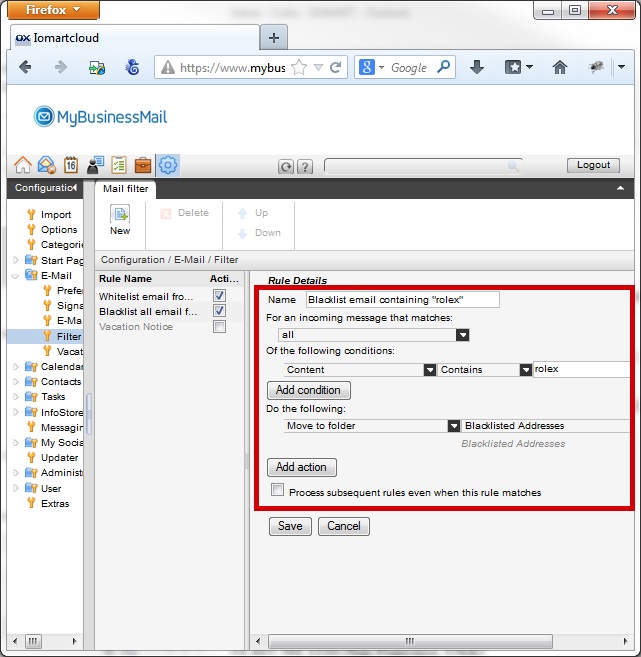
Click "Save"
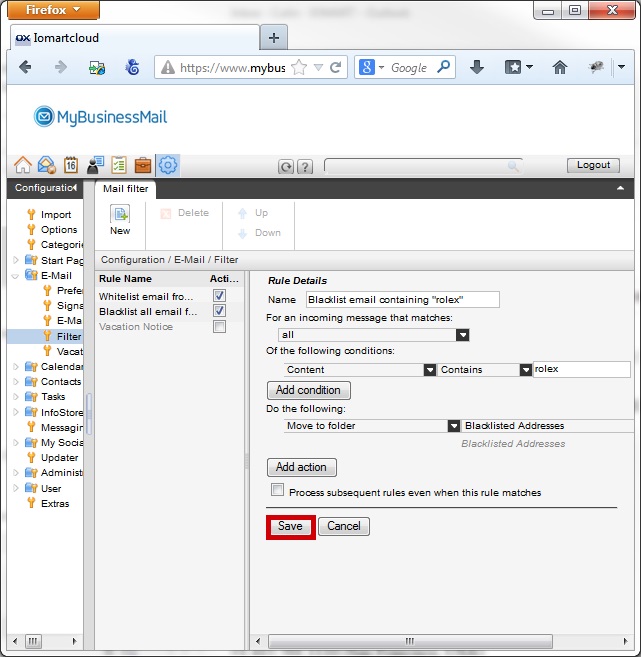
If the rule is possible you will a confirmation alert will be displayed
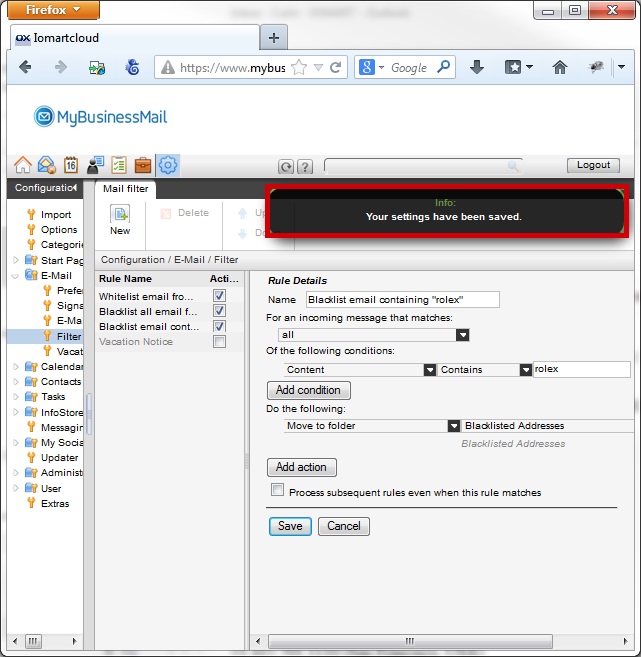
Email containing your selected content will deliver to your blacklist and go into to your quarantine
Q Delete an email address from your blacklist
Select the "Email" Icon and click on your "Blacklisted Addresses" or "Blacklisted Domains"
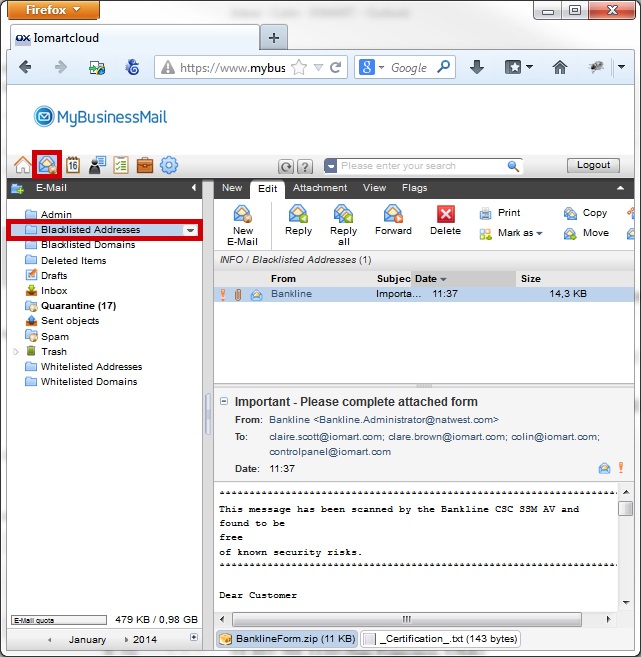
Select the email you wish to remove from your blacklist and click "Delete"
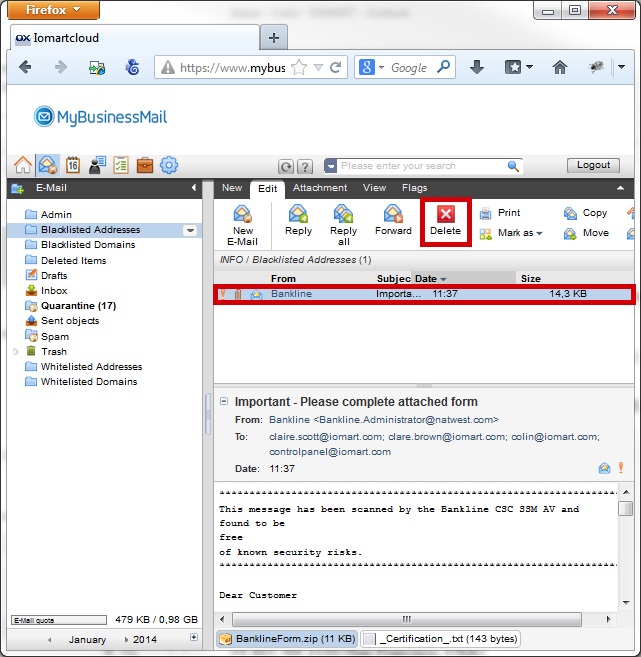
Email from this address will now be subject to delivery to your inbox however if it looks like spam it will deliver to your quarantine