CONVERT POP TO IMAP IN THUNDERBIRD
Helpful Hint!
Before you start you will need to have the password for your mail box which can be reset via your control panel if you do not know it! We keep your passwords encrypted for safety.A Creating a Backup (Optional)
To ensure no important email is lost you may wish to
create a backup.
NOTE : The steps below will only back up email on
Thunderbird Any email which has been
downloaded on another client or device will need backed
up separately.
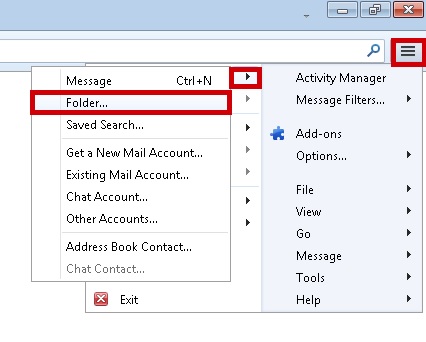
Start Thunderbird click the Display the Applications Menu Button, Navigate to New Message>>Folder
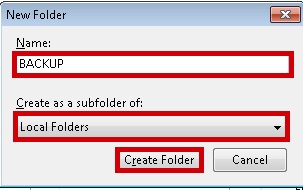
Create a folder called BACKUP and Ensure it is a subfolder of Local Folders and click Create Folder
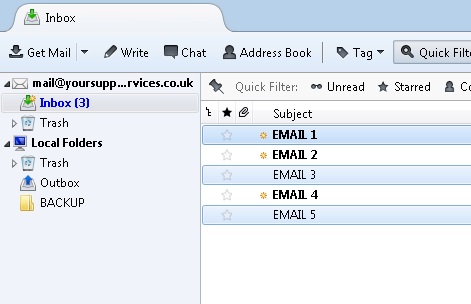
Select the emails you wish to back up (selected emails are highlighted in light blue)
- You can select all emails by holding CTRL on your keyboard and pressing the A button
- You can select individual emails by holding the CTRL button and clicking the selected emails with your mouse
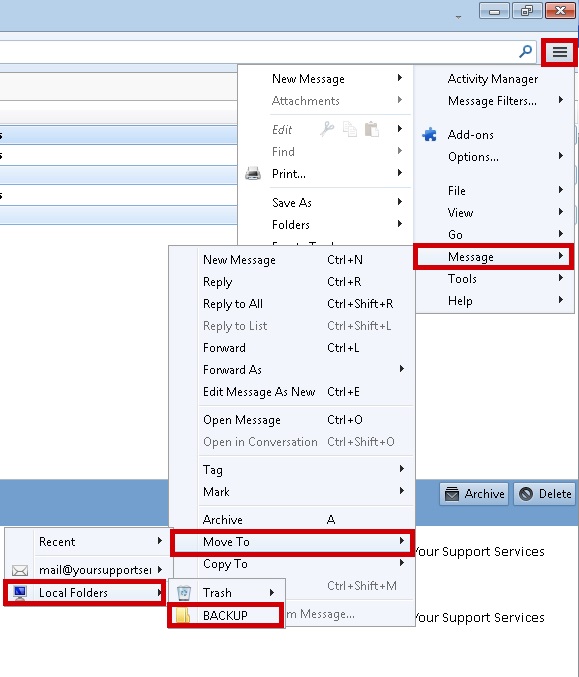
From the Display the Applications Menu Button, Navigate to Message>>Move to>>Local Folders>>BACKUP
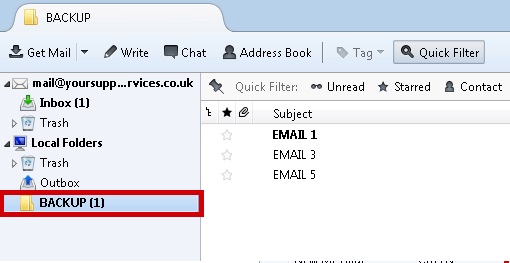
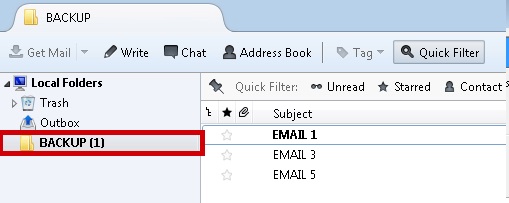
Click on the BACKUP Folder to confirm your emails have moved
B Removing Your POP Account
Before you can configure Thunderbird to
IMAP you will need to remove your POP email account
NOTE : If you have not carried out steps 1-6 in section
A, all contents of the mail box will be deleted!
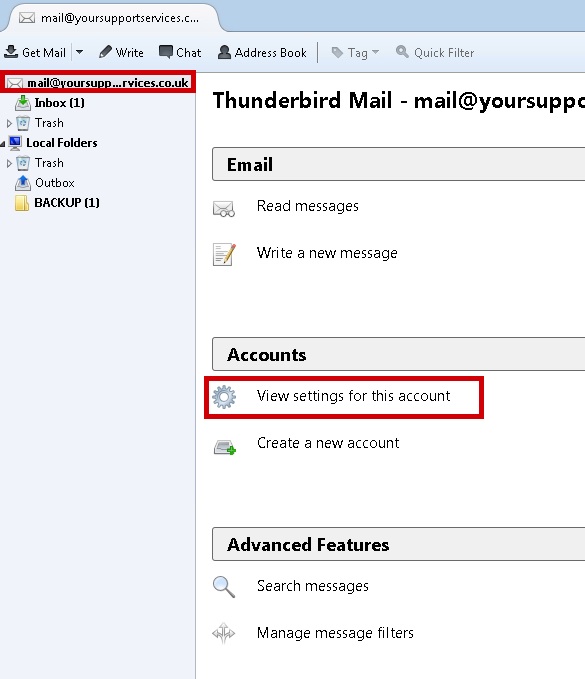
Highlight your account and click on View Settings for this account
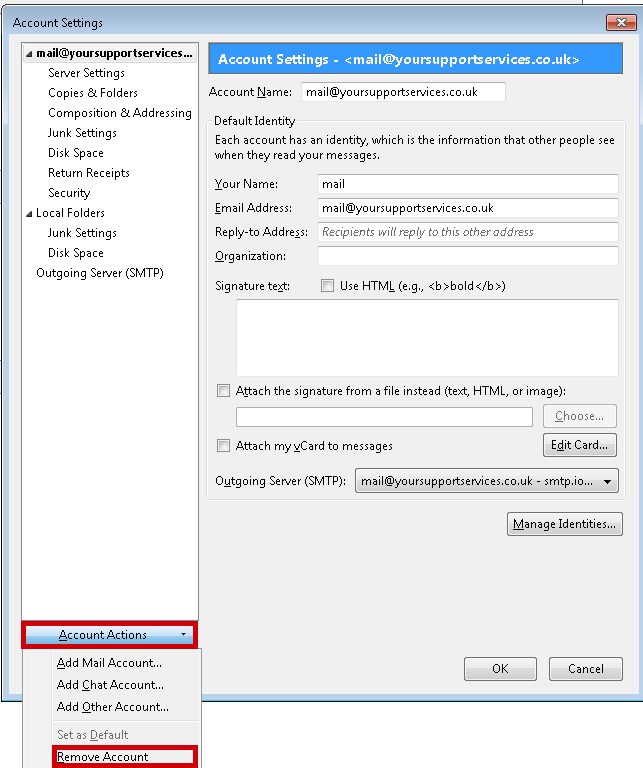
Under Account Actions you wish to remove and click Remove Account
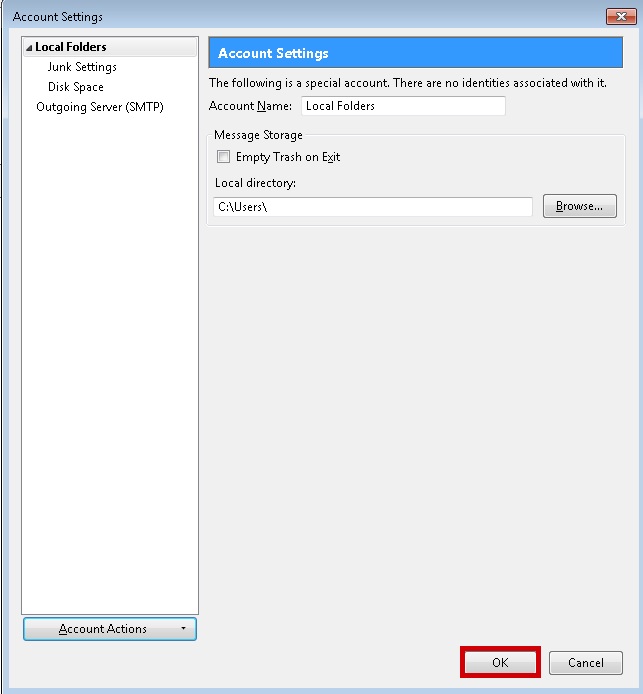
Confirm you wish to remove the account by clicking OK

Click the OK Button
The Email you backed up in Section A should still be accessible via the BACKUP folder
C Adding Your IMAP Account
Use this section to add your IMAP email account.
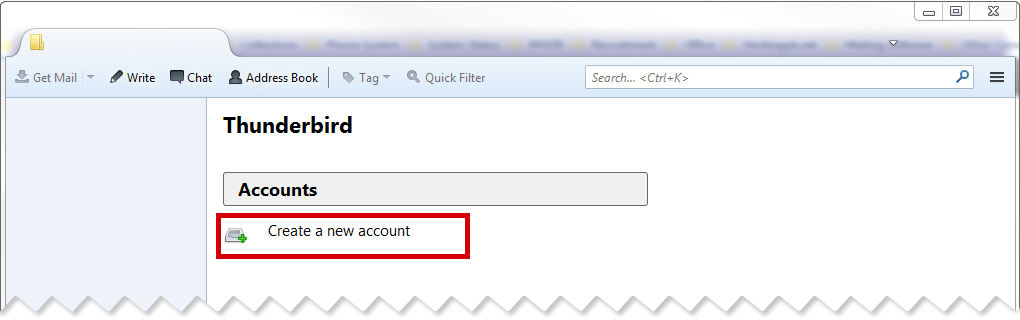
Open Thunderbird and click on Create a New Account
Select Skip this and use my existing email

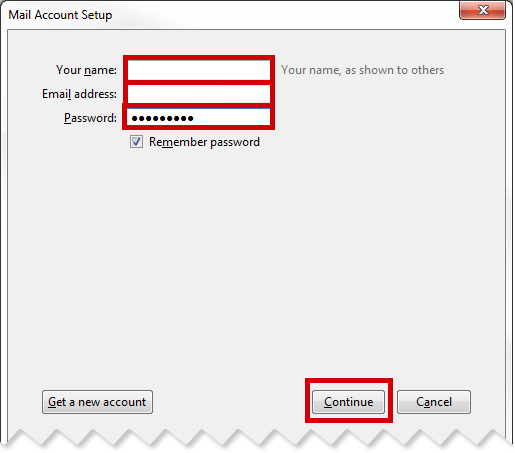
Complete the details on the wizard that loads up, and click Continue
| Full Name : | Your Name |
| E-Mail Address : | your.name@domain.com |
| Password : | This is the password you associated with your mailbox in the control panel |
At this point thunderbird will attempt to look for your server Settings, however the ones it finds will be incorrect, click Manual Config

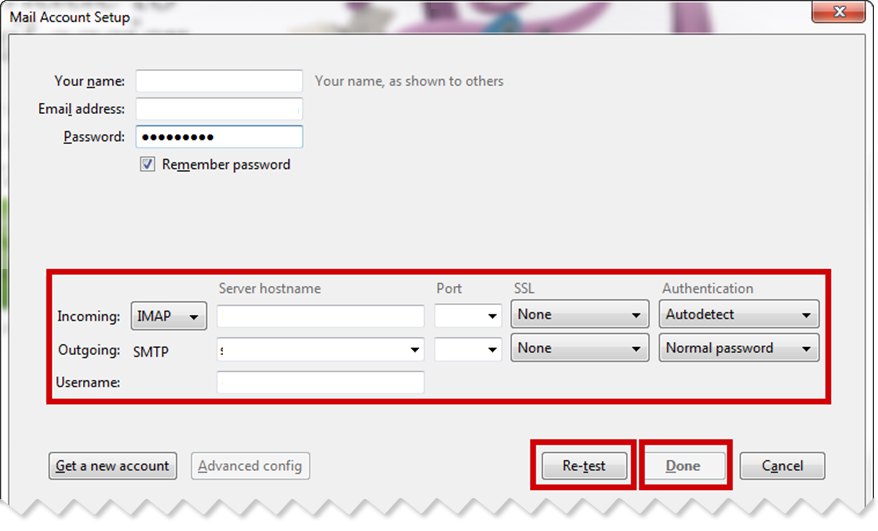
You now need to enter your full email address in this box,then click on Retest & Done.
Incoming |
|
|---|---|
| Type: | imap |
| Server Hostname: | imap.iomartmail.com |
| PORT: | 143 |
| SSL: | None |
| Authentication: | Autodetect |
Outgoing |
|
|---|---|
| Type: | SMTP |
| Server Hostname: | smtp.iomartmail.com |
| PORT: | 587 |
| SSL: | None |
| Authentication: | Normal Password |
| Username: | Your email address or the username configured in your CP. |
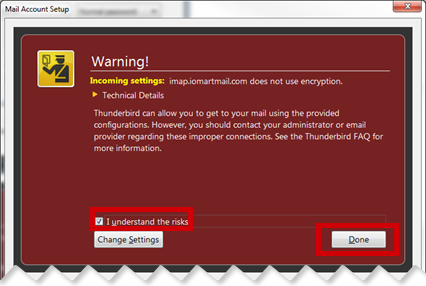
You will be presented with a warning regarding encryption, select I Understand The Risks and click Done
Still having trouble sending mail? You may need to change your SMTP Port - info on how to do this can be found Here
D Restoring Mail From Backup to Your Inbox
Once your email box is configured in Thunderbird you can restore your backup to your inbox so your IMAP email is accessible on any client or device
Navigate to the BACKUP Folder in Thunderbird
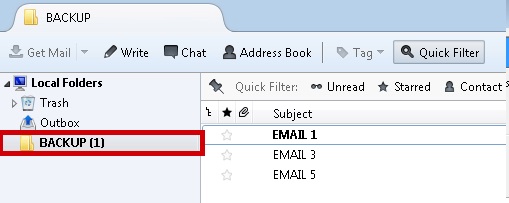
Select the emails you wish to restore to your IMAP inbox (selected mails will be highlighted in light blue)
- You can select all emails by holding CTRL on your keyboard and pressing the A button
- You can select individual emails by holding the CTRL button and clicking the selected emails with your mouse
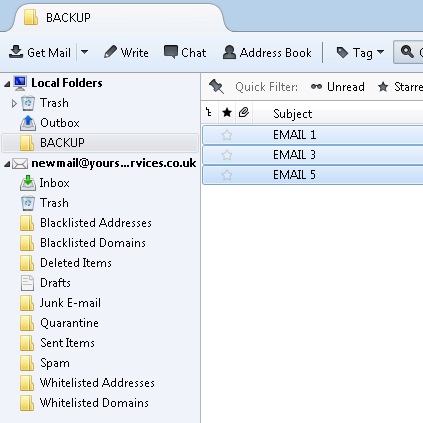
From the Display the Applications Menu Button, Navigate to Message>>Move to>>YOUR NEW MAILBOX>>Inbox
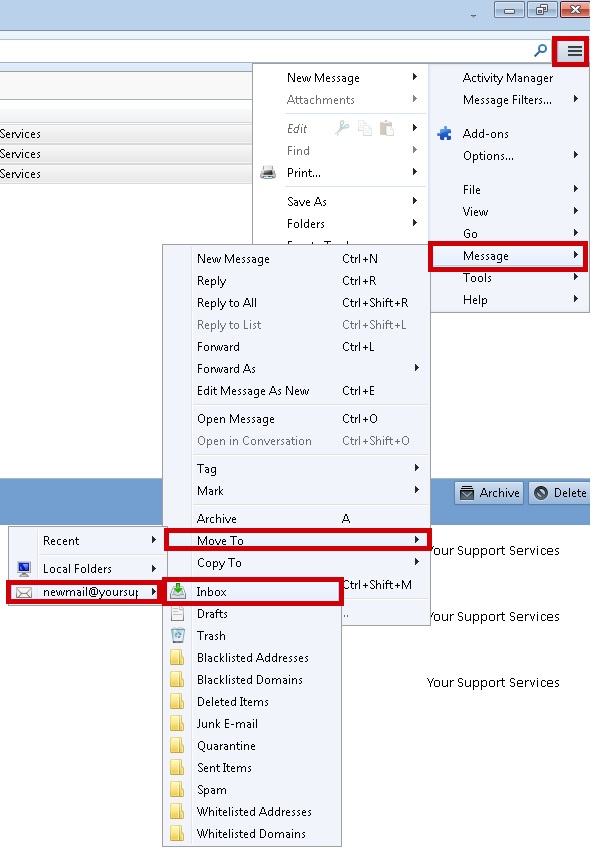
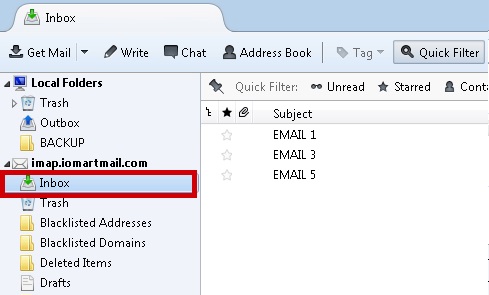
Click on your IMAP Inbox to confirm your emails have moved from the BACKUP folder
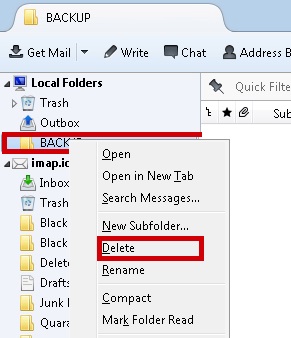
Right Click on the BACKUP folder, Select Delete
NOTE : ensure there is no mail in this folder or it will be permanently deleted