
CONVERT IMAP TO POP IN WINDOWS MAIL
Helpful Hint!
Before you start you will need to have the password for your mail box which can be reset via your control panel if you do not know it! We keep your passwords encrypted for safety.Customers should note when moving from IMAP-POP any mail stored in IMAP folders will not be accessible via your mail client when your POP account is setup. Any mail in IMAP folders will need copied into your inbox.
A Removing Your IMAP Account
Before you can configure Windows Mail to
POP you will need to remove your IMAP email account
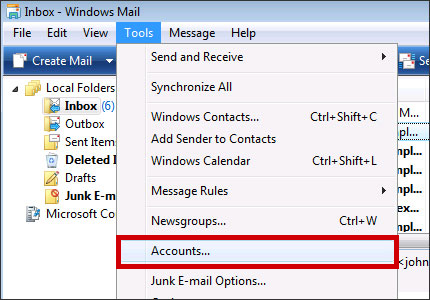
Select the Tools Menu then select Accounts

Select the account you wish to remove and click Remove

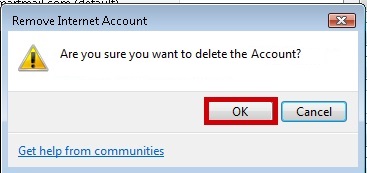
Confirm you wish to remove the account by clicking OK
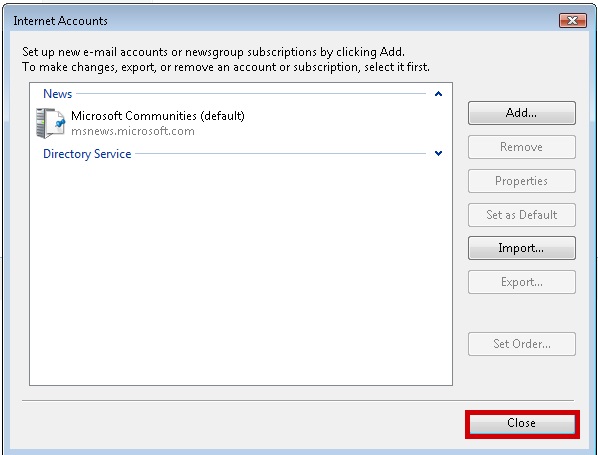
Click the Close Button
B Adding Your POP Account
Use this section to add your POP email account.
Open Windows Mail Tools and then Accounts
Select Add

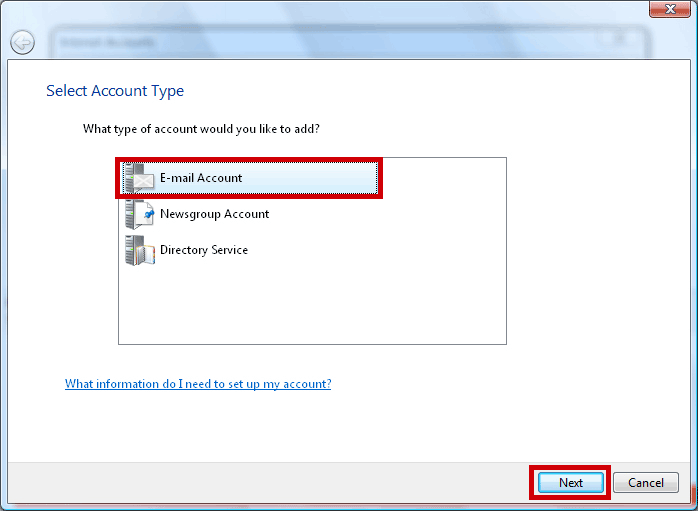
Select Account type as Email Account and click Next

You will then be asked to enter your name (this is that name that will appear on the recipient's computer), so you may want to put either your name, or your company name here. Click Next
| Display Name : | Your Name |
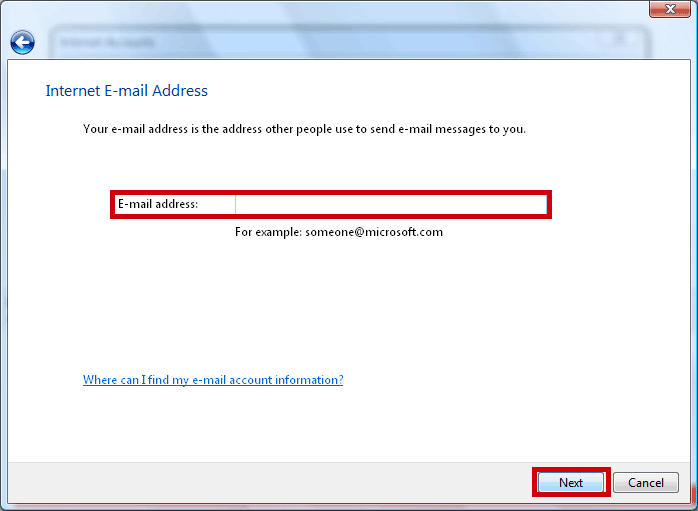
You now need to enter your full email address in this box, then click on Next.
| E-Mail Address : | your.name@domain.com |
Enter the mail server names, and click on Next
| Incoming email server type : | pop |
| Incoming Mail (POP3 or IMAP) Server : | pop.iomartmail.com |
| Outgoing email server (SMTP) name : | smtp.iomartmail.com (ensure "Outgoing Server Requires Authentication" is selected) |

Enter your Email Username and Password, and select Next
| Email Username : | Your email address or the username configured in your CP. |
| Password: | This is the password |

Click the Finish
Still having trouble sending mail? You may need to change your SMTP Port - info on how to do this can be found Here