Setup 2FA for first time use or if the authentication status has been reset
If you did not click “Setup Now” after 2FA was enabled or reset, you will be prompted to set up 2FA on your next login.
Users will need an application on their mobile device to use 2FA.

Android


Windows Phone
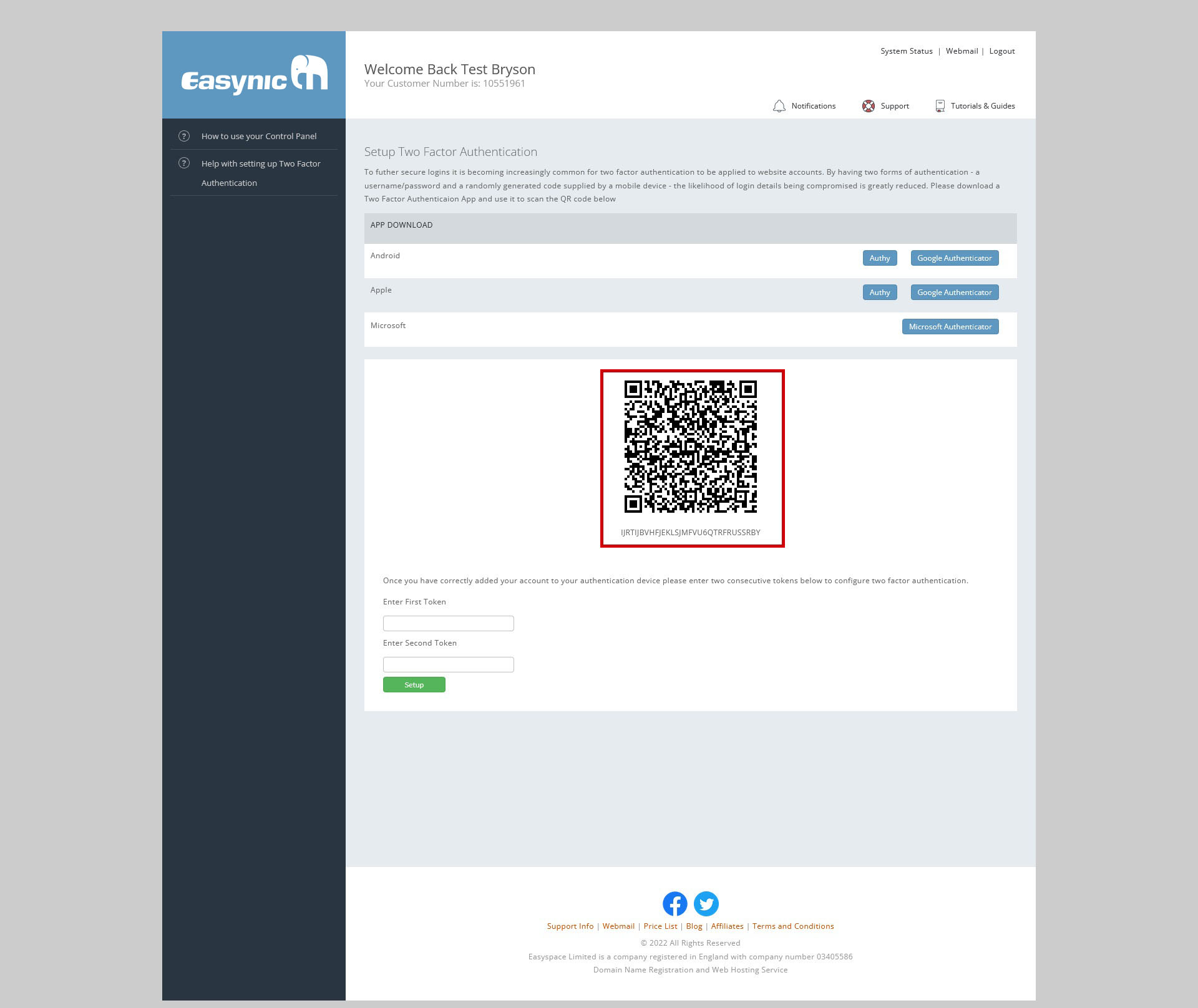
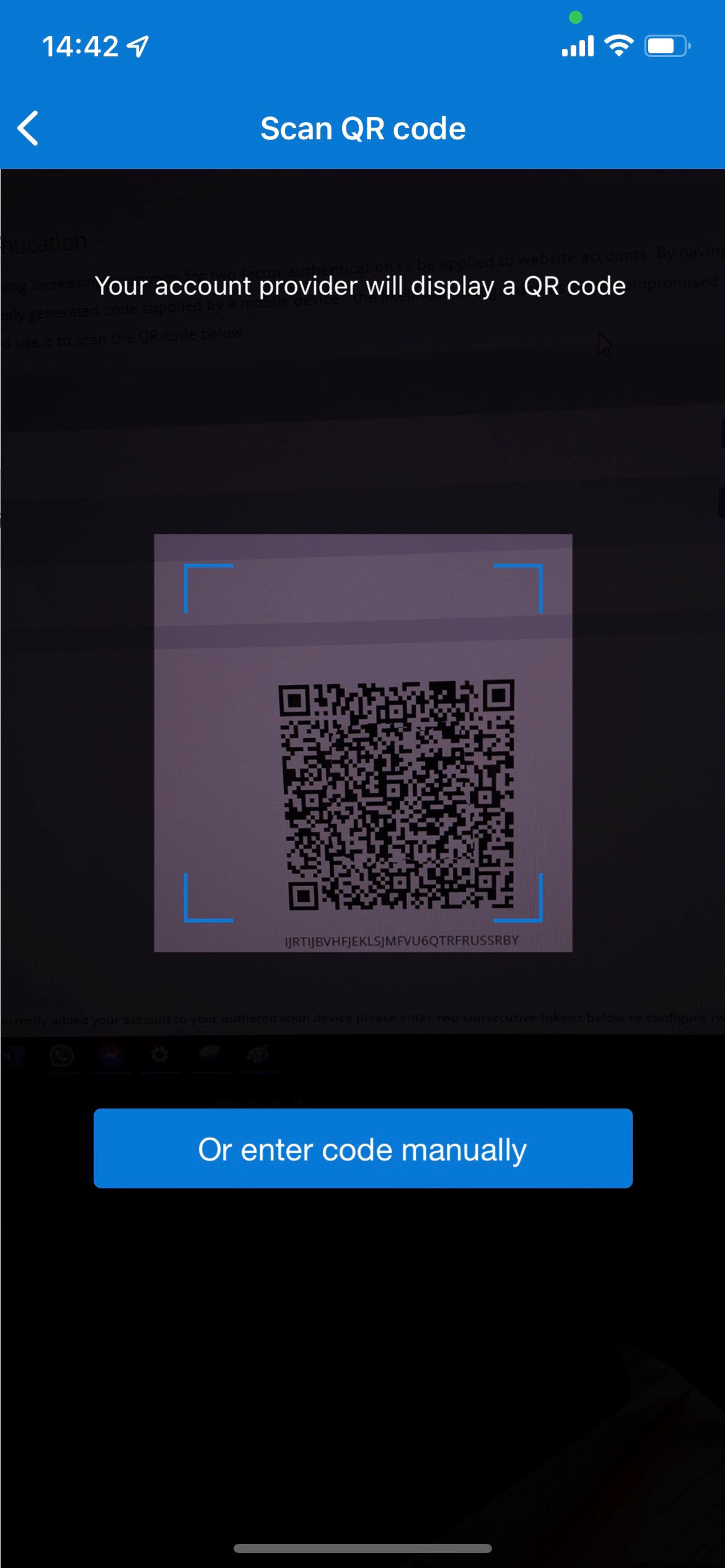
Scan the QR code on the 2FA setup page using your authentication device.
 Authy
Authy
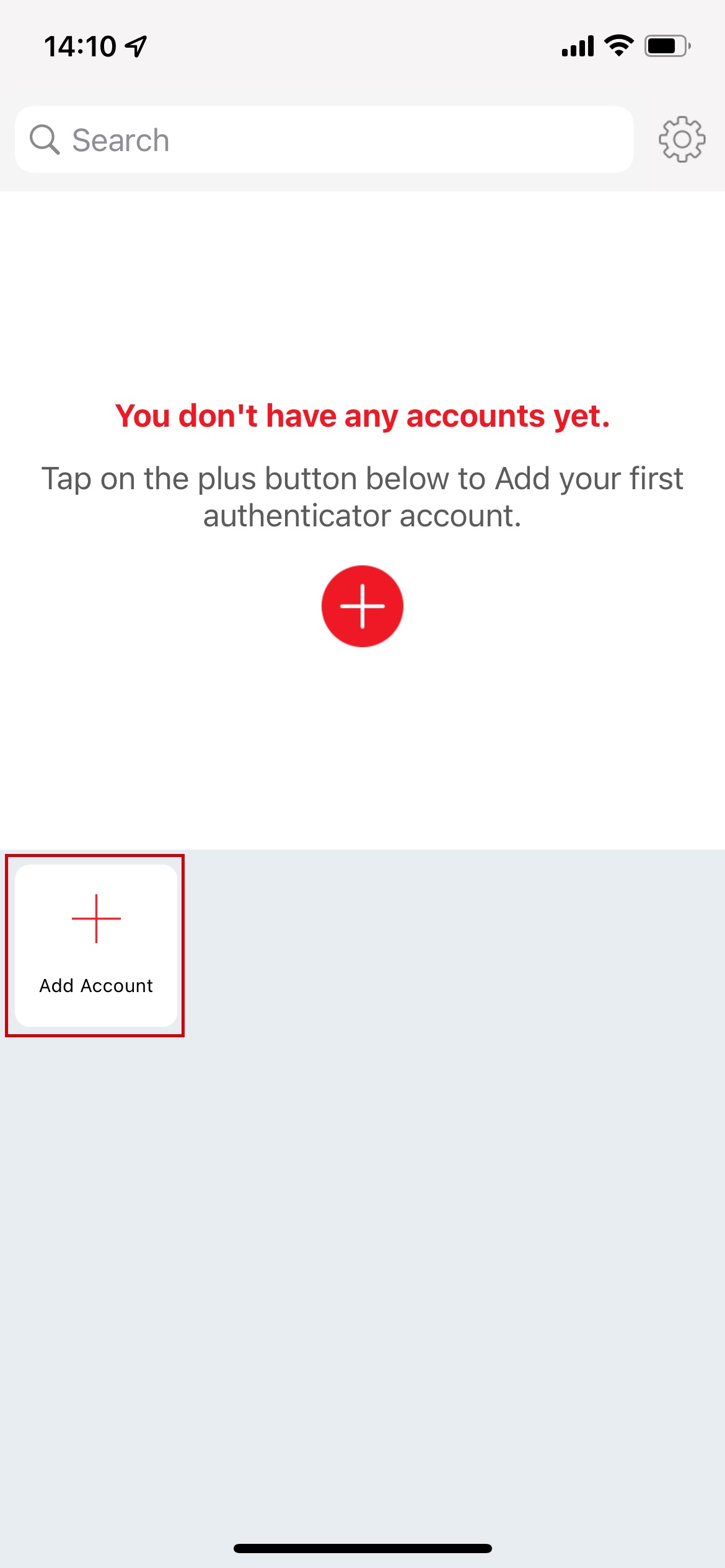
(I) Click “Add Account”
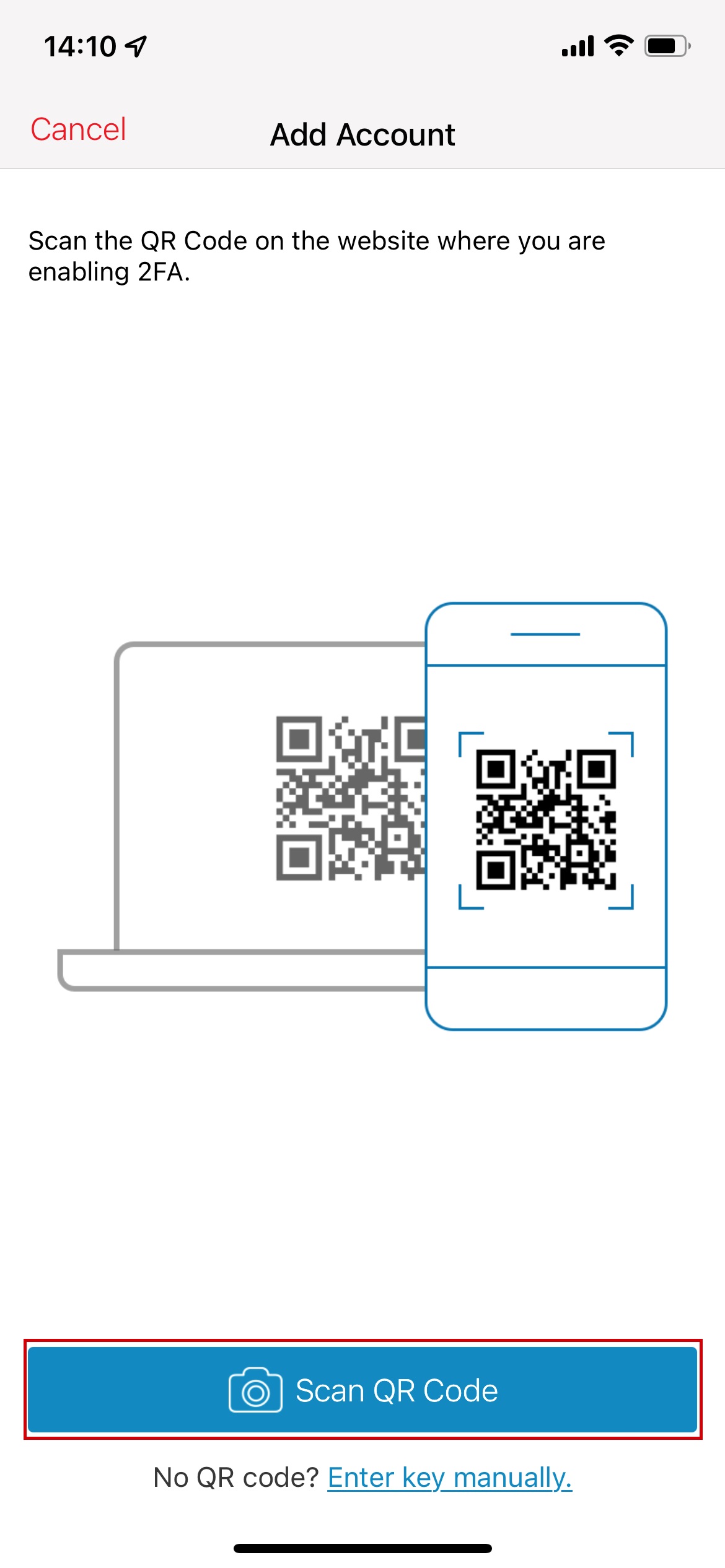
(II) Click “Scan QR Code”
(III) Capture the QR code from the Easynic Control Panel using the Authy App
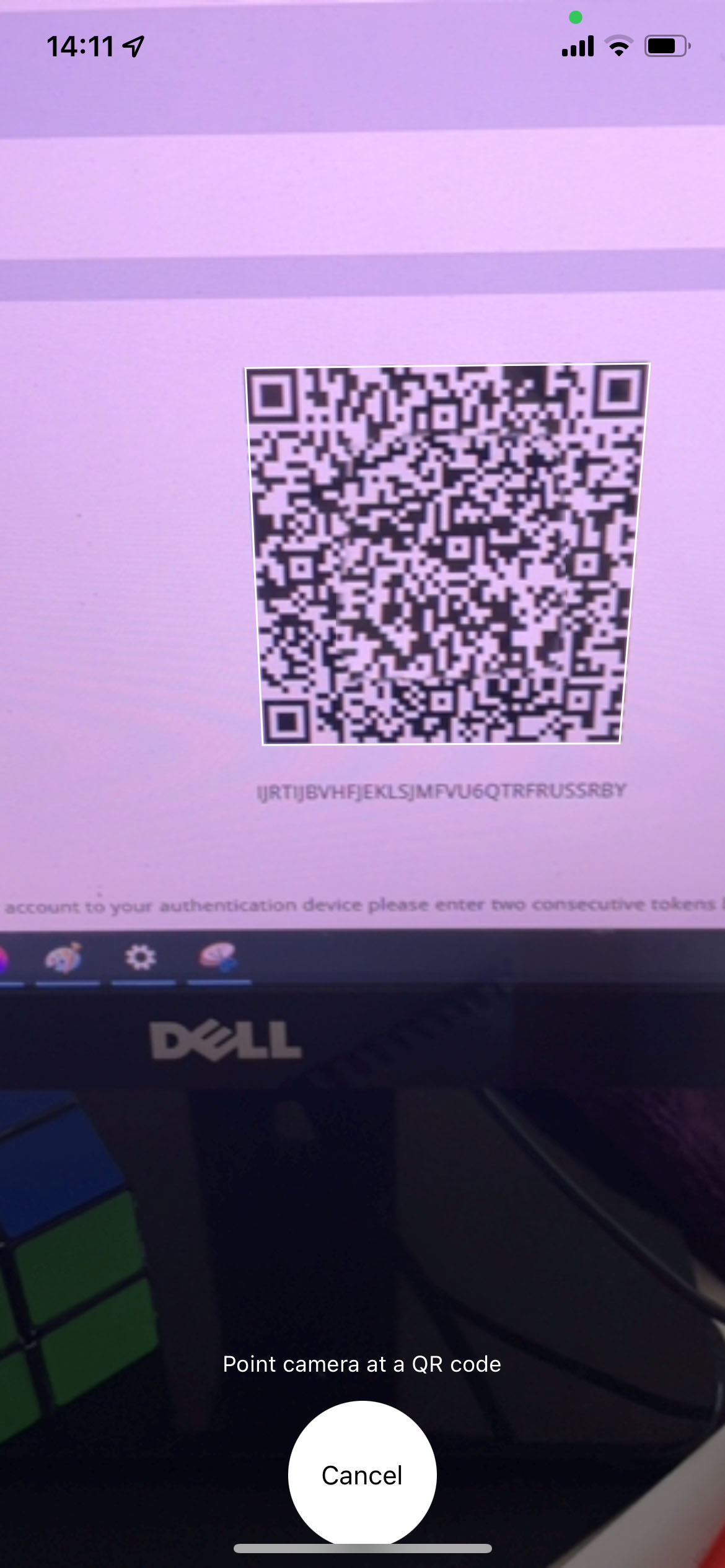
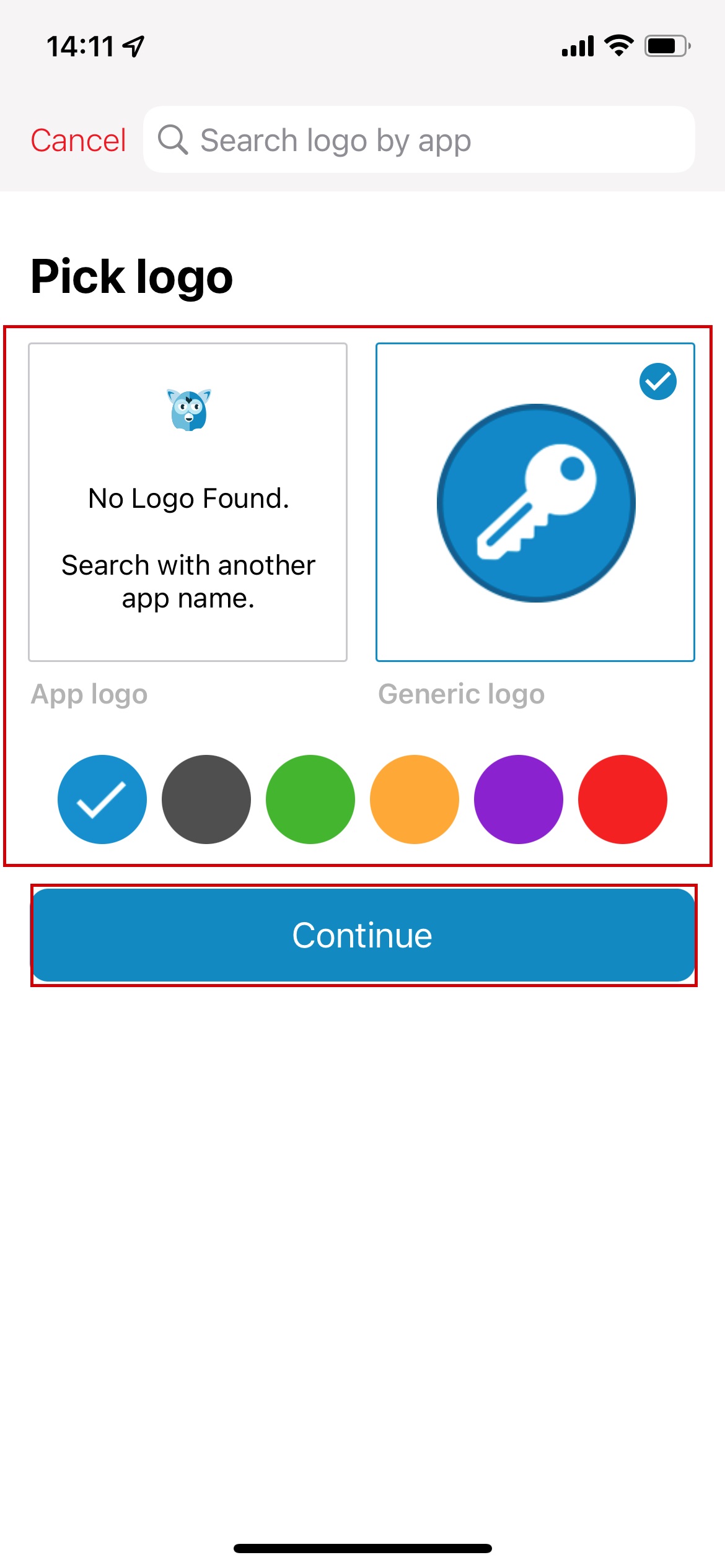
(IV) Pick a logo and a colour then click “Continue”
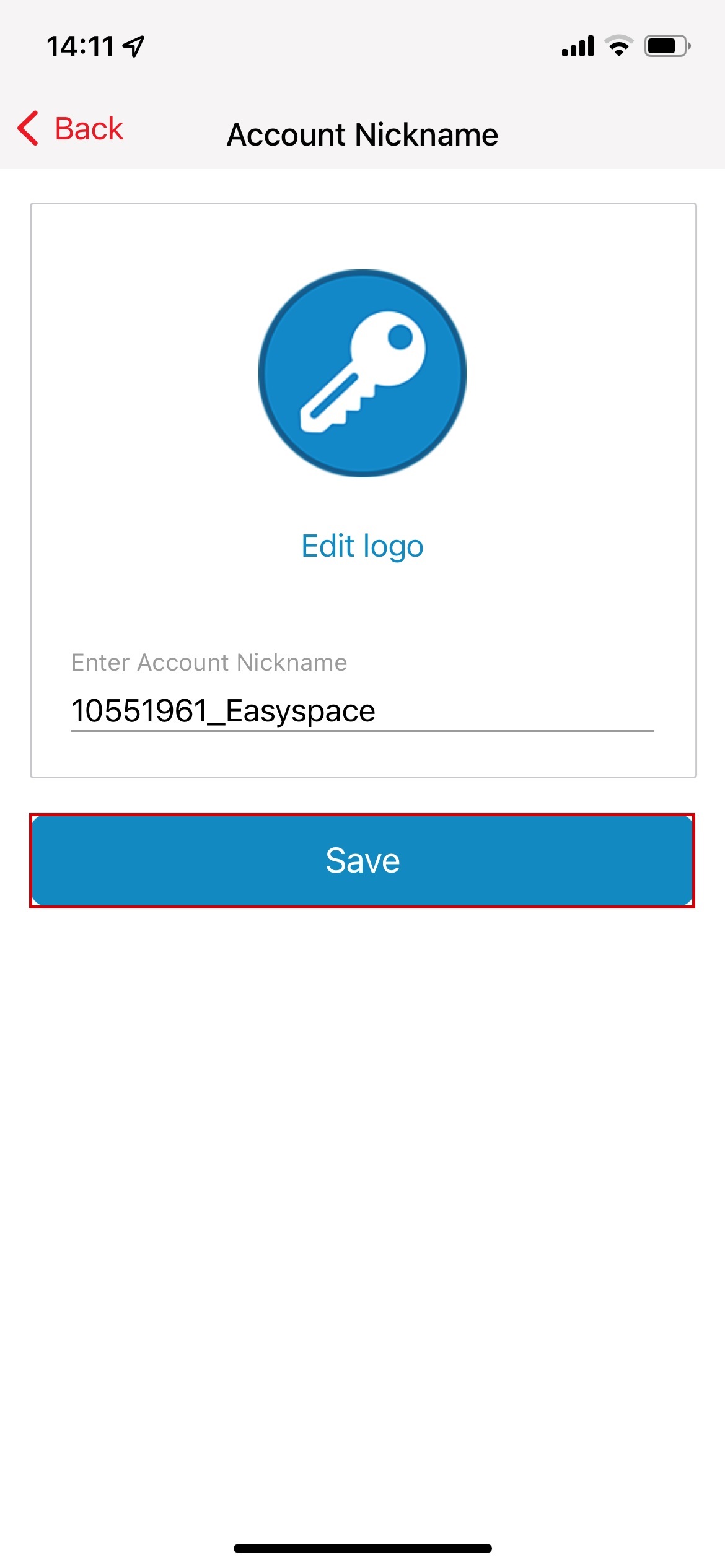
(V) Give your account a nick name (this will be set as “customernumber_Easynic” by default) then click “Save
 Google Authenticator
(I) Click the “+” symbol
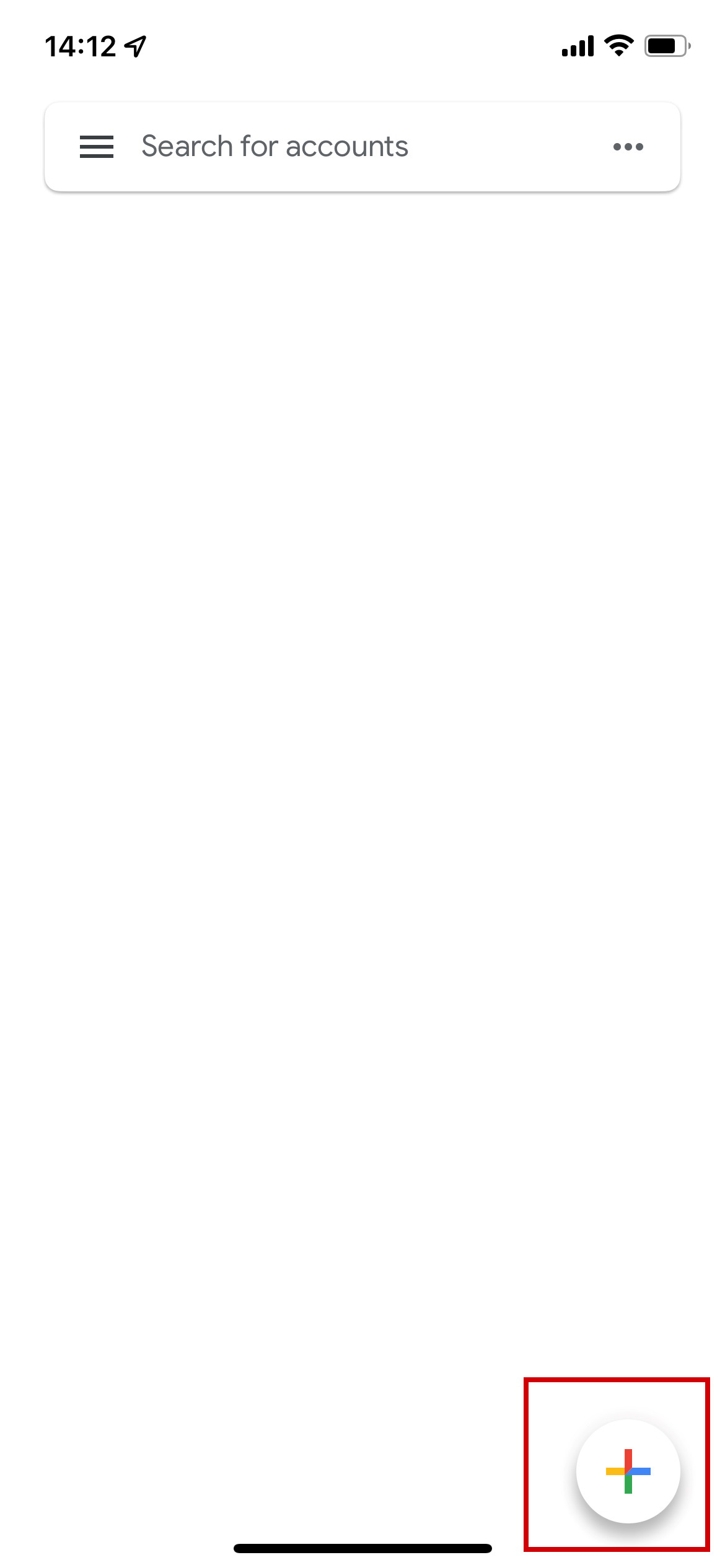
(II) Click “Scan a QR code”
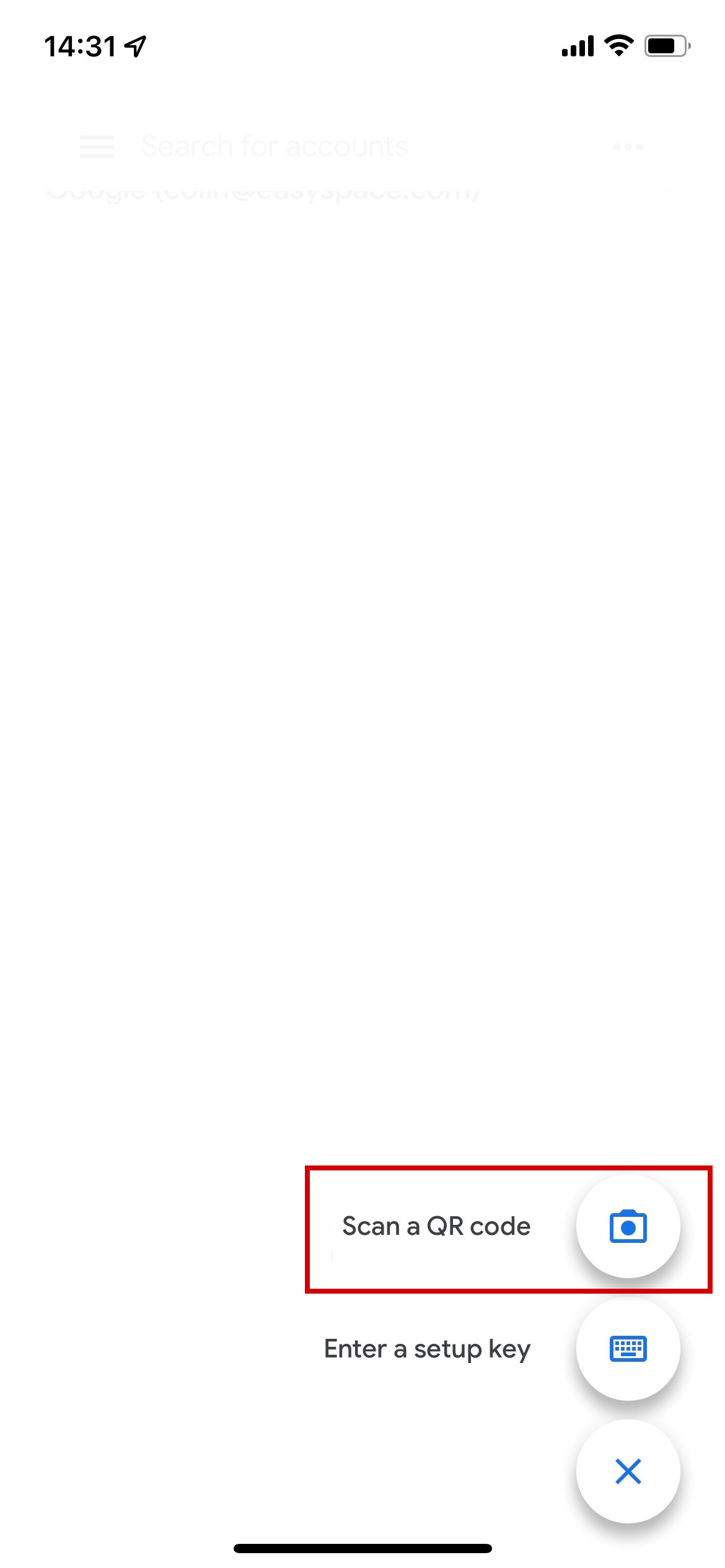
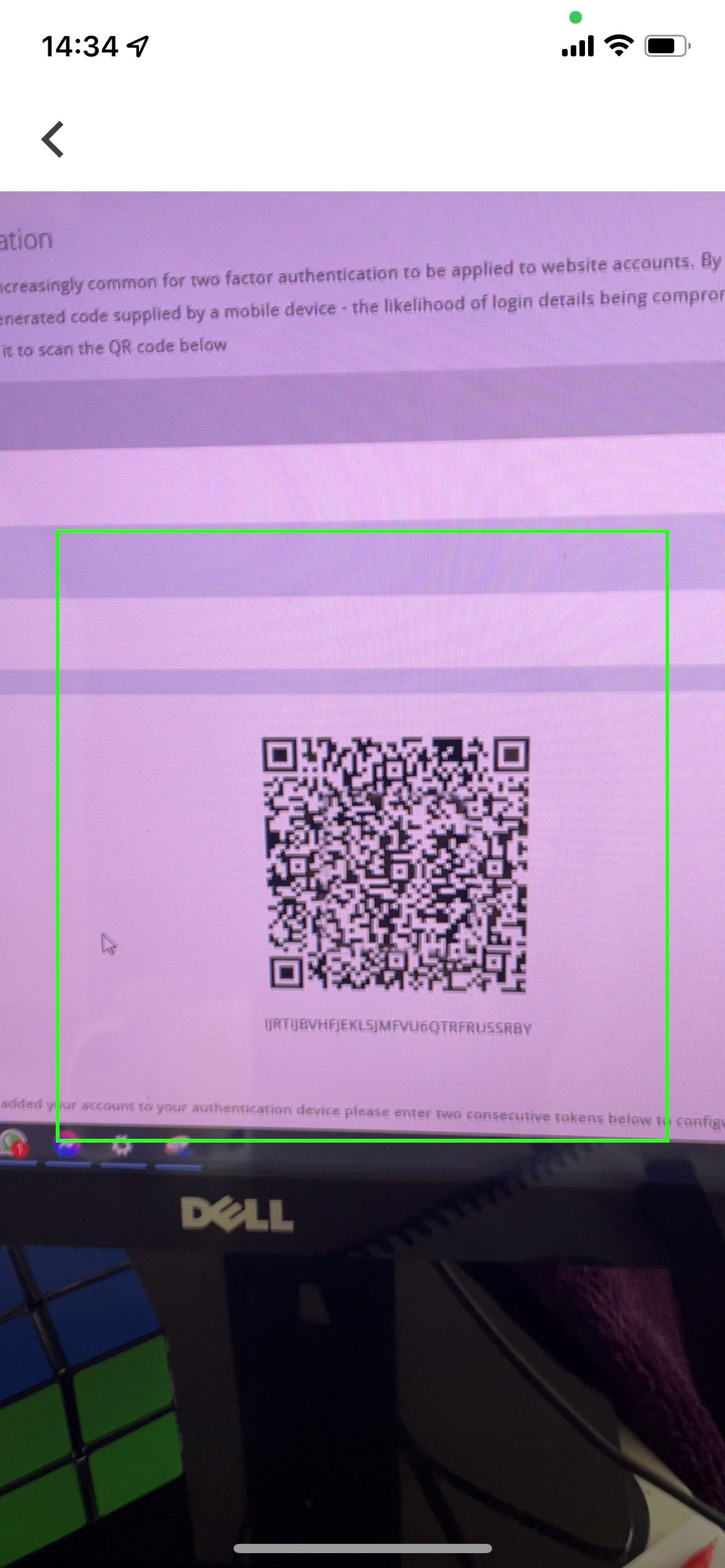
(III) Capture the QR code from the Easynic Control Panel using the Google Authenticator app
 Microsoft Authenticator
(I) Click the “+” symbol
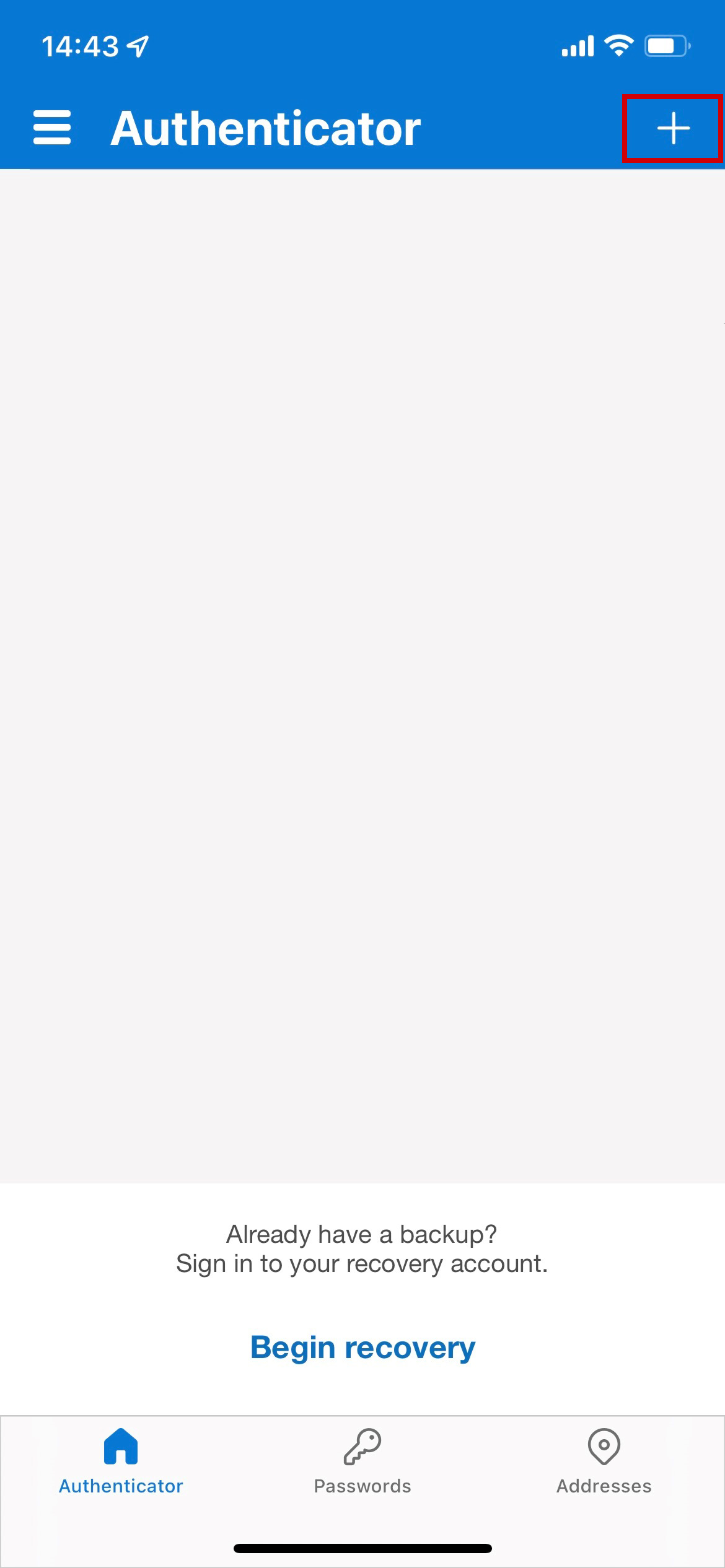
(II) Click “Other (Google, Facebook, etc)
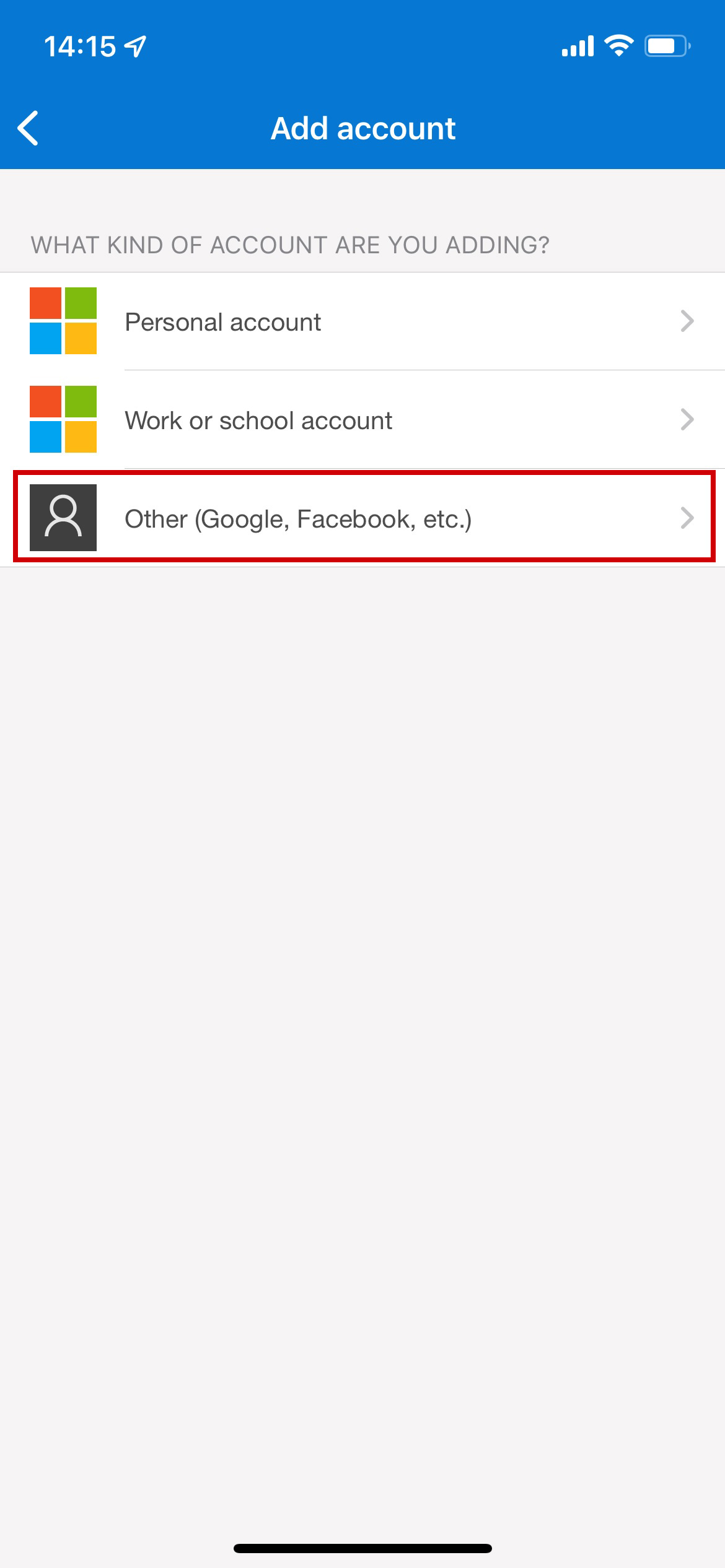
(III) Capture the QR code from the Easynic Control Panel using the Microsoft Authenticator app
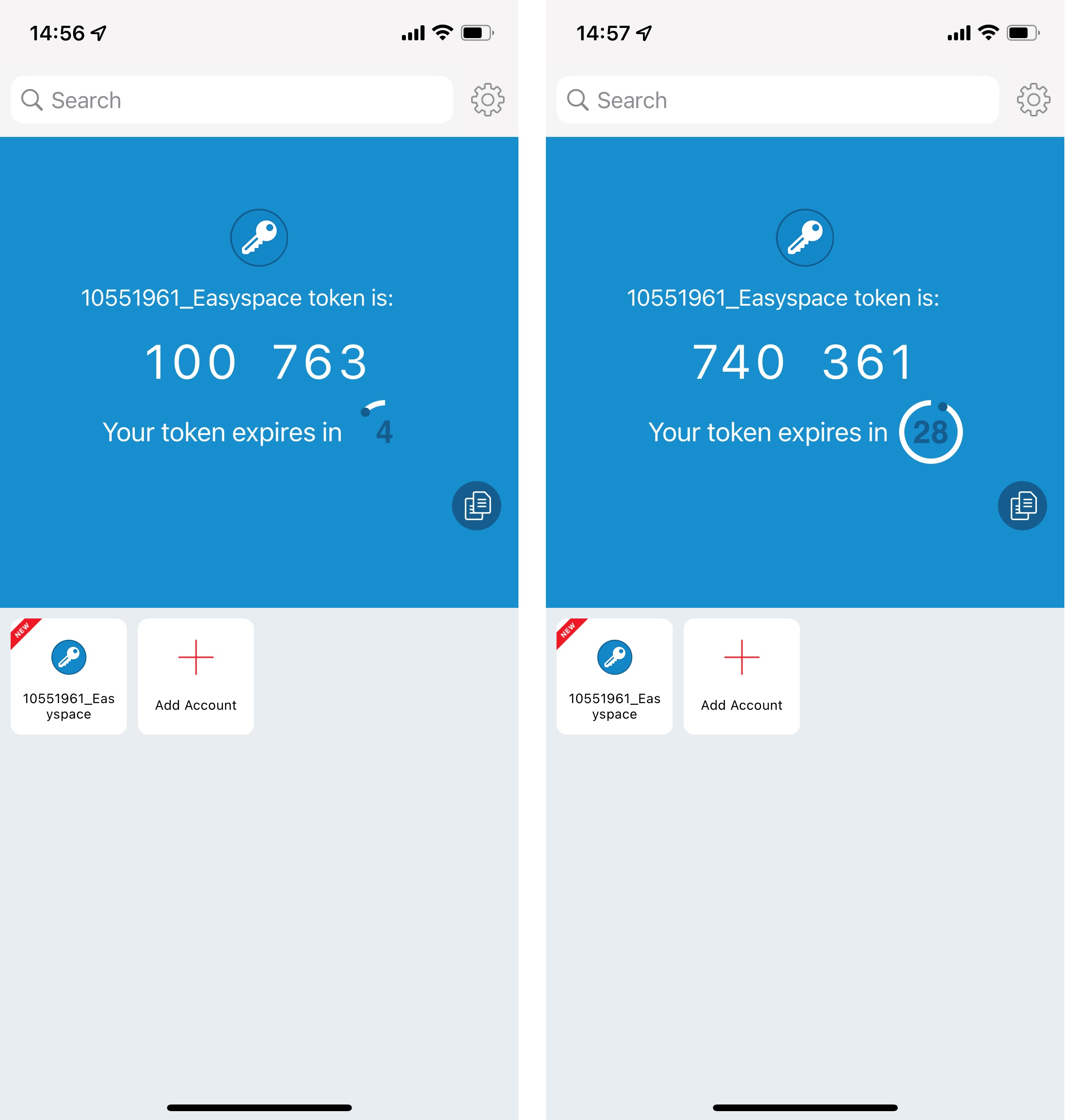
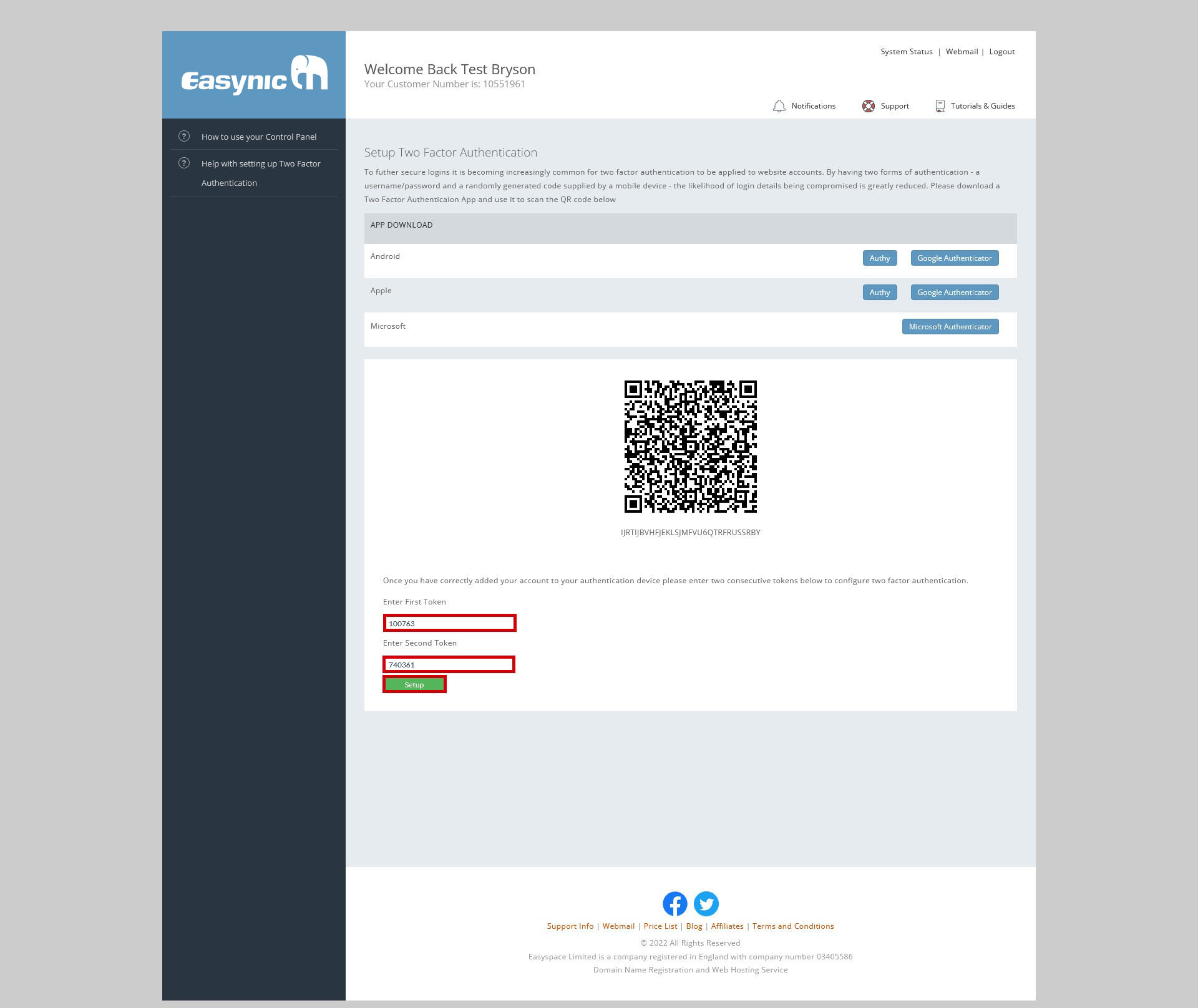
From your authentication device you will need to enter 2 consecutive tokens to the 2FA Setup Page, then click Submit.
Authy
(I) Open the Authy App on your mobile device and click the account with the Easynic identifier for your account. Enter this on the Easynic Control Panel, wait for the token to refresh and then enter that on the Easynic control panel
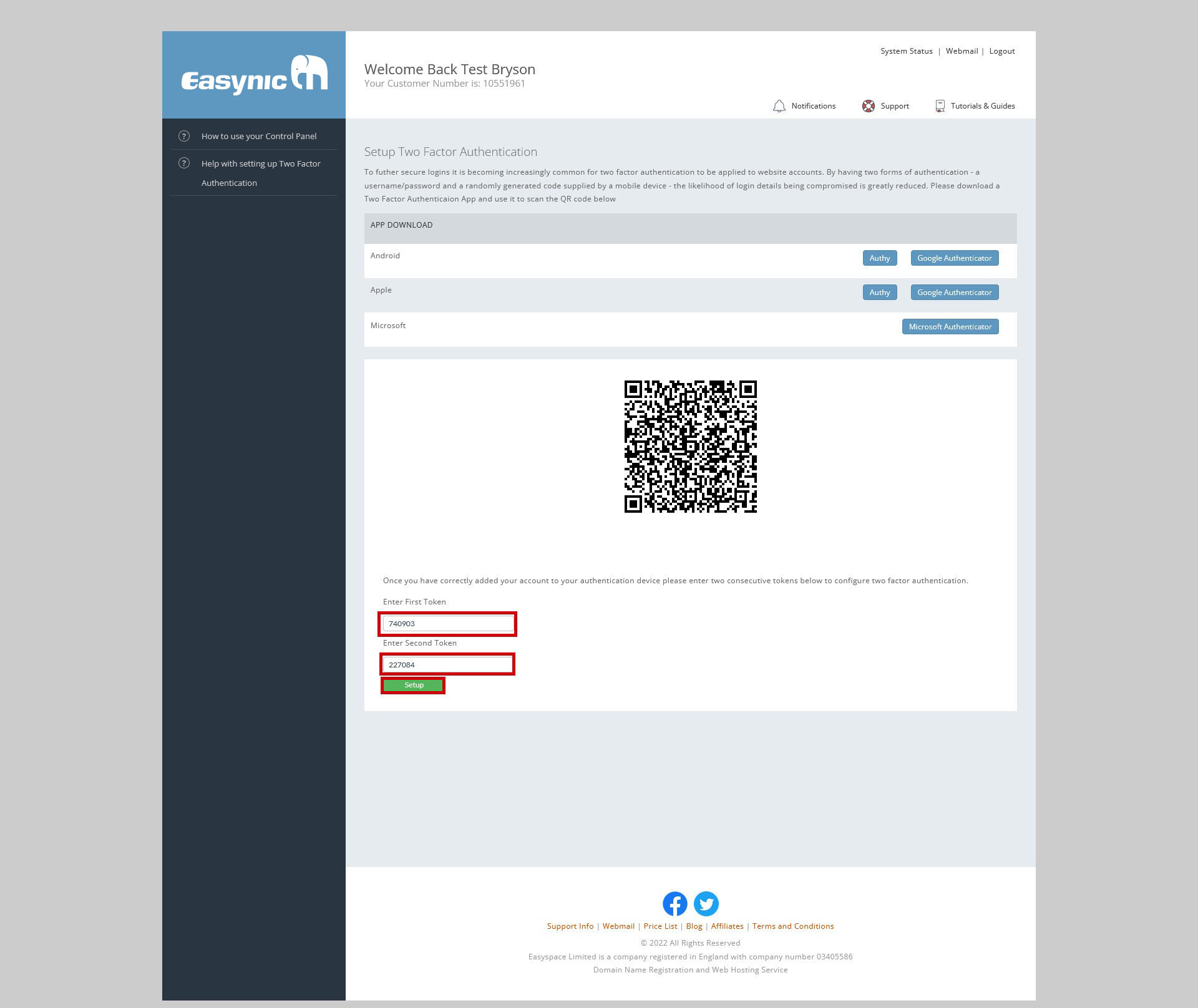
(II) Click “Setup”
Google Authenticator
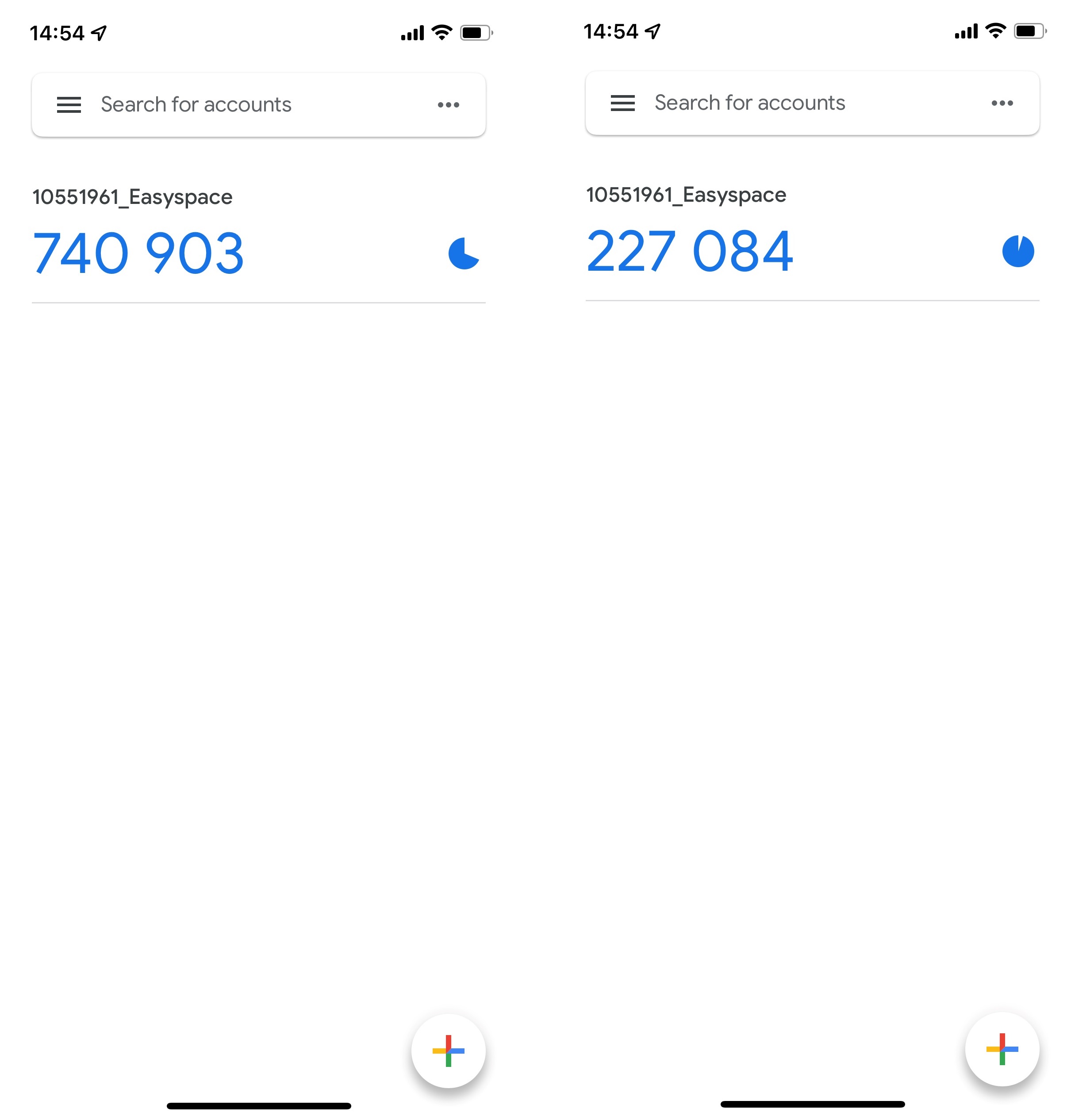
(I) Open the Google Authenticator App on your mobile device and look for the account with the Easynic identifier for your account. Enter this on the Easynic Control Panel, wait for the token to refresh and then enter that on the Easynic control panel
(II) Click “Setup”
Microsoft Authenticator
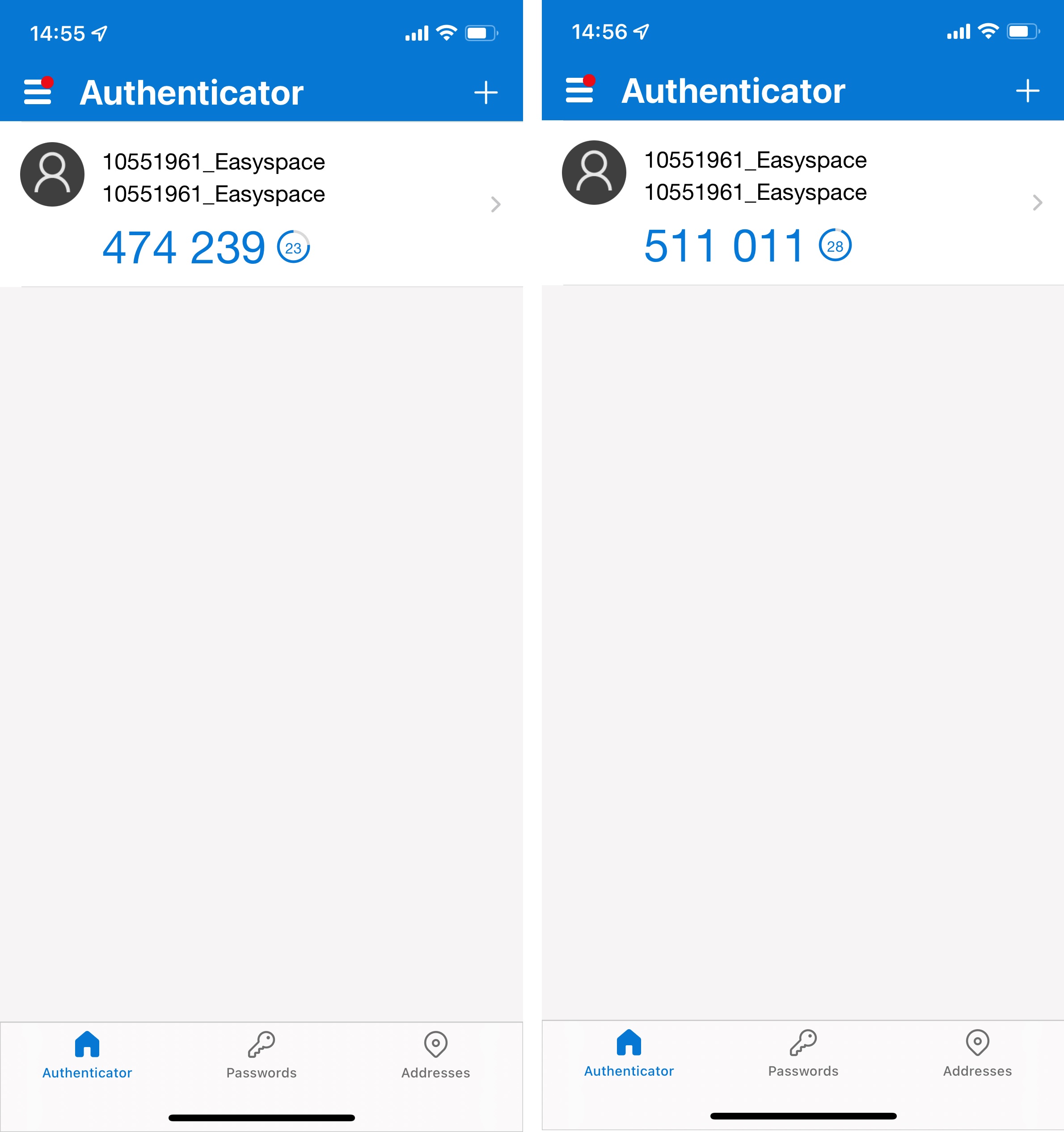
(I) Open the Microsoft Authenticator App on your mobile device and look for the account with the Easynic identifier for your account. Enter this on the Easynic Control Panel, wait for the token to refresh and then enter that on the Easynic control panel
(II) Click “Setup”
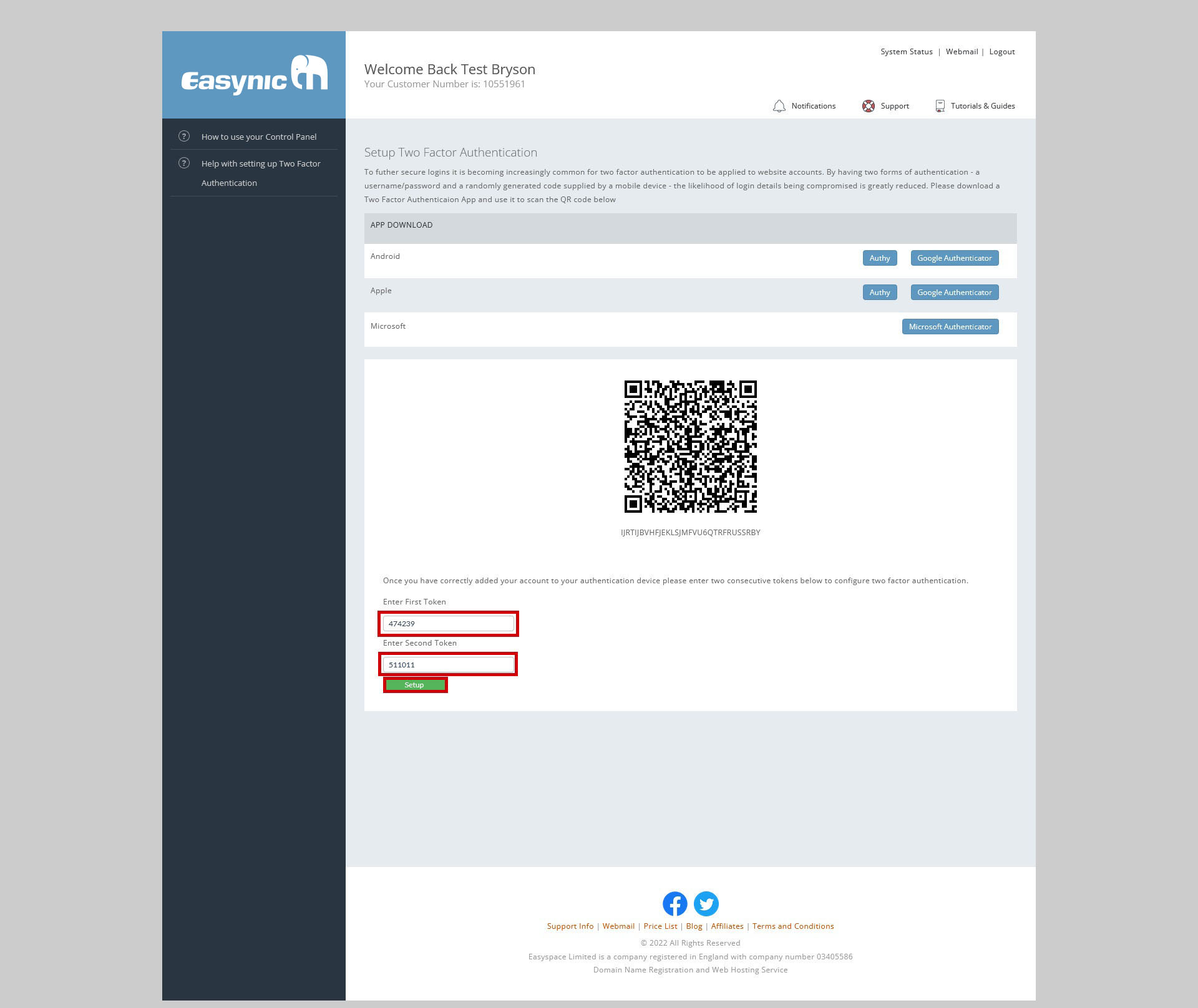
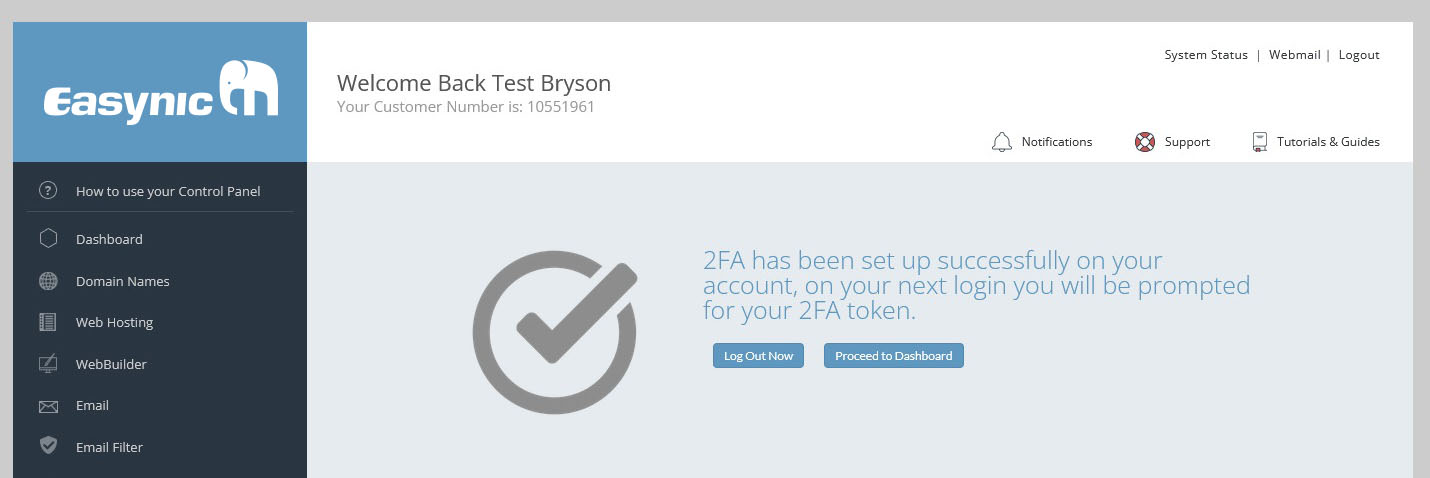
Once both tokens have been submitted you will be presented with a success screen, you can test 2FA has been set up correctly by logging out and back in or you can continue to the dashboard