
TO SET UP EMAIL IN MOZILLA THUNDERBIRD 17 (POP)
Thunderbird is a free application any customers using an older version than 17, we suggest you upgrade direct from Mozilla - http://www.mozilla.org/en-US/thunderbird/
1
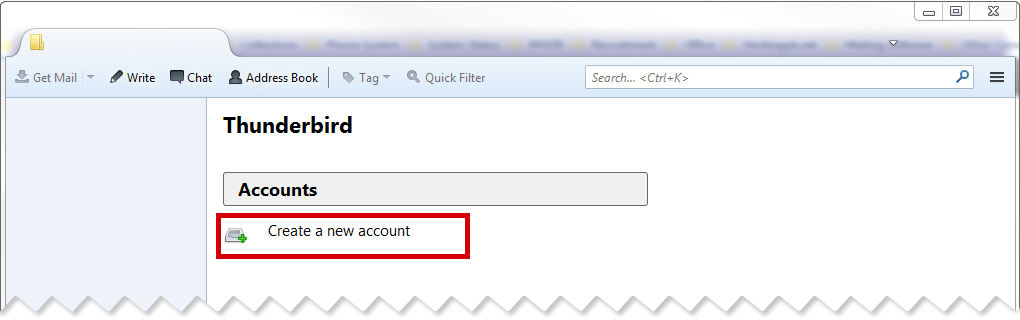
Open Thunderbird and click on Create a New Account
2

Select Skip this and use my existing email
3
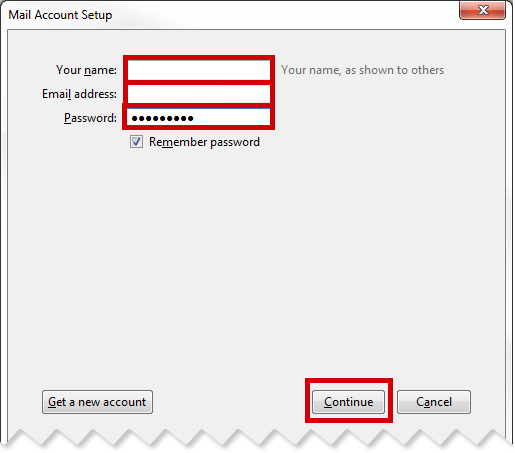
Complete the details on the wizard that loads up, and click Continue
| Full Name : | Your Name |
| E-Mail Address : | your.name@domain.com |
| Password : | This is the password you associated with your mailbox in the control panel |
Your Name
your.name@domain.com
4

At this point thunderbird will attempt to look for your server Settings, however the ones it finds will be incorrect, click Manual Config
Your Name
your.name@domain.com
5

You now need to enter your full email address in this box,then click on Retest & Done.
Incoming |
|
|---|---|
| Type : | pop |
| Server Hostname: | pop.iomartmail.com |
| PORT: | 110 |
| SSL: | None |
| Authentication: | Autodetect |
Outgoing |
|
|---|---|
| Type : | SMTP |
| Server Hostname: | smtp.iomartmail.com |
| PORT: | 587 |
| SSL: | None |
| Authentication: | Normal Password |
| Username: | Your email address or the username configured in your CP. |
Your Name
your.name@domain.com
pop.iomartmail.com
smtp.iomartmail.com
110
587
your.name@domain.com
6
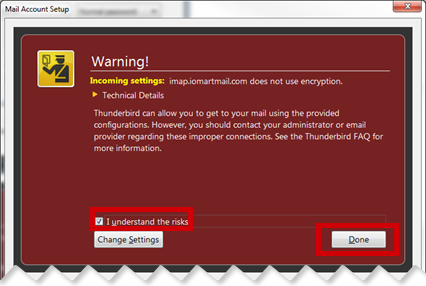
You will be presented with a warning regarding encryption, select I Understand The Risks and click Done
Still having trouble sending mail? You may need to change your SMTP Port - info on how to do this can be found Here