
Online : Calendar
1
You can access the Microsoft 365 Portal by visiting https://login.microsoftonline.com and sign in with your account username and password.
2
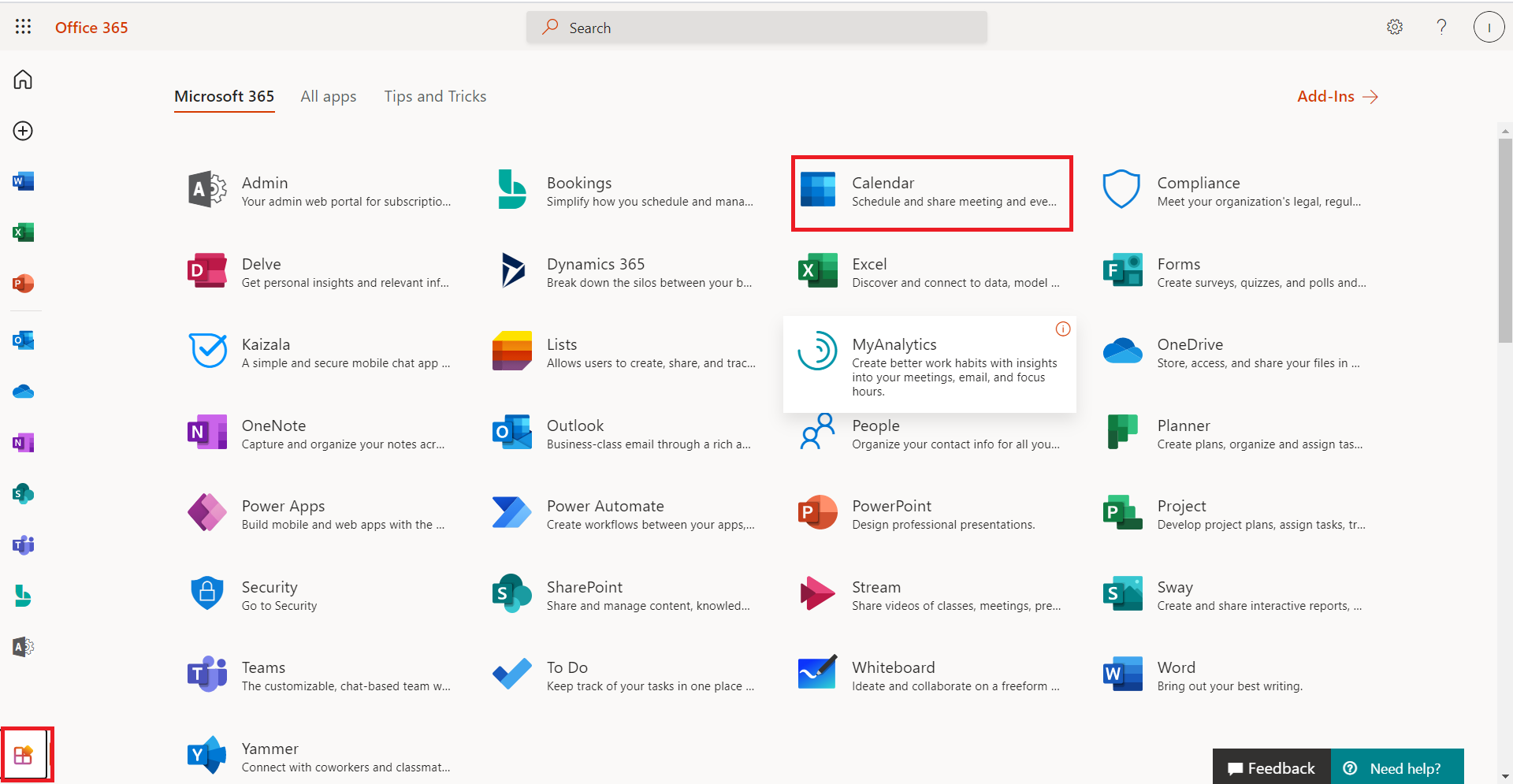
On the left menu, click on All Apps then the Calendar app.
3
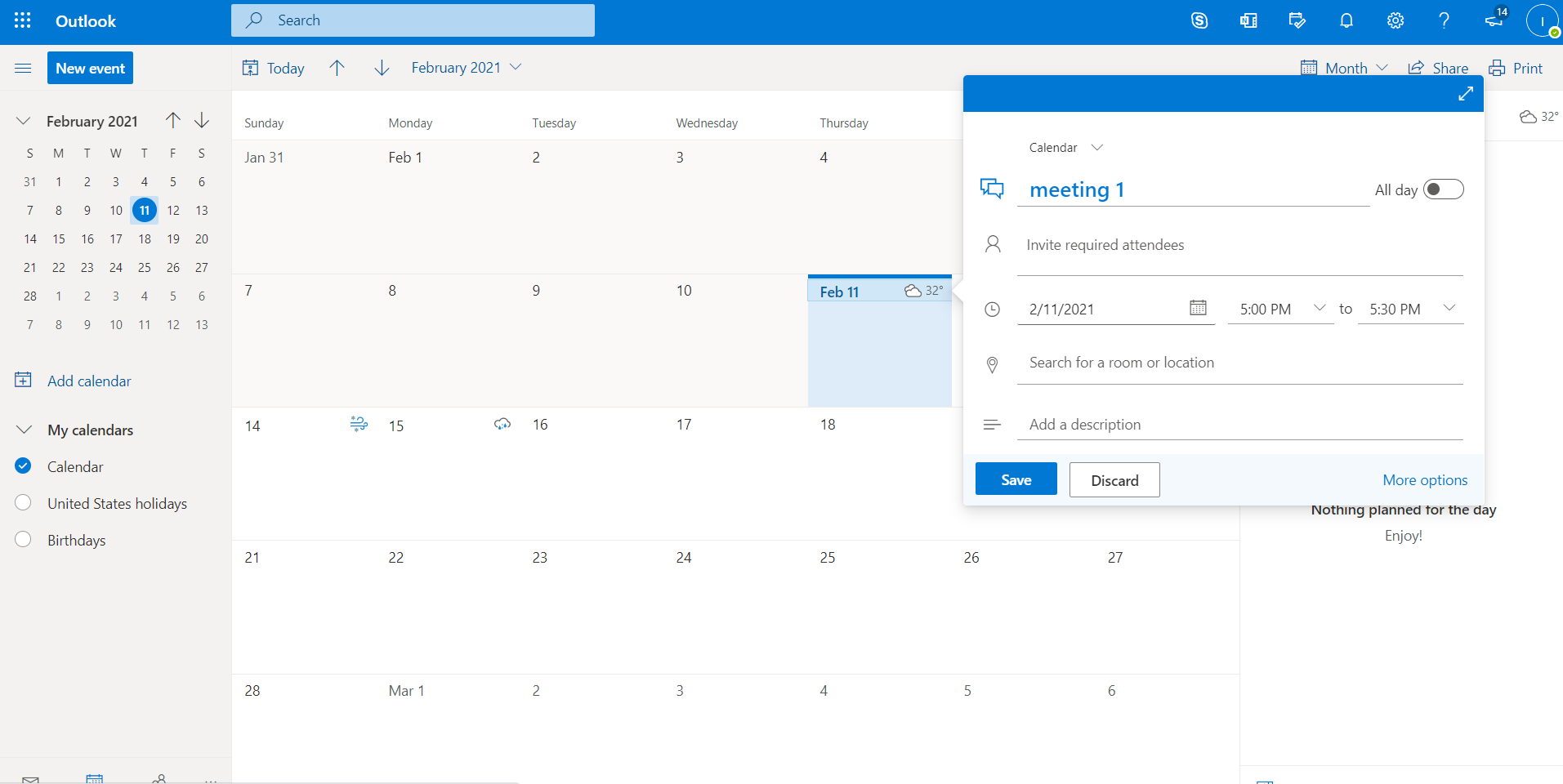
To quickly create a new event on your calendar, single click on a date, enter the details of the event then Save.
4
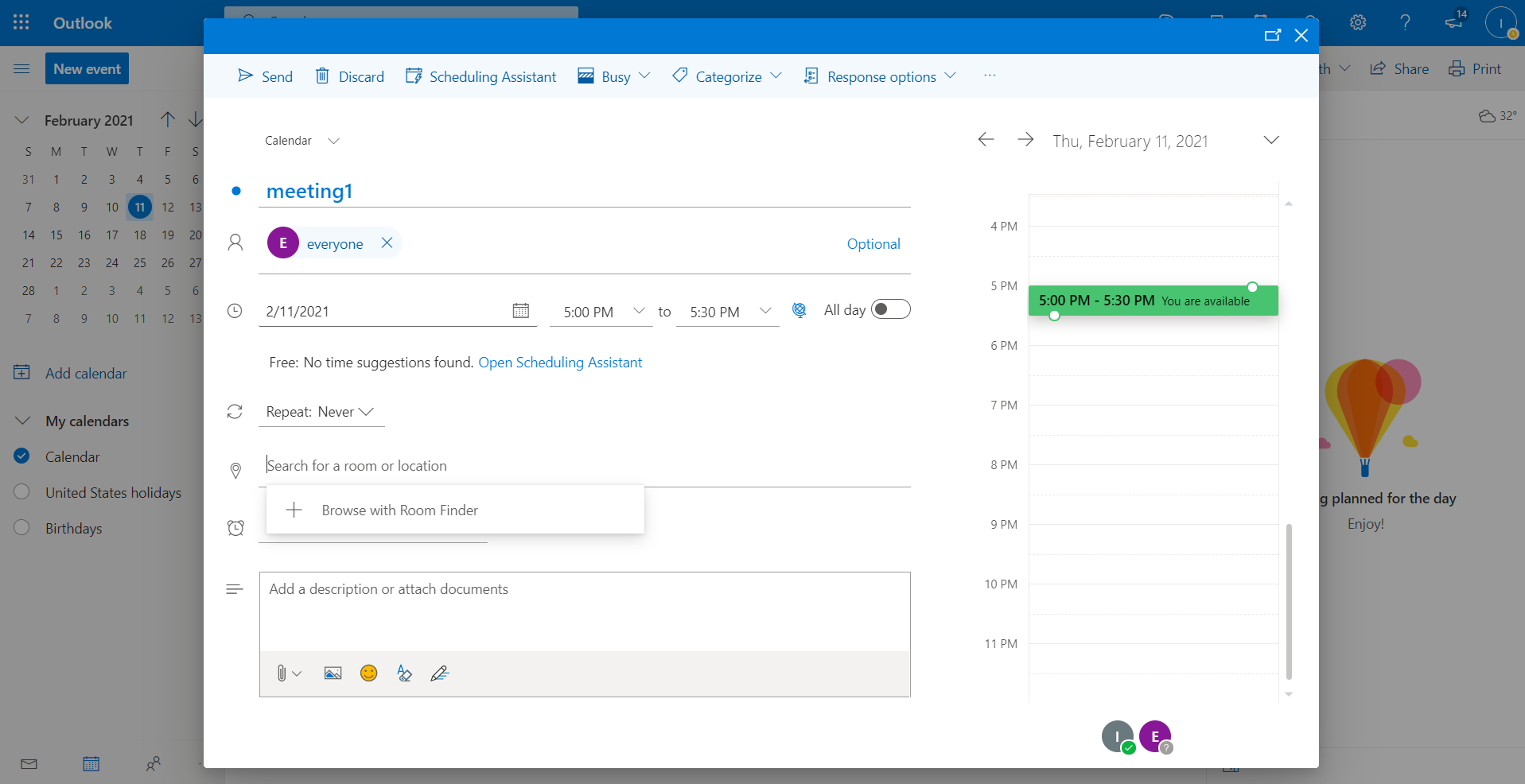
To create a new event in more detail, double click on a date, enter the details of the event then Save or if you add recipients to the meeting Send and this will send the meeting request to those invitees.
5
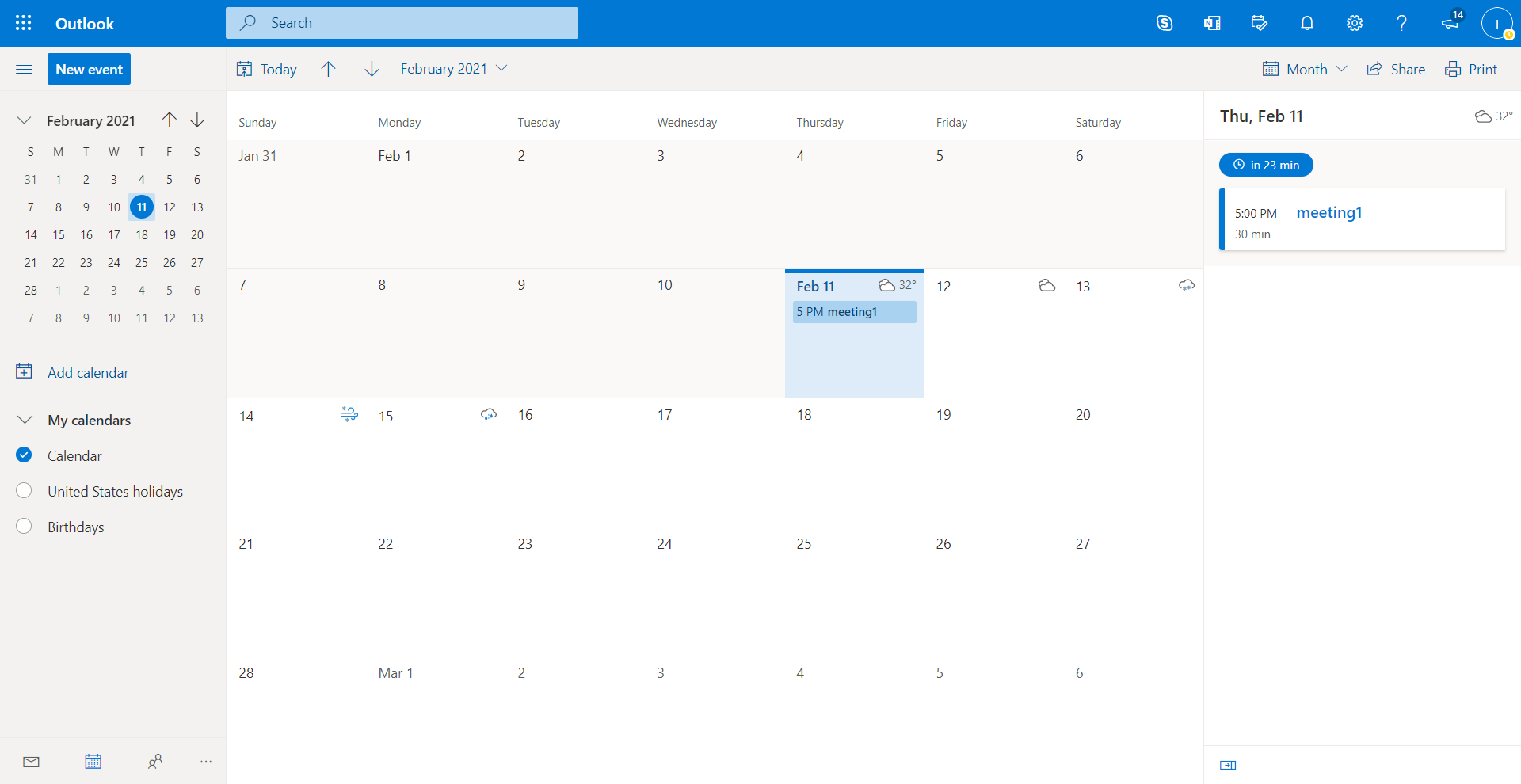
After creating your event you will see it listed on your selected date in your Calendar.
Tip: You can edit the event's at any time by single clicking on it to quick edit, or double click on it to edit in more detail.