On PC : Teams
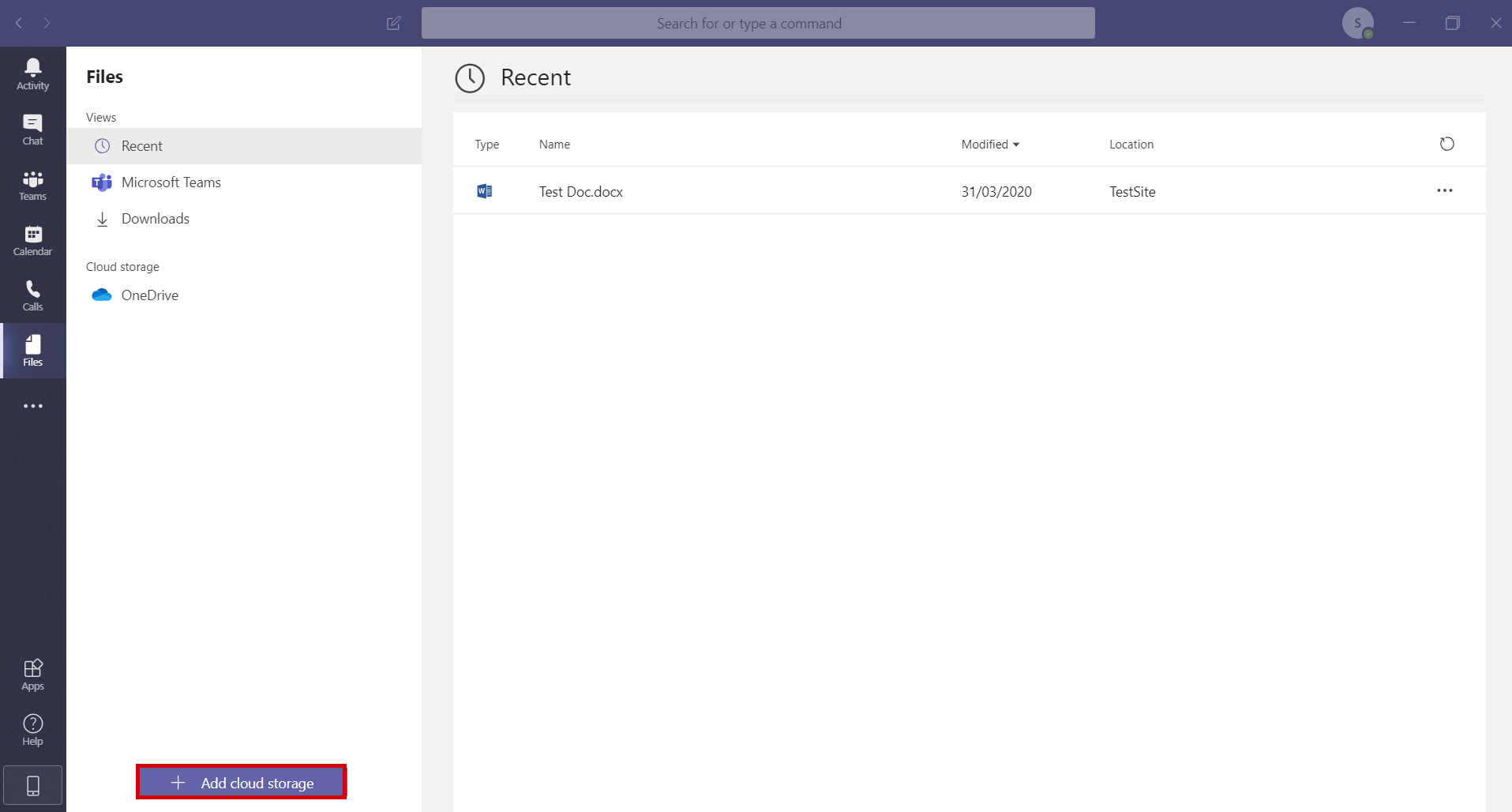
You can download teams by visiting https://teams.microsoft.com
Sign in with the admin username and password you were provided with as part of your setup

Select Get the windows app.
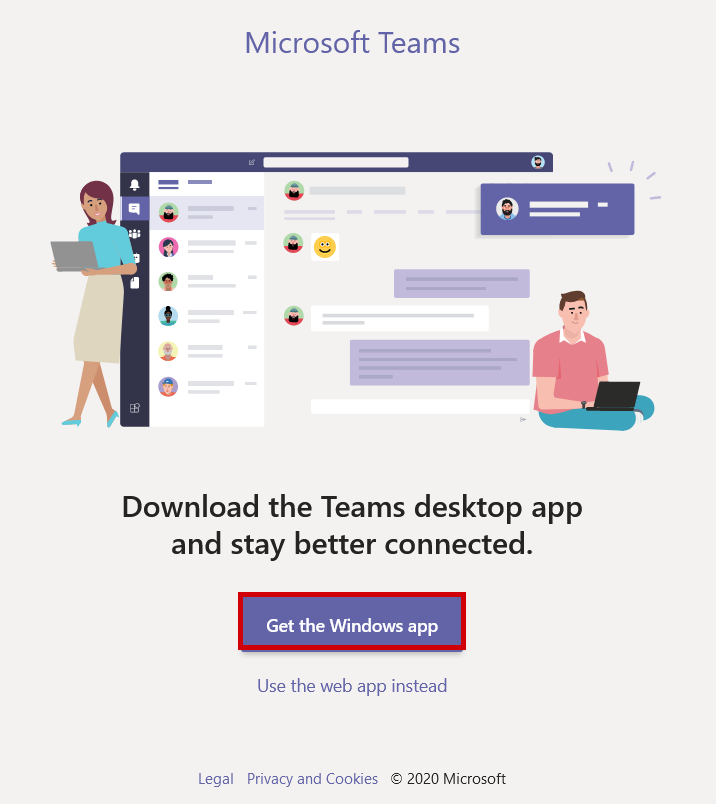
QCreating Your First Team
Select Create a team
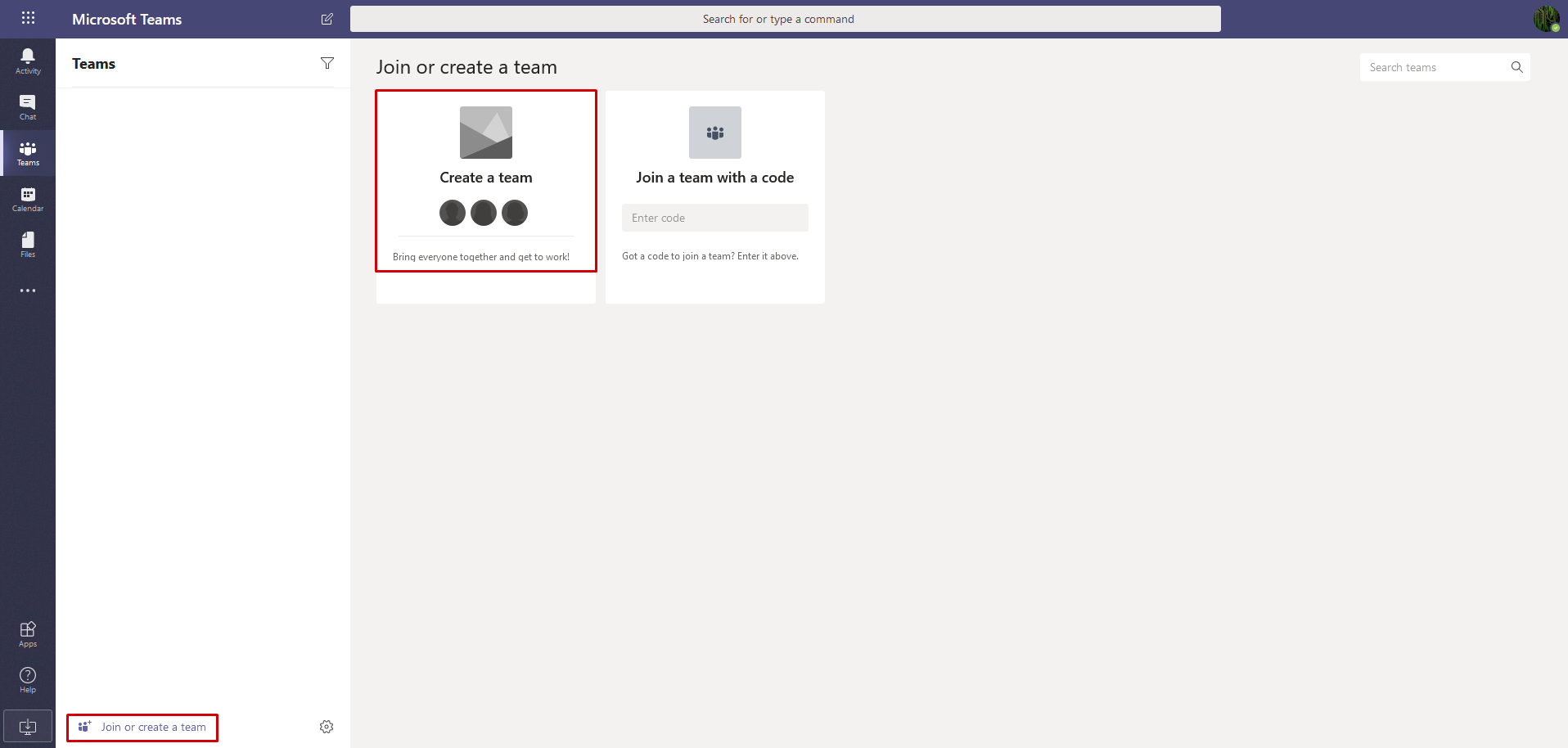
Select Build a team from Scratch.

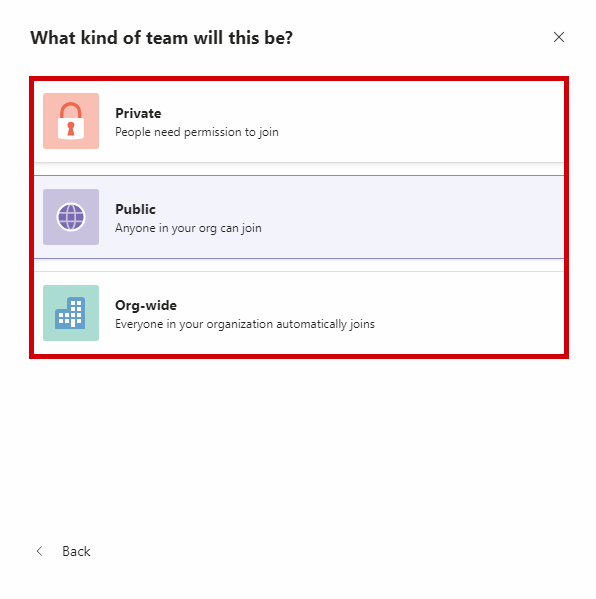
Choose what type of Team you would like to create
Give your new Team a name, and optionally a quick description then click Create.

Your new Team will be created and ready to get started

QAdding a new channel
Apart from the automatically created General channel that's created with a new Team, you can create additional channels for more specific conversations. To do this, select the ... icon next to the Team you would like to create the new channel for and select Add Channel

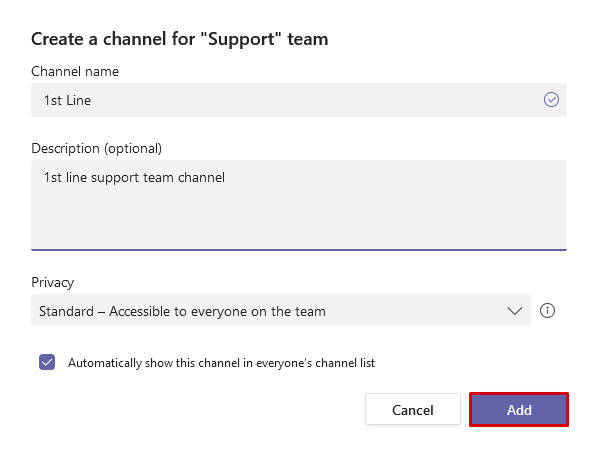
Enter the details of the new channel and optional description. Choose your Privacy details and whether or not you would like the channel to be shown in everyone's channel list.
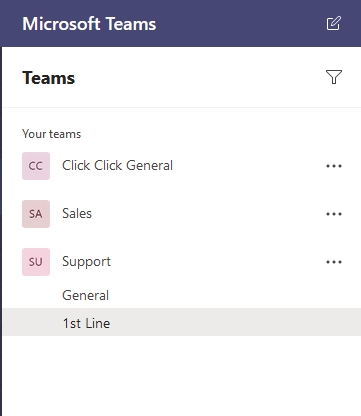
Your new channel will show under your Team
QAdd team members to a channel
As well as create a company wide channel where everyone on your Microsoft 365 domain will be added and able participate, you may have teams created specifically for a department where you would want only members of that department involved. To add members to a Team, select the ... icon next to the Team you would like to add the new member for and select Add member.
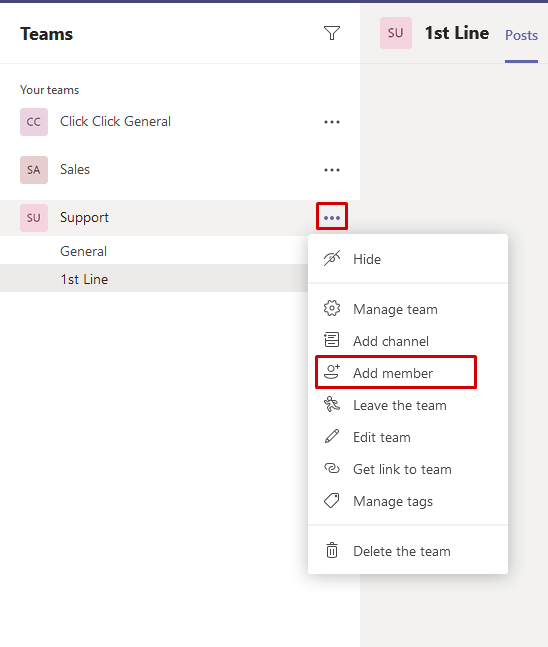
Type in the name of the individual or group you want to add to the channel and select Add.

QRemove a team member from a channel
To remove a team member from a channel, Select the ... icon next to the team you would like to remove the Team member from and select Manage Team.
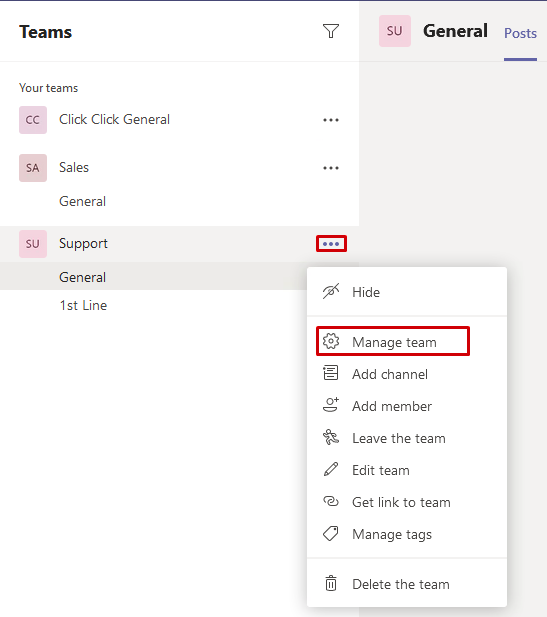
Under the Members tab then under the Members and guests sub section, click on the X icon to remove that team member

QSearch for other Team members and start a conversation
Left click in the long search bar at the top of the application and type the name of the person you wish to find then left click them

QAdd another Team member to the conversation
Click the Add person icon in the top right to bring up a search prompt
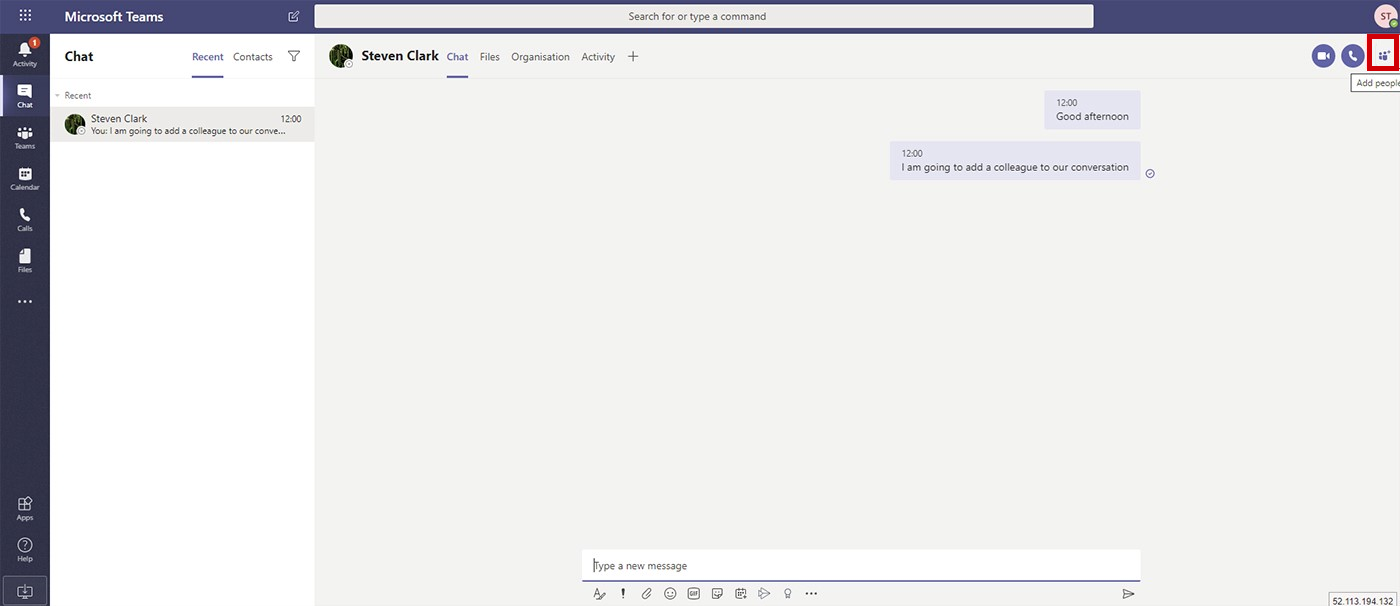
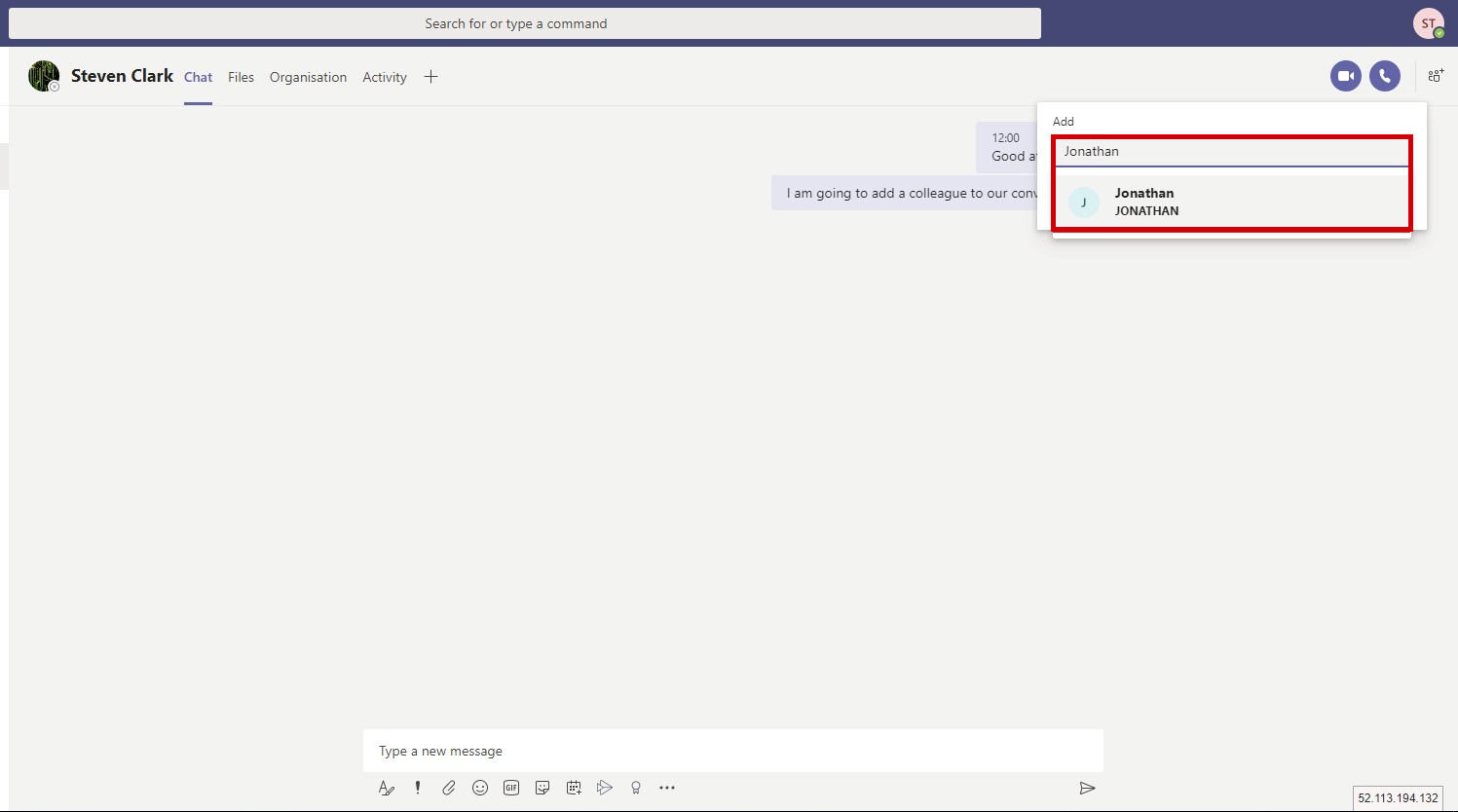
Type their name and then select it from the list to add them
You will then see their name listed in the conversation participants at the top:

QStart a video call
Click the icon highlighted from the figure below
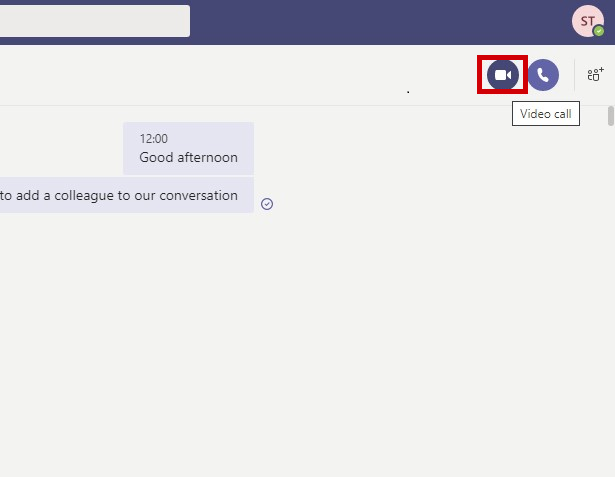
If using a browser, you may be prompted to confirm you wish Teams to have permission to use your camera and microphone

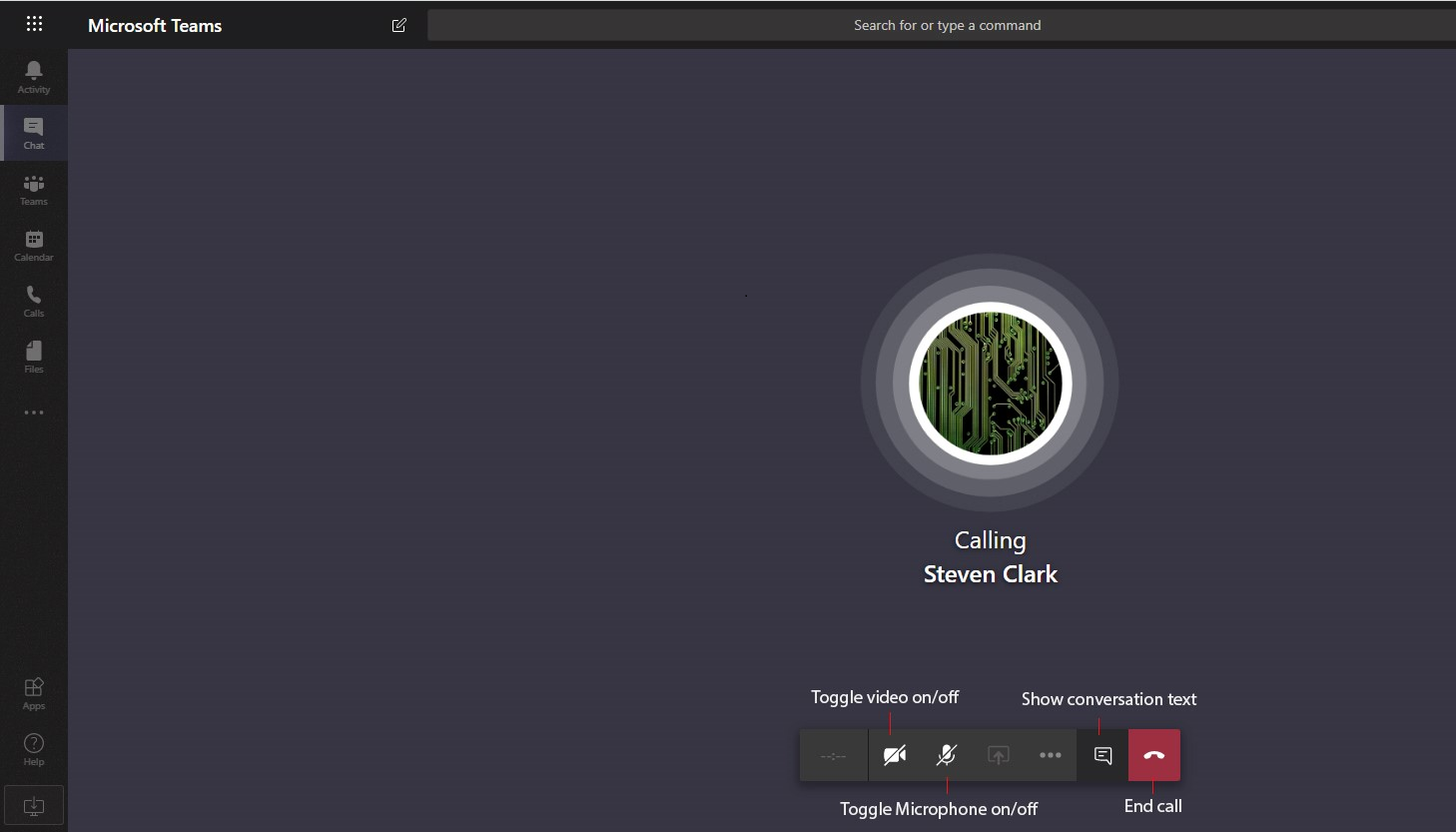
After the call is accepted the conference will commence
QStart a Screenshare sesson
Start a chat with the user you wish to screenshare with and then select the screenshare button. Screensharing is currently only available on the desktop applicaton
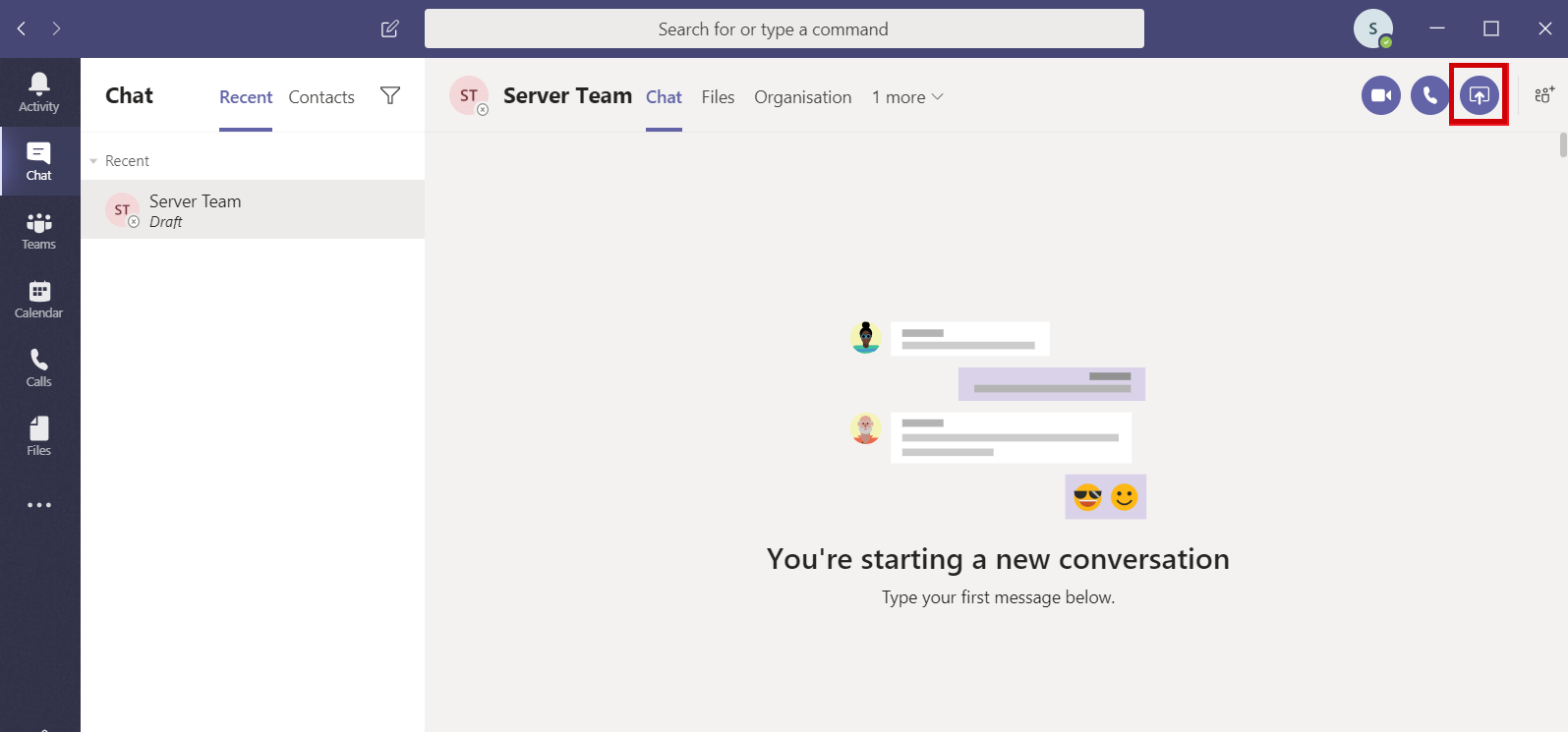
If you have multiple screens select which one you would like to share.

This will then open a new window and allow your select colleague to view your screen.
QCalendar
The calendar shows any meetings or other important reminders that you add to teams.

Click on "New Meeting" to add a new meeting, fillout the details and then save to send out the invites.
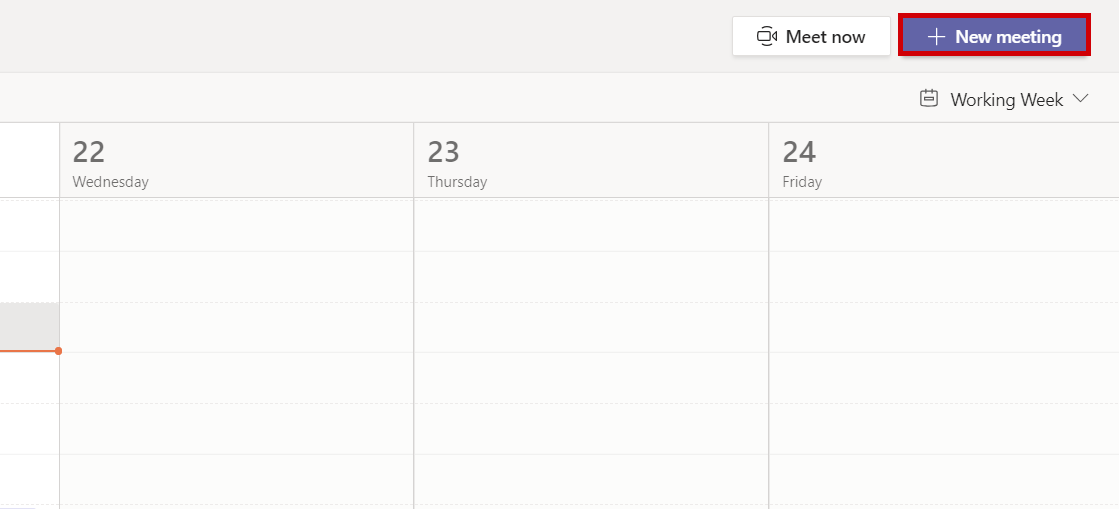

The meeting then shows on the main calendar screen.

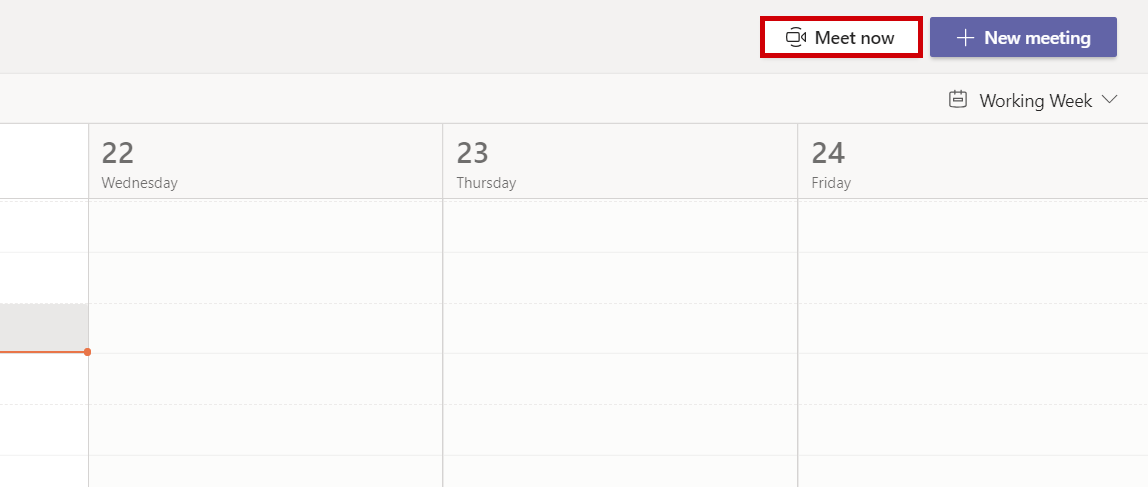
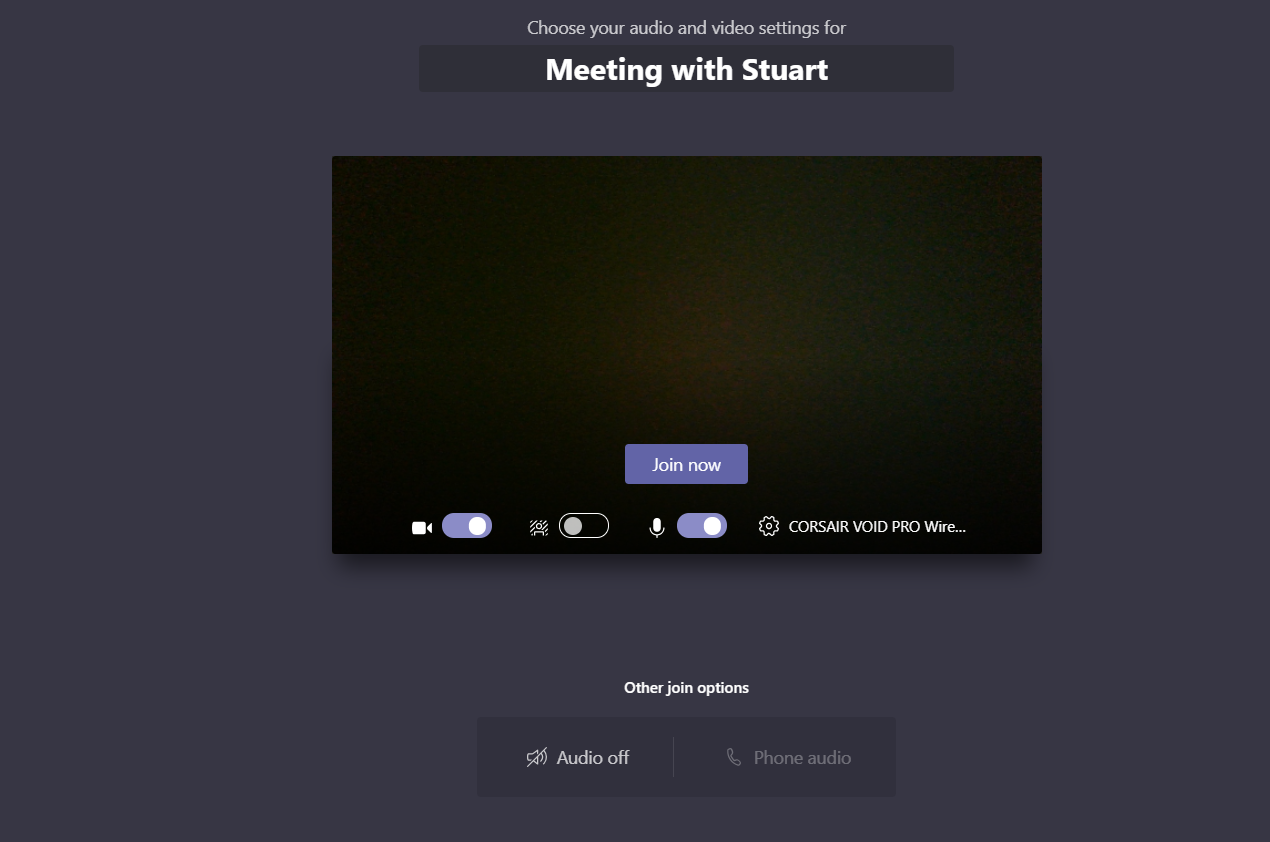
You can click on "Meet Now"to start an immediate meeting with audo and webcam functionlity available
QFiles
Click files on the menu bar to see any files you have uploaded or that have been shared with you on sharepoint.
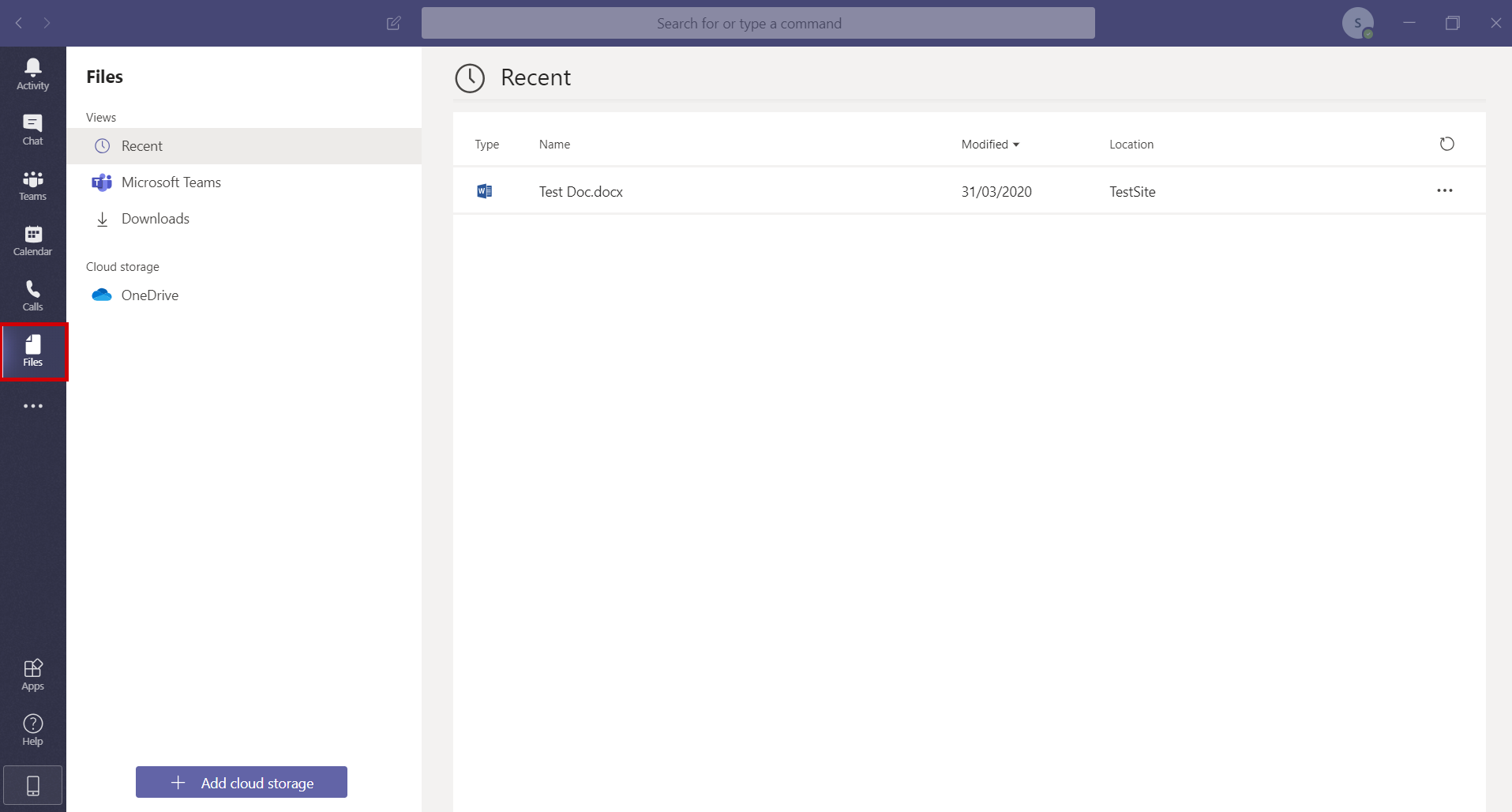
Your Onedrive account is automatically added, however if you have other cloud storage you wish to add click on "Add Cloud Storage" This will allow you to add other cloud storage providers such as Dropbox or Google Drive.