
Download and install office on Mac
1
You can access the Microsoft 365 Portal by visiting https://login.microsoftonline.com
2

Sign in with the admin username and password you were provided with as part of your setup
3
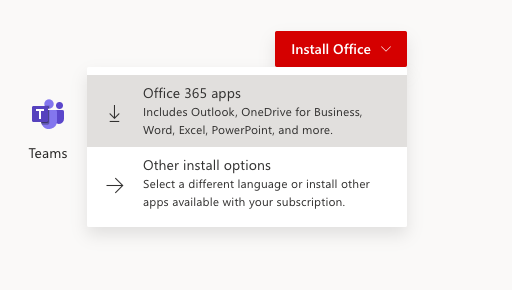
Select Install Office from your Apps menu
4a

Once downloaded, locate the Microsoft Office package installer using Finder
4b
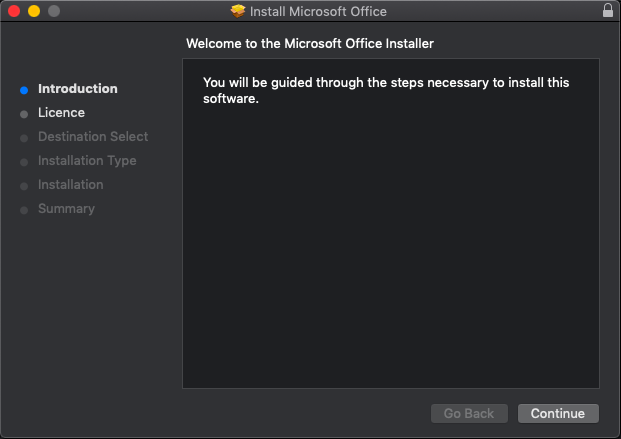
Open to start the Office Suite installation
5a

Continue the software licence agreement page to Agree
5b
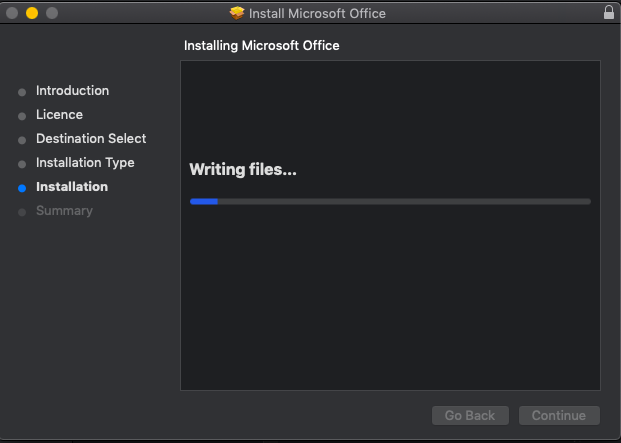
Continue on with the installation
5c
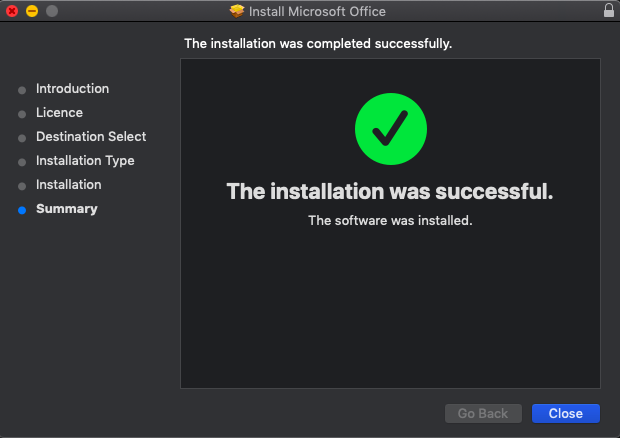
Once completed you will get a success message
6
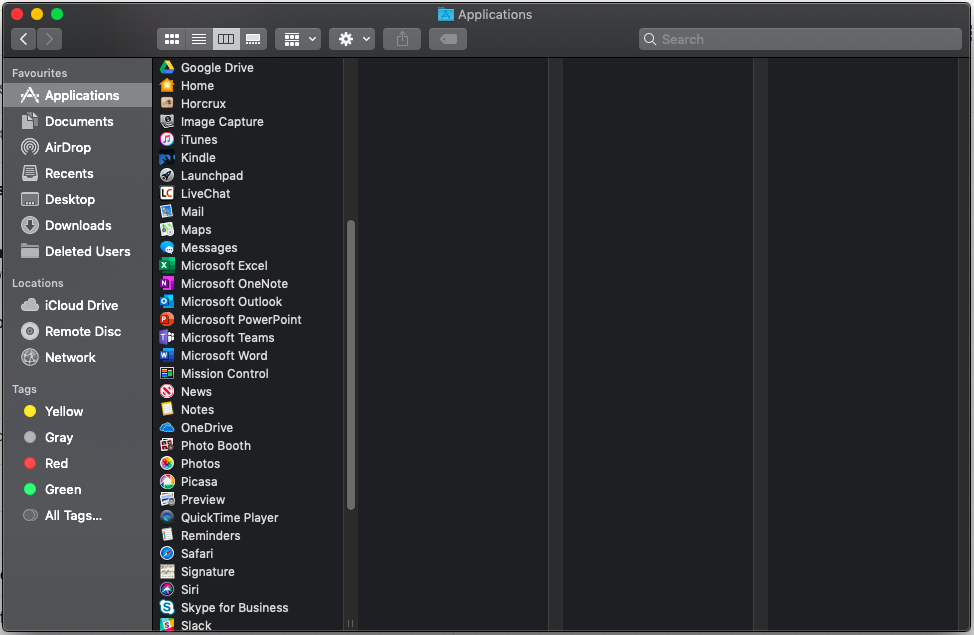
Close the installer and go back to Finder then select Applications and you should see the available applications installed from your Office Suite