
Online : Outlook
You can access the Microsoft 365 Outlook Web App by visiting https://login.microsoftonline.com and sign in with your email address and password.
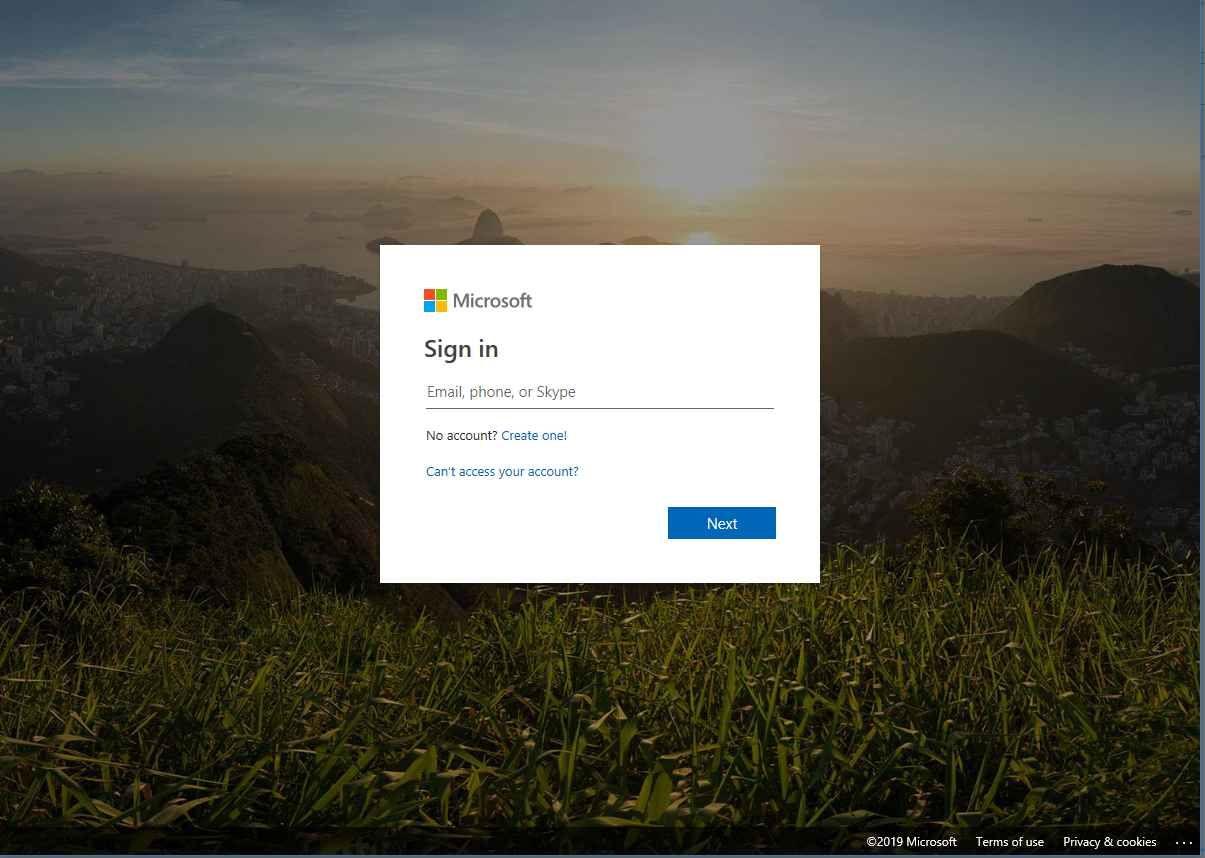
Haven't created your Microsoft 365 email address yet? See: Microsoft 365 (GENERAL)
Once logged in you will see a list of the web applications applicable to your Microsoft 365 Licence. Select Outlook from your online web apps.
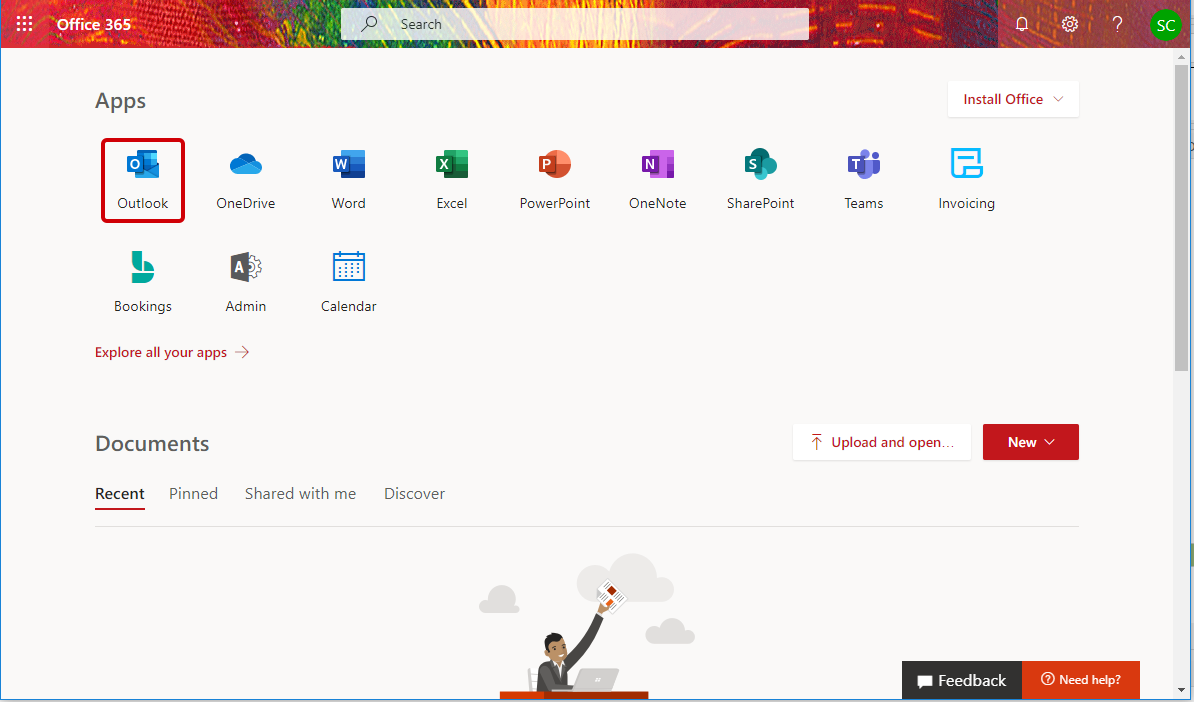
You will be then presented with your email. Clicking once on an email will allow you to view the email in the preview pane to the right.

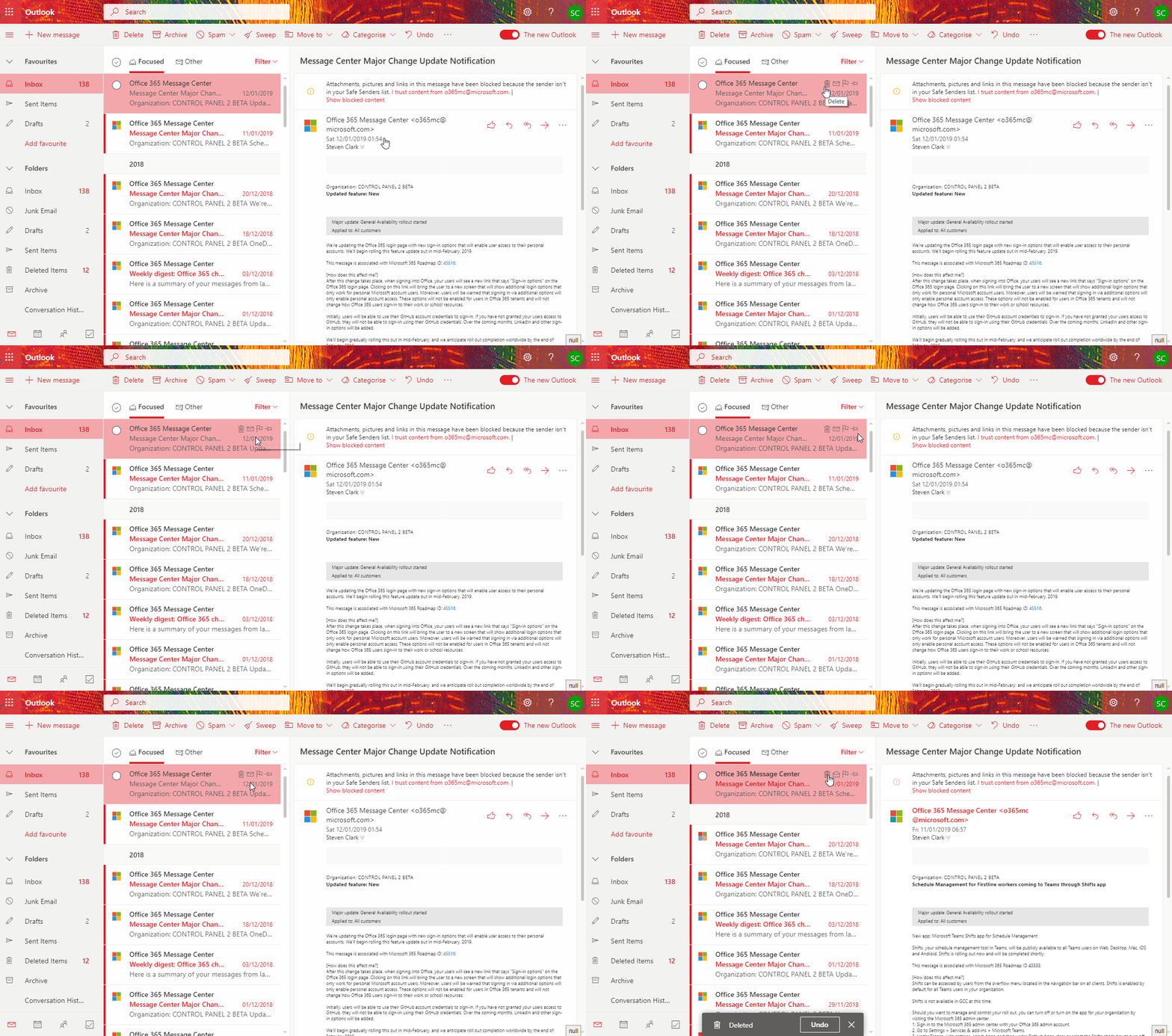
From here you can use some of the quick icons to manage the email.
Like, Reply, Reply All, Forward and More Actions

Hovering over the message also gives you more options to manage the email, including the option to Delete the emails quickly.
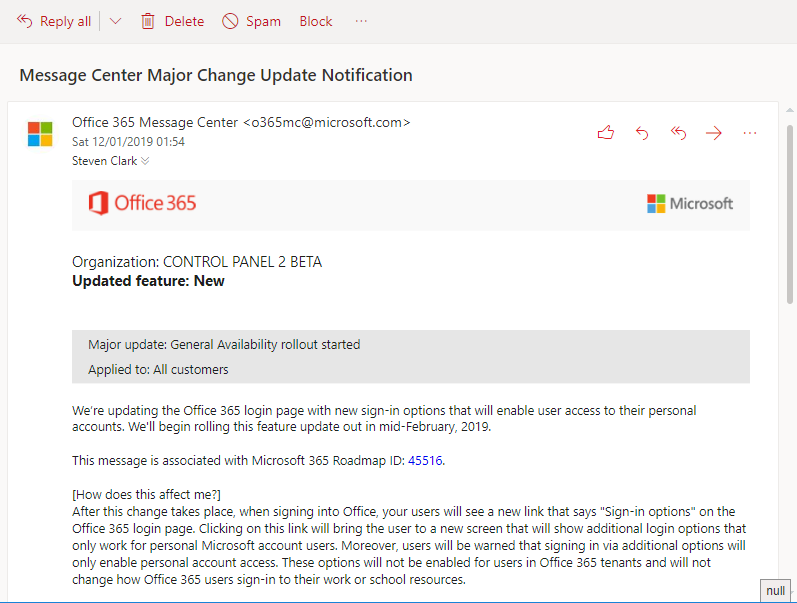
Double Clicking the email will open the message up in a separate window with similar options to manage the email including mark as Spam or Block (the sending email address)
The Outlook Web App also has some responsive sub-menus that can be accessed by clicking the secondary button on your mouse over a folder or email.
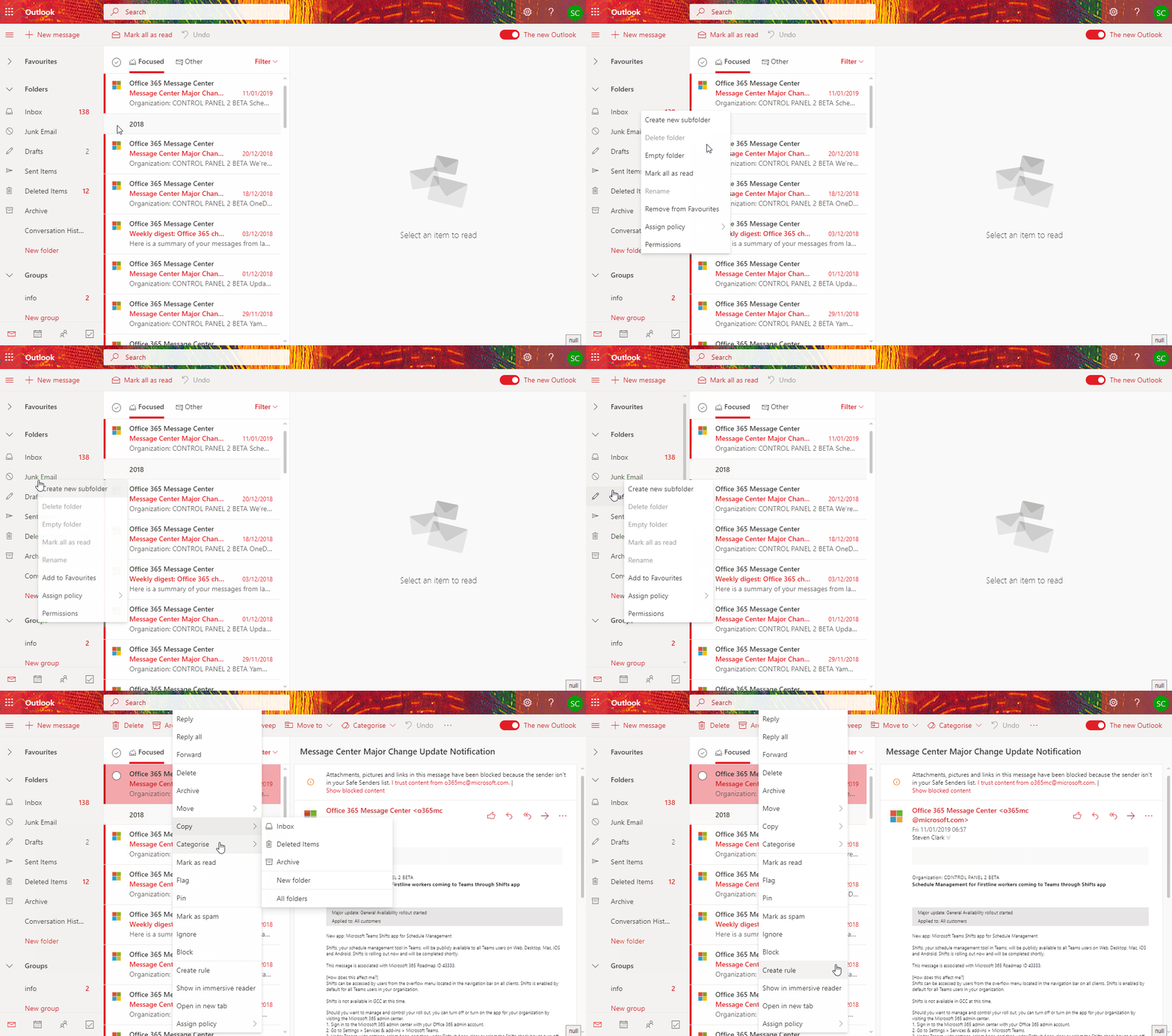
You will see a list of tasks such as Create a New Folder, Mark all email as Read when clicking your folders and when clicking on an email it gives you the full list of options of what you can do with the email.